Article
Source
Doc
| Category | GMC |
|---|---|
| Type | Doc |
| Last Modified | 24 October 2025 |
| Location | Guides, SOPs & Policies (GMC) > Internal Guides |
GMC Cross-Property Tracking Set Up (Internal Guide) | OCT 2025
From FAQ-Off, the Calibre9 knowledge base
This task ensures that Google Merchant Center is properly linked to key Google properties for seamless data tracking and campaign optimisation.
Expand each section to reveal.
Google Merchant Center to Google Analytics 4
| |
|---|---|
Head to Settings > Access and services > People and access
Check if the C9 account where the client’s GA4 is housed has been added as an Admin. If not, click Add person, enter the account and hit Next. Select Admin from the list of access types and click Add user. | 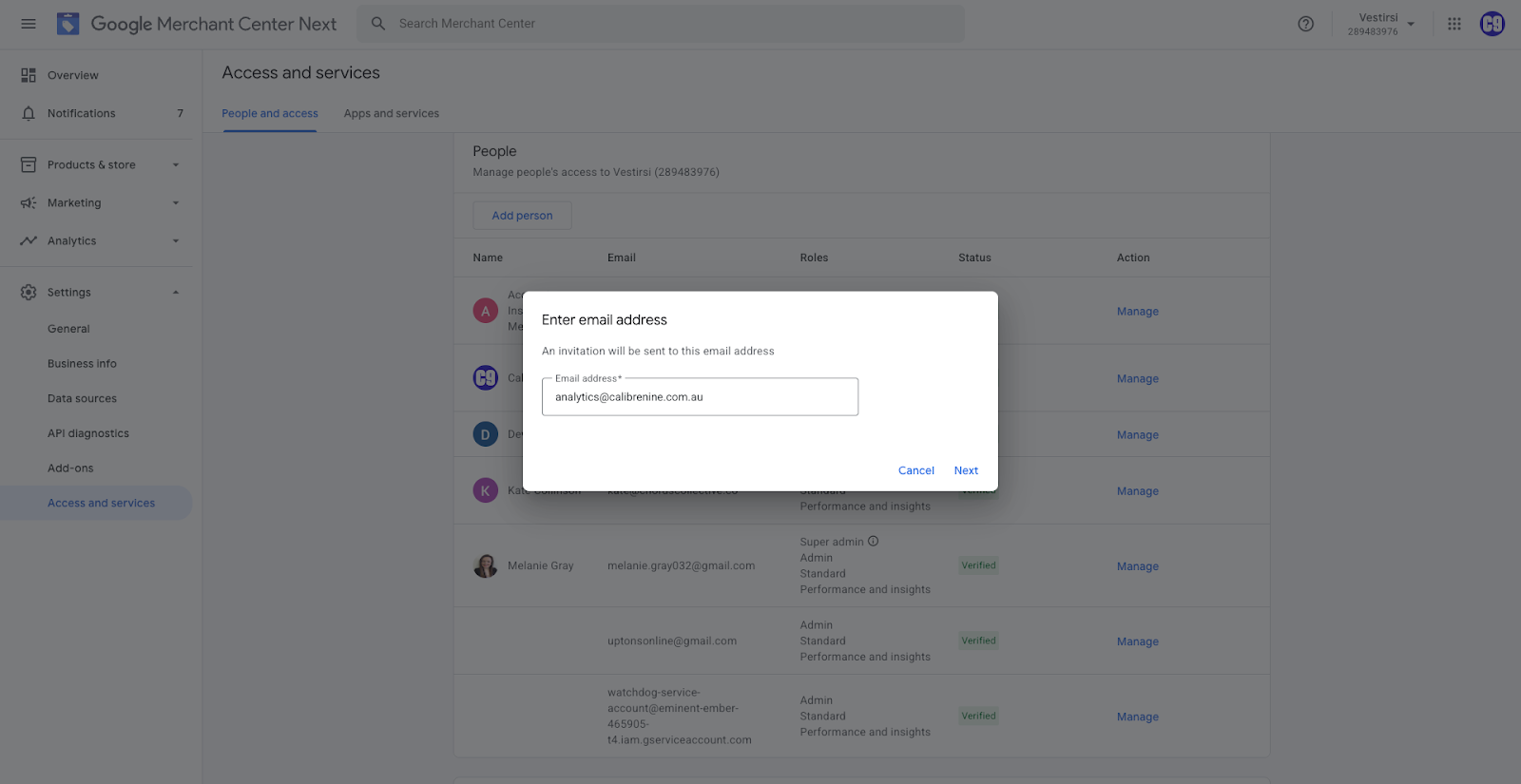 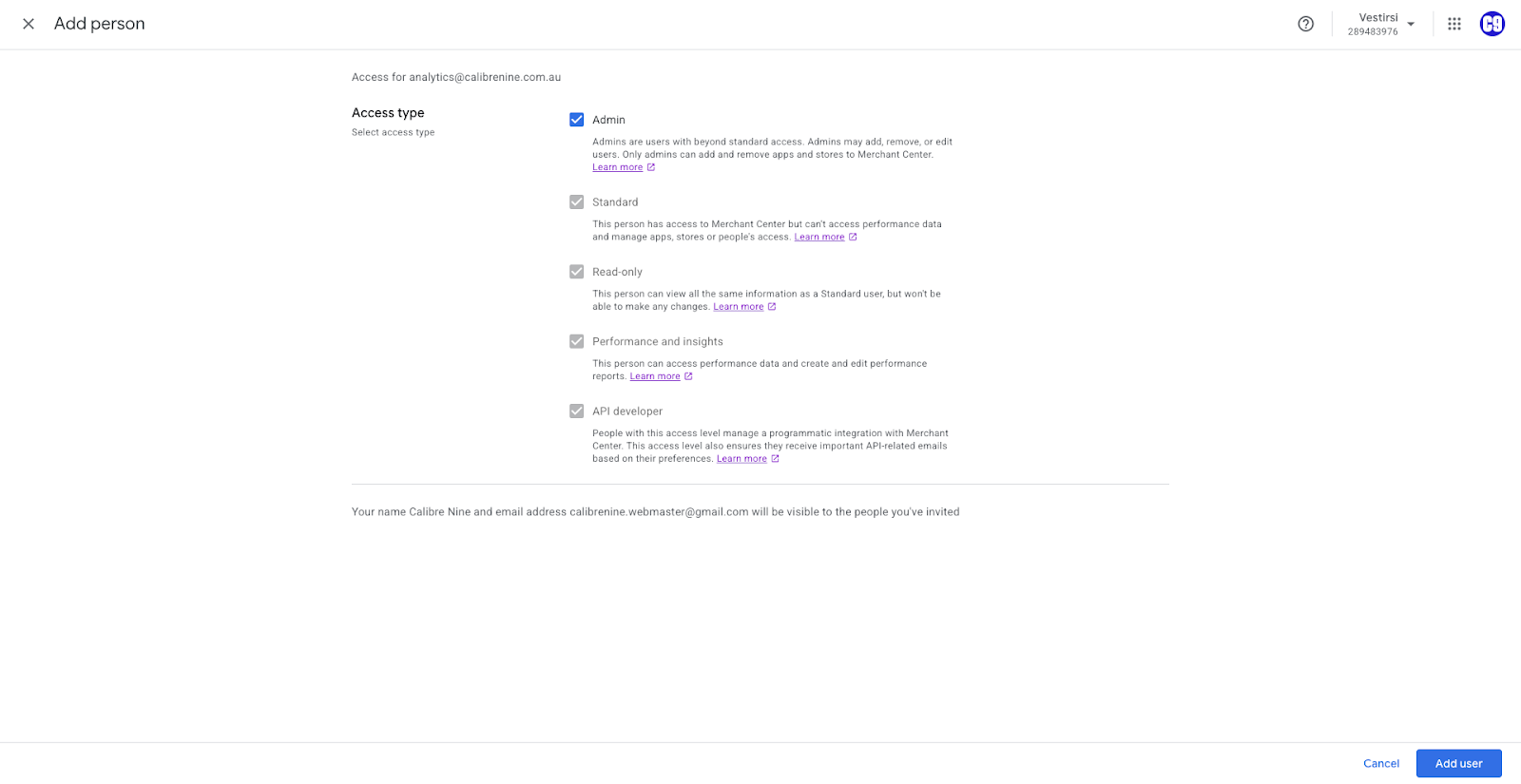 |
Head to the account’s email and click Accept. | 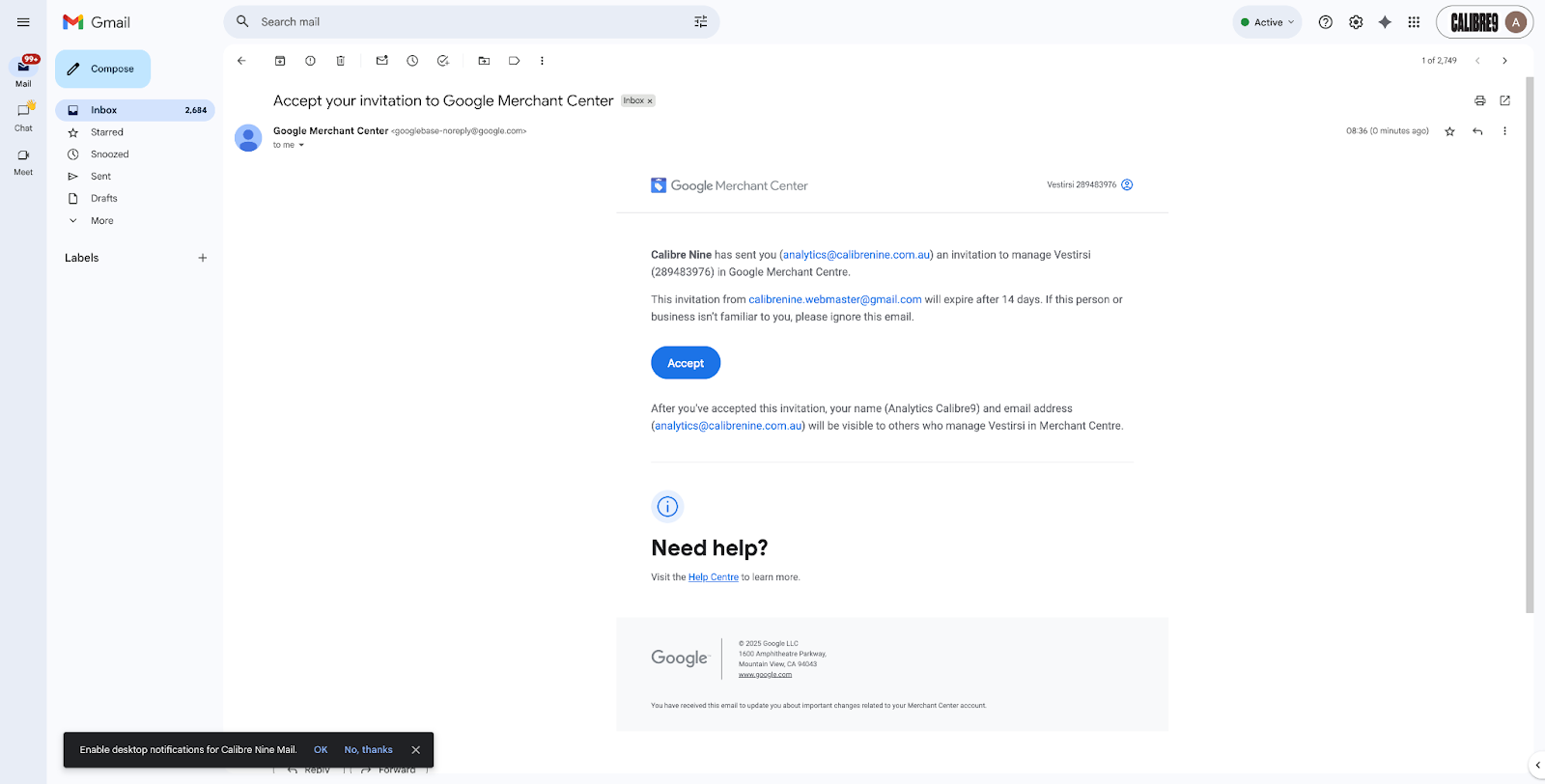 |
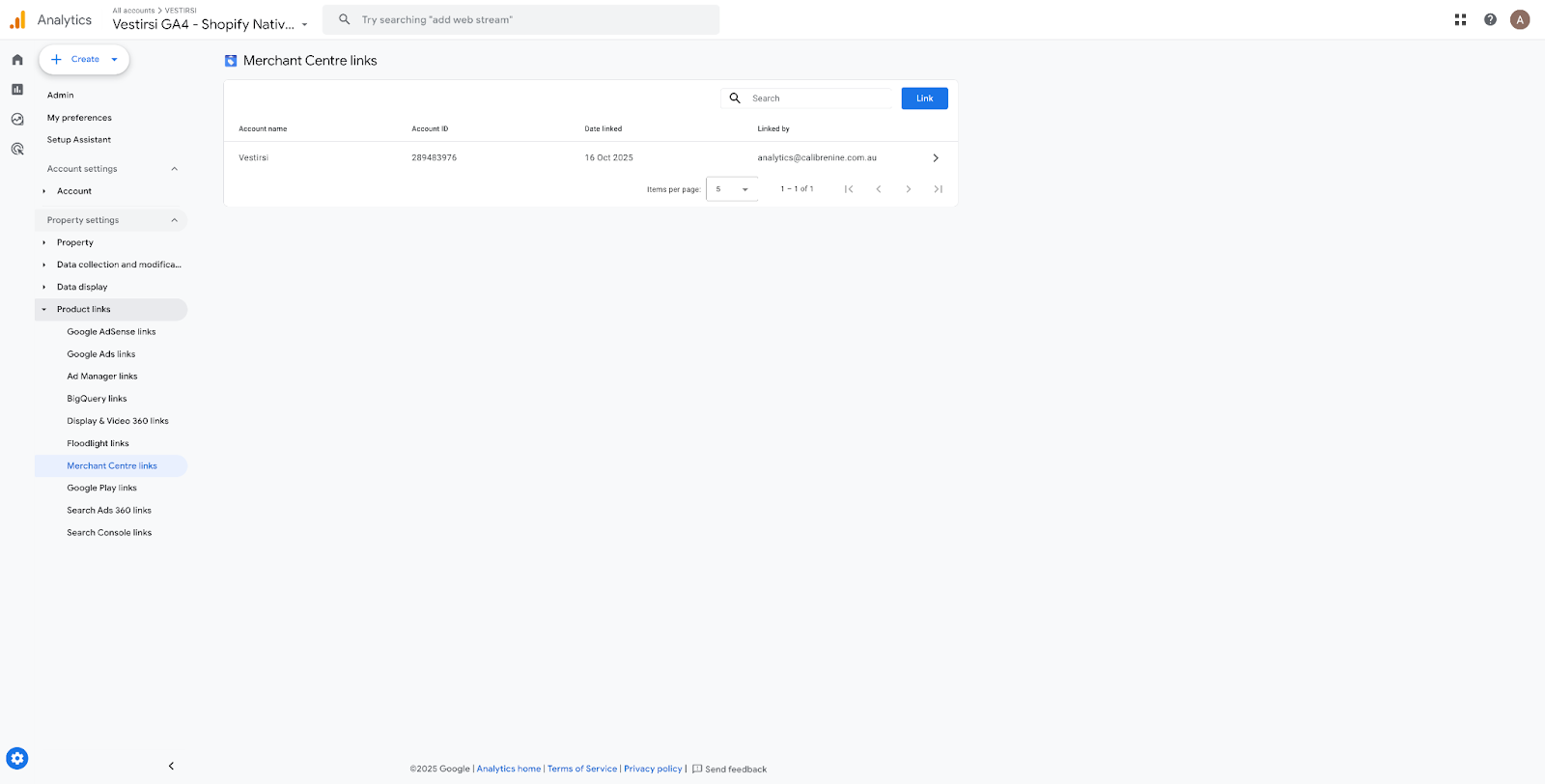
In Admin > Property Settings > Product Links, select Merchant Center links Hit the blue Link button on the top right and this should allow you to create a link and prompt you to choose from Merchant Center accounts that C9 account has been given Admin access to. Select the client’s account from the list and hit Next. Configure the settings by enabling Auto-tagging. Do a final review and submit. | 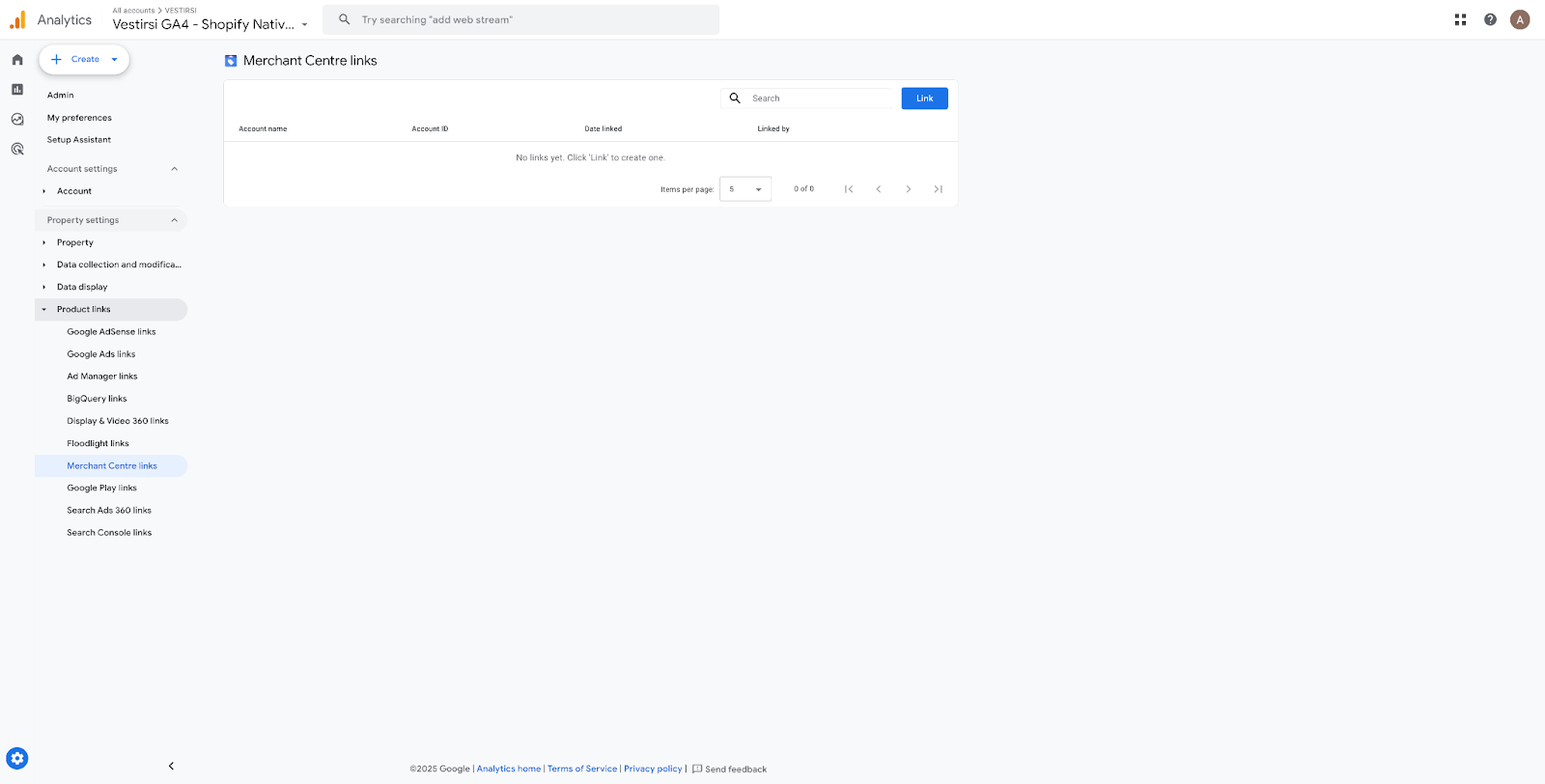  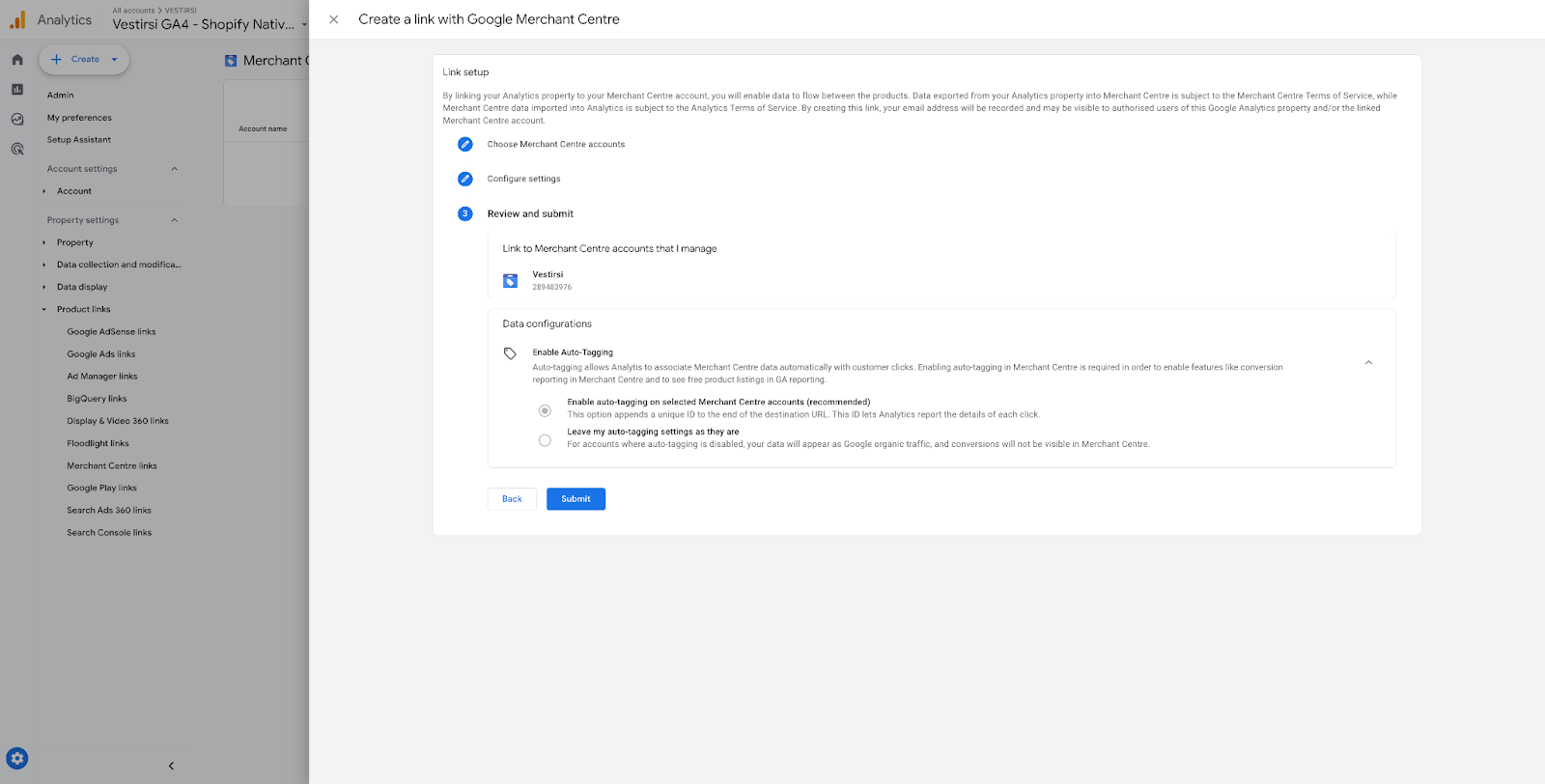 |
|  |
Google Merchant Center to Google Search Console
Select the client’s property from the list of properties in the top left corner. | 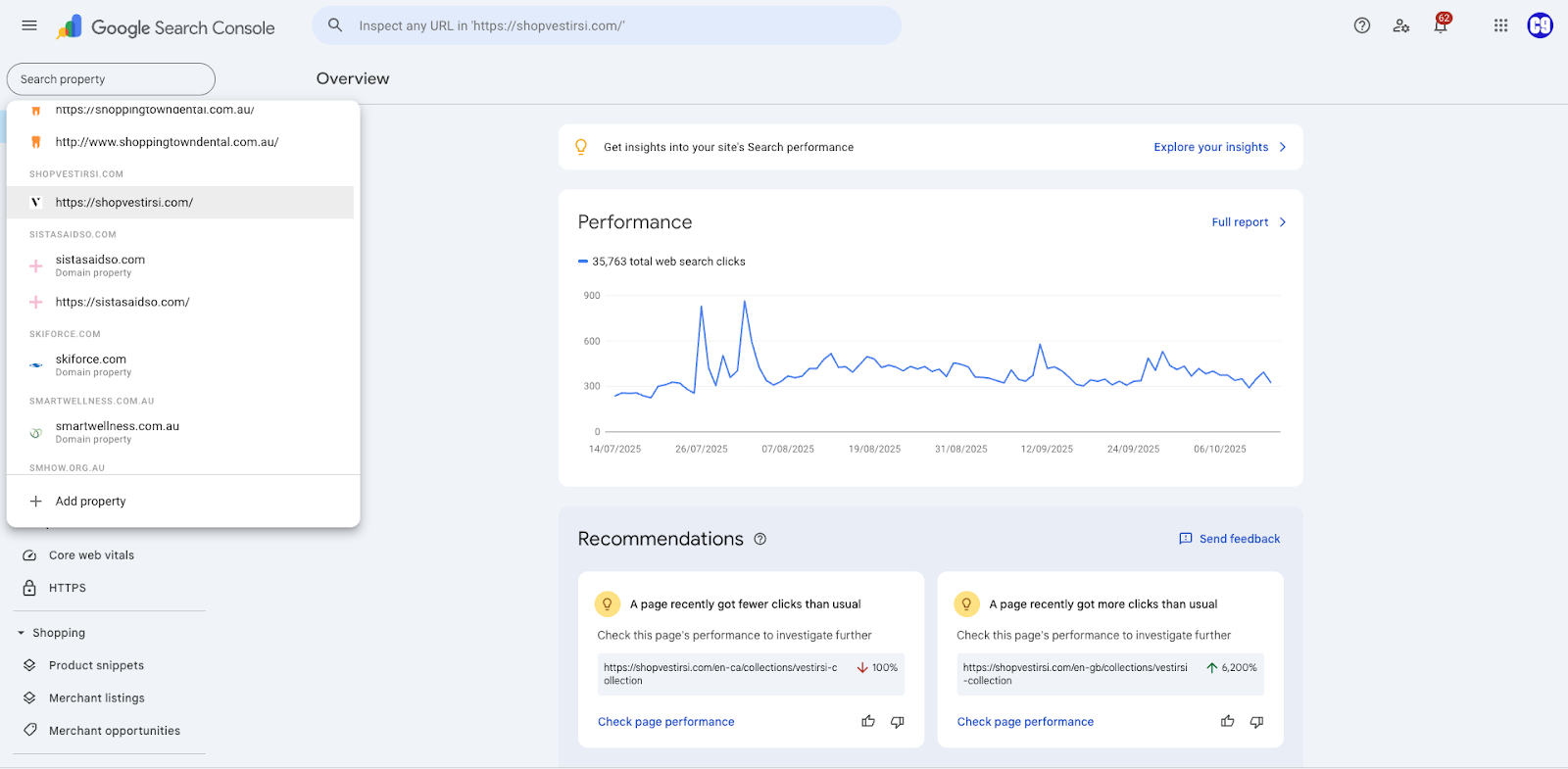 |
|---|---|
Click Associate account and hit Confirm. | 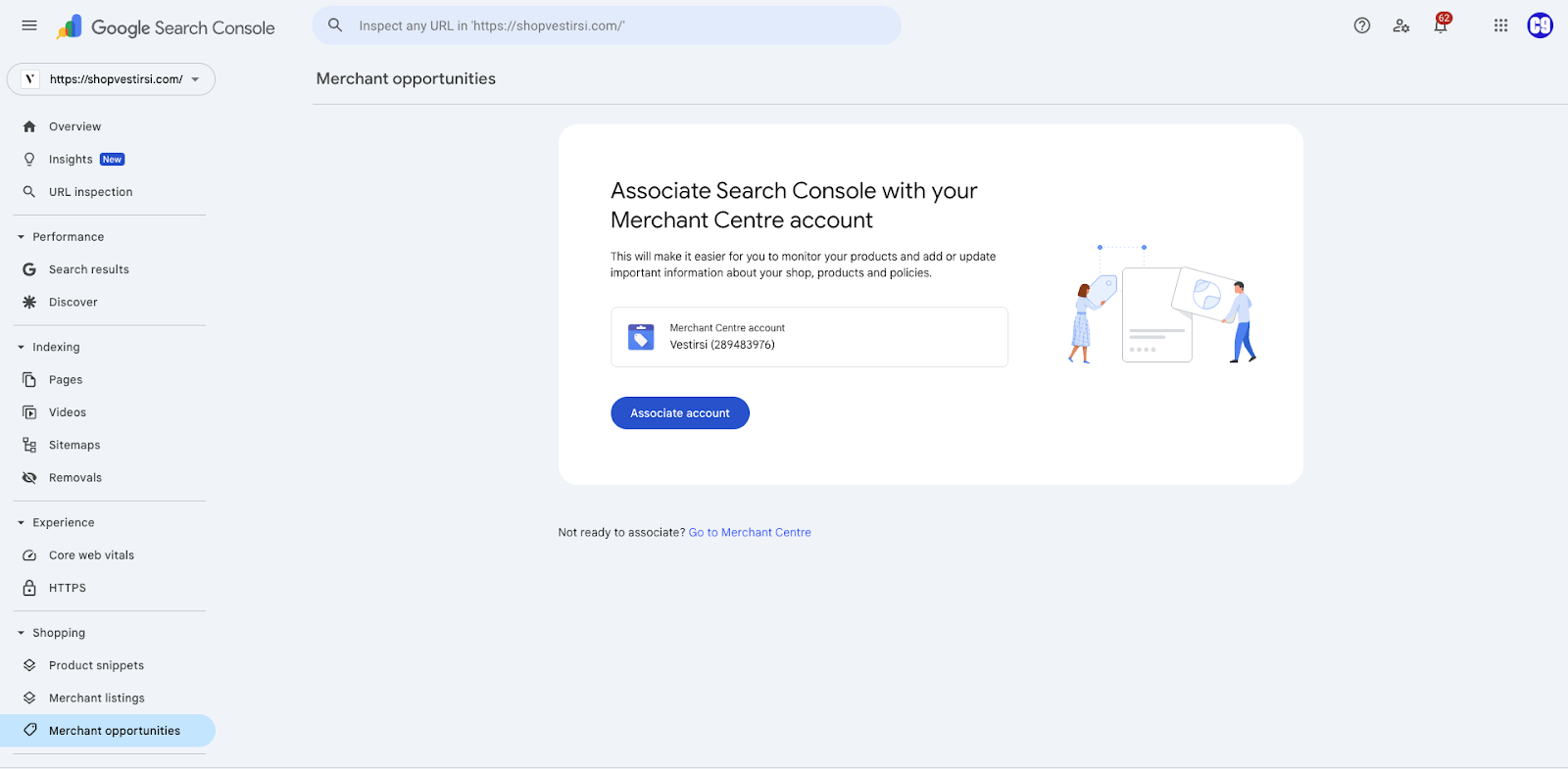 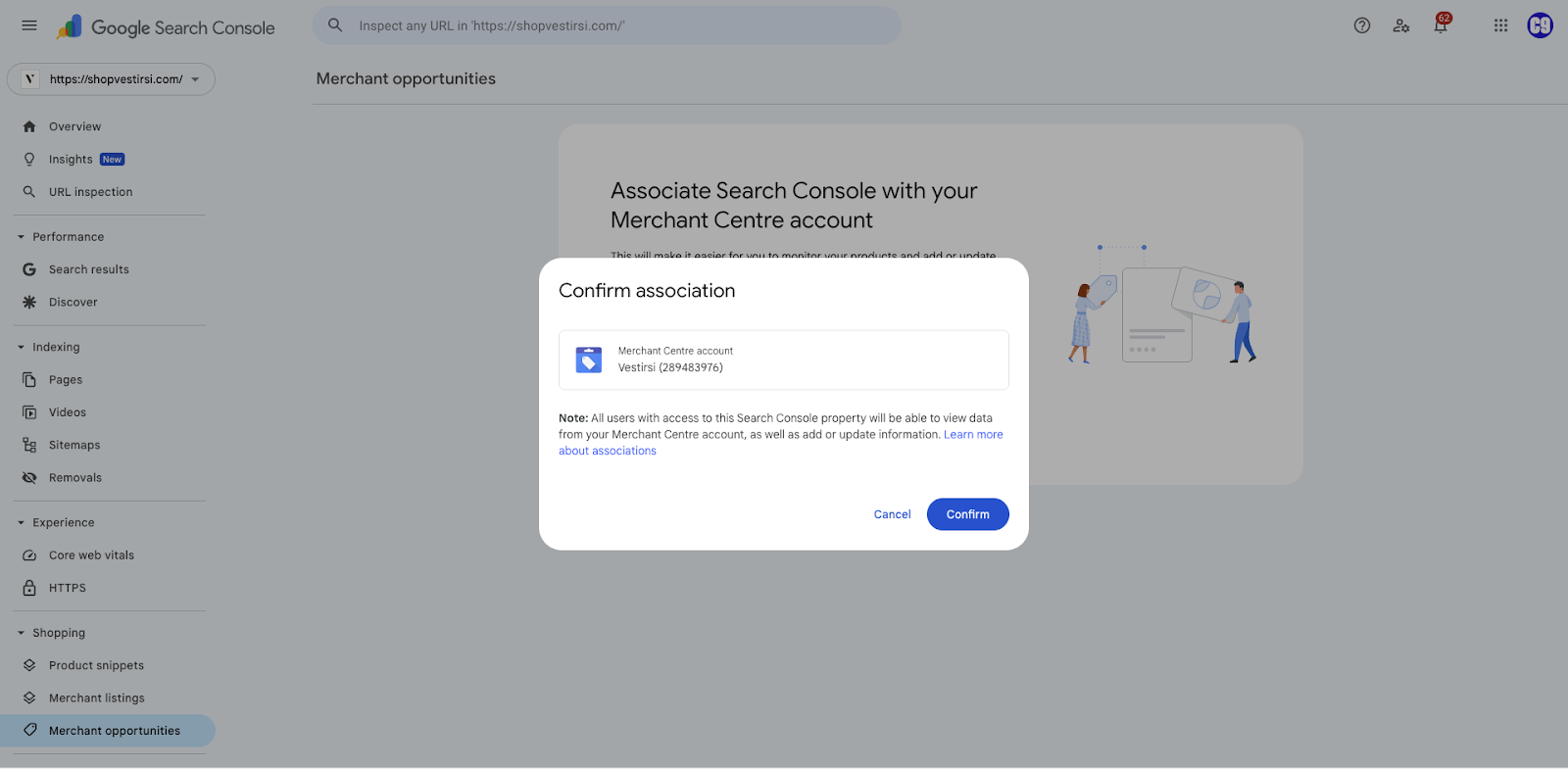 |
| 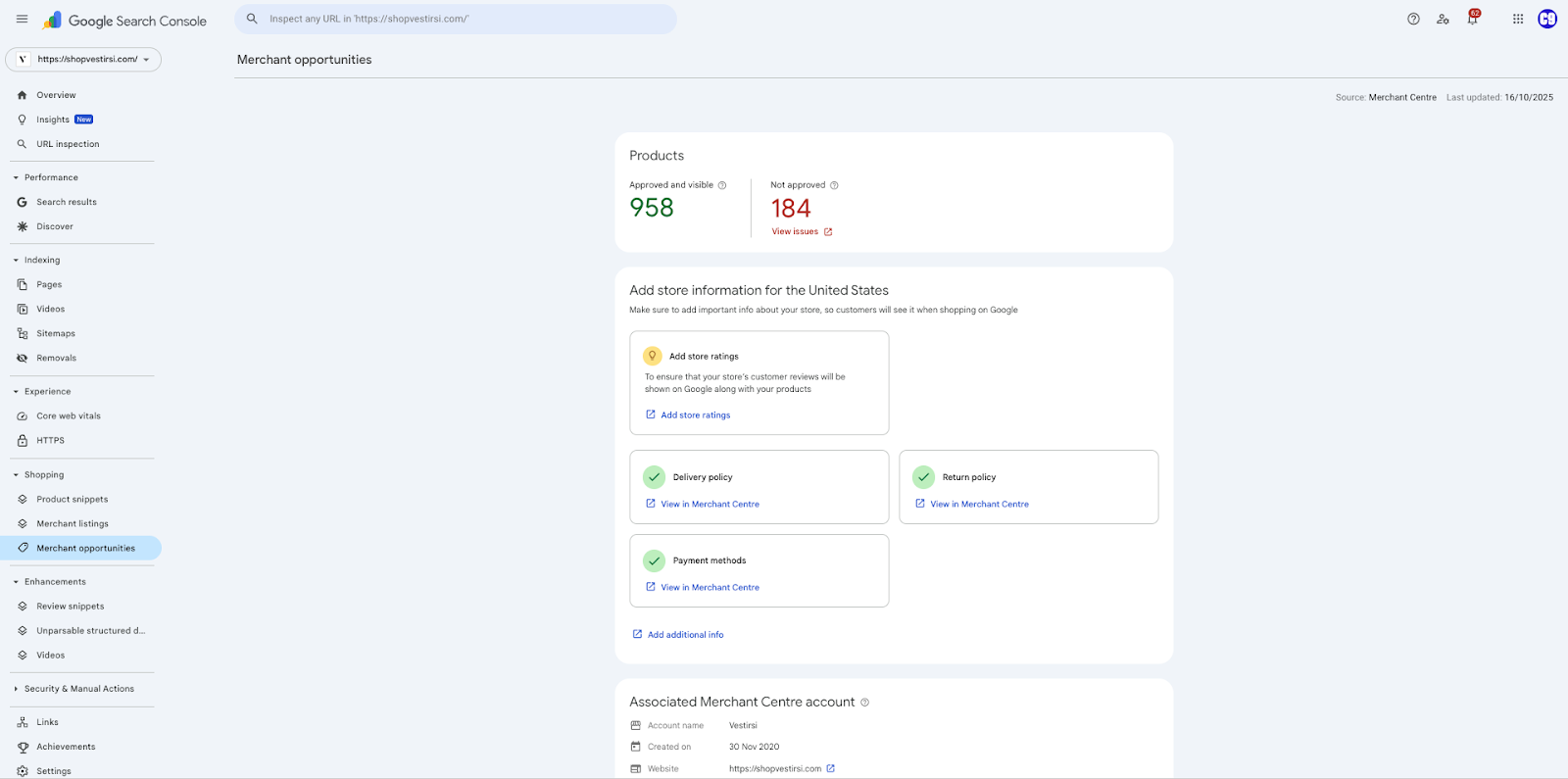 |
Google Merchant Center to Google Business Profile
WARNING: Only do this if we’re enabling Free Local Listings for the client’s physical store locations!
This is where you should be able to view all of the linked Google Business Profile store locations. If no profiles have been added yet, you first need to make sure calibrenine.webmaster@gmail.com has Super Admin permissions Check this via Settings > Access and services > People and access
|  |
|---|---|
With this, setting up the Google Merchant Link becomes easier. Easily navigate back to GMC Settings > Business Info > Shops. Select Add Profile, and you should be given a list of Google Business Profiles that calibrenine.webmaster@gmail.com has been given access to to choose from. | |
*SKIP THIS STEP IF IT WORKED* If the auto-Owner permission didn’t work, You would have to either do one of the following: OPTION A: Recommended
Send the client an email regarding a request to get that Primary Owner email to make calibrenine.webmaster@gmail.com as an additional Owner to all of their Google Business Profiles by following the steps outlined here: https://support.google.com/business/answer/3403100#addroles If you don’t see an email, it likely means the Primary owner is a Business group/agency rather than a person. In that case, GBP doesn’t reveal an email address from this screen so you’ll have to ask the client about that. OPTION B: If the client doesn’t want to give us Owner Permissions
This will prompt you to send a link request to the current owner of the Google Business Profile. If you don’t know the email of the Primary Owner of that Business Profile, you will need to request that information from the client. | OPTION A:
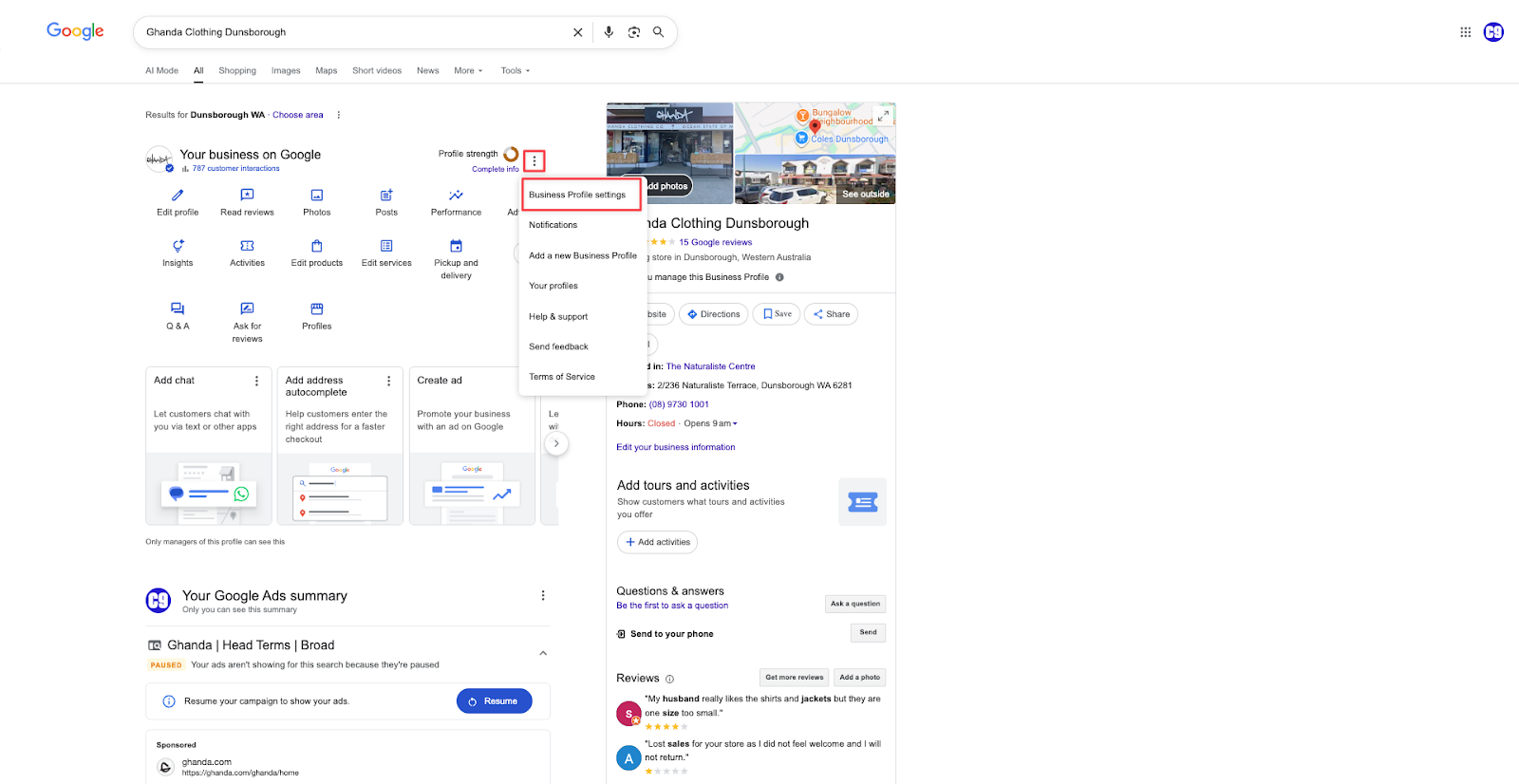  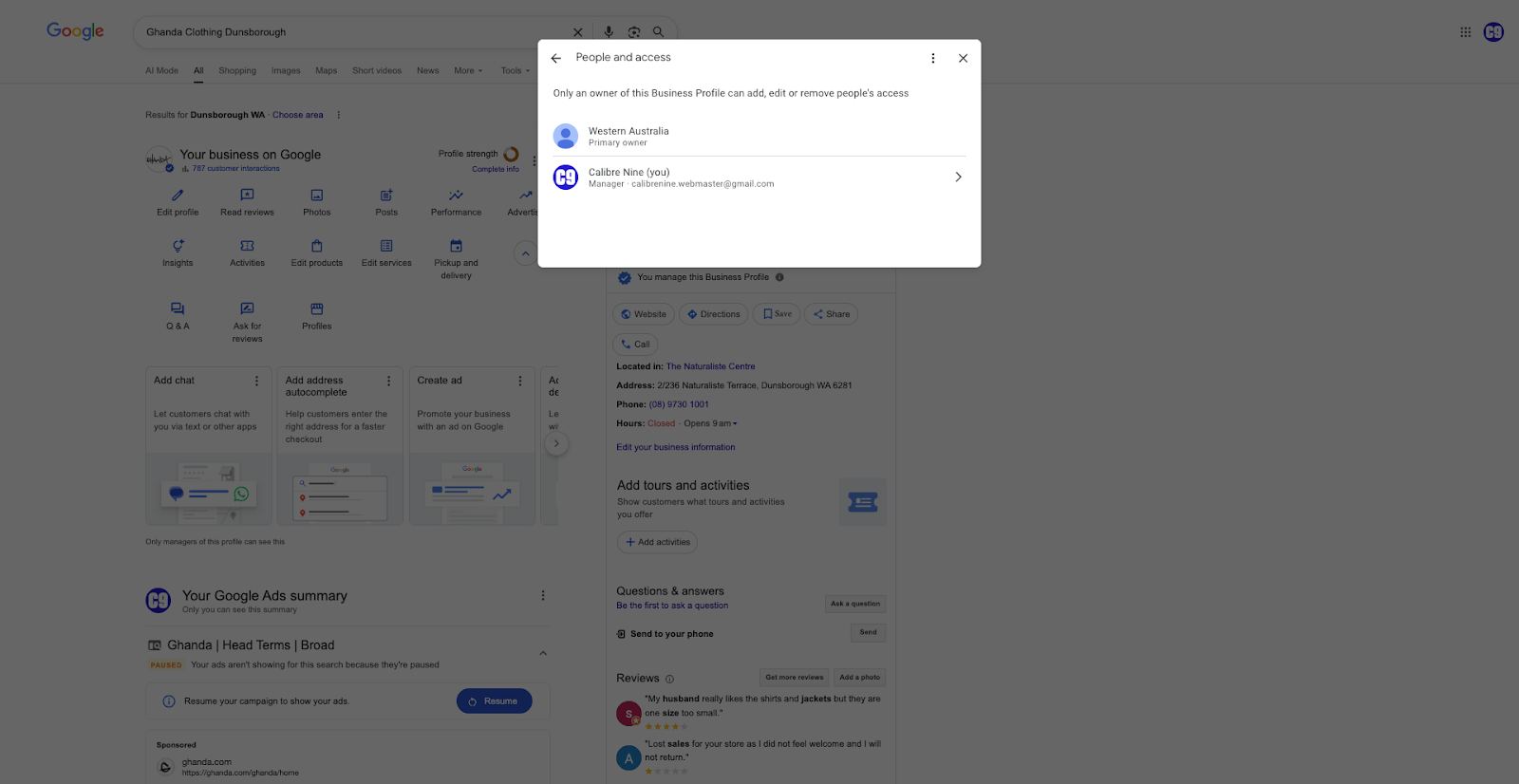 OPTION B:
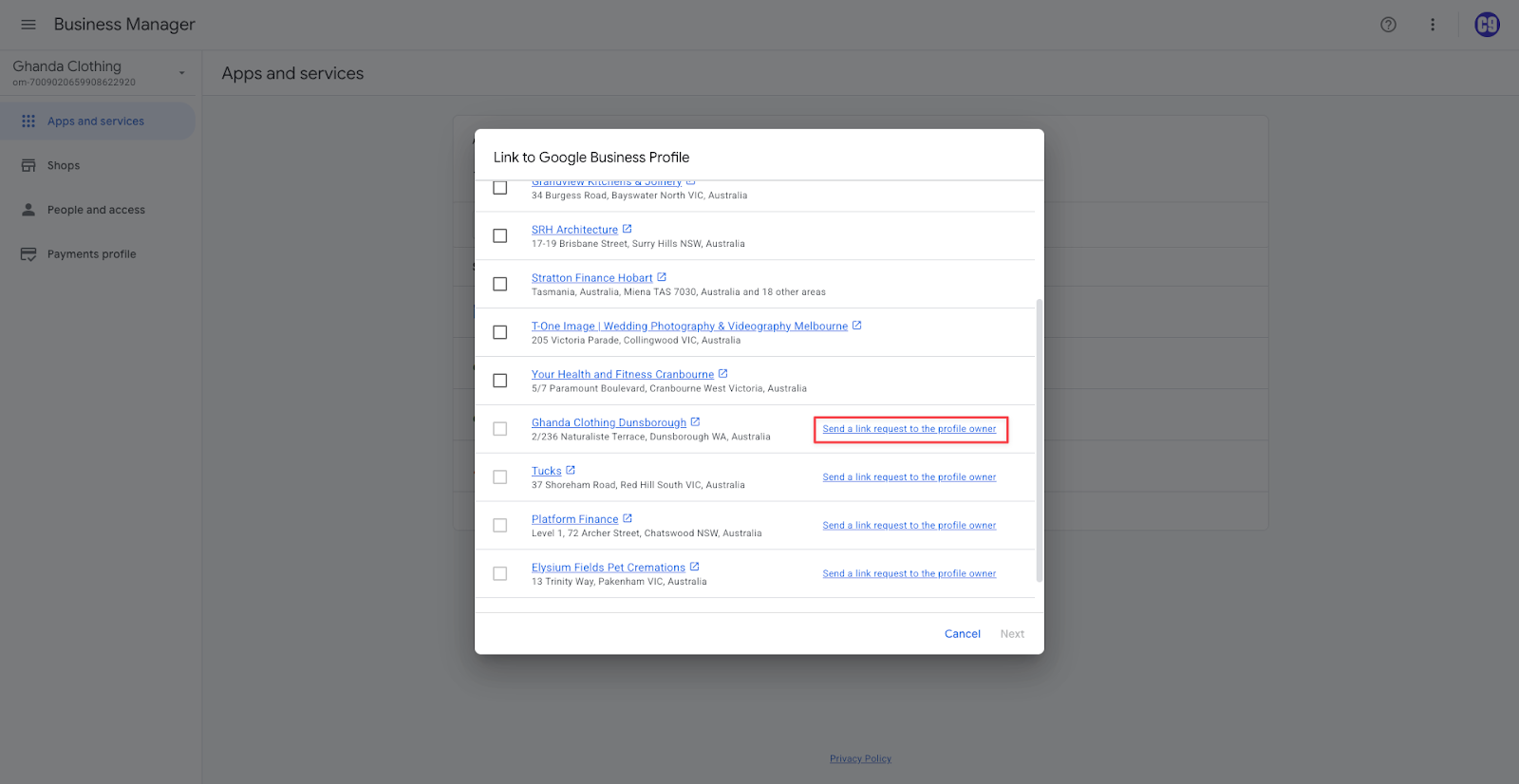 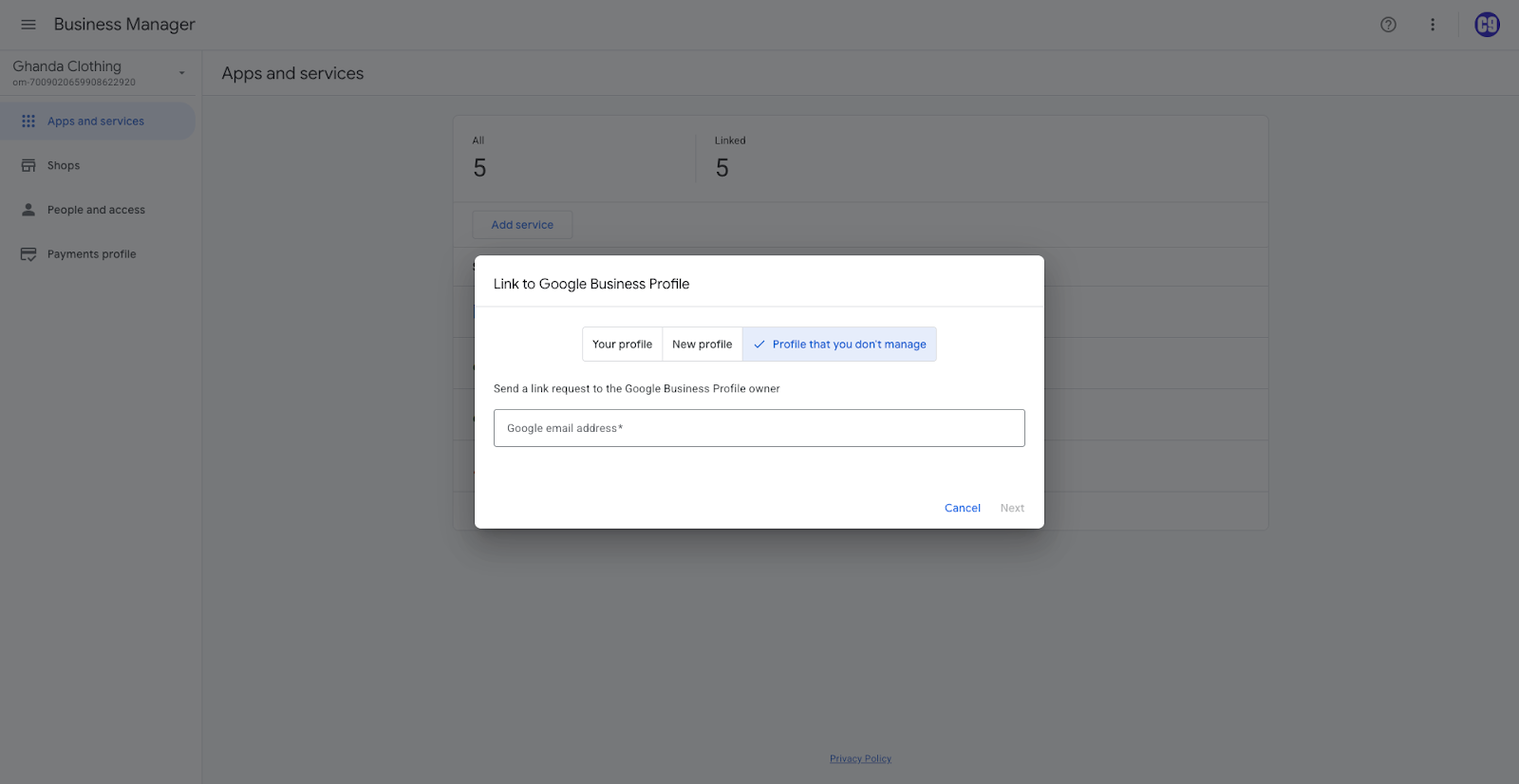 |
You should also be able to find it within GMC Settings > Access and services > Apps and services
And if you are an Owner, within Business Manager > Apps and services
| |
See GMC Local Feed Activation (Internal Guide) for next steps. |
Categories:
GMC
Guides, SOPs & Policies (GMC)