| Category | GMC |
|---|---|
| Type | Doc |
| Last Modified | 28 November 2025 |
| Location | Guides, SOPs & Policies (GMC) > Internal Guides |
P.E.M. Tool Greedy List Generation & CMS Implementation (Internal Guide) | NOV 2025
This task involves using the P.E.M. Tool to generate a “Greedy List” of products that collectively cover every Metaobject (both Shopify default and Calibre9 custom). Once this product list is generated, each item will need to be manually populated with all relevant category metafield attributes in the Shopify backend.
This step is essential, as it activates every Metaobject attribute and some of its associated values. Without completing this process, a full Matrixify Metaobject export would only surface some Metaobjects and omit many of their values. By implementing the Greedy List approach, we can ensure the final Matrixify export includes ALL Shopify default and custom Metaobject attributes.
Note: All of the Shopify default values will be activated through the Placeholder Products for Metaobjects task
Pre-requisites
Make sure you have the following completed:
- Strategy Summary: PIM Enrichment – You need to use the Overview tab as a reference guide
- Custom Metaobject Creation – You need to have been able to create the custom metaobjects in the Shopify backend and added in all the values
STEPS
1 | Navigate to the P.E.M. Tool Upload tab. We want to make sure we have the latest export of the Products and the Metaobjects. This is how to do it: | 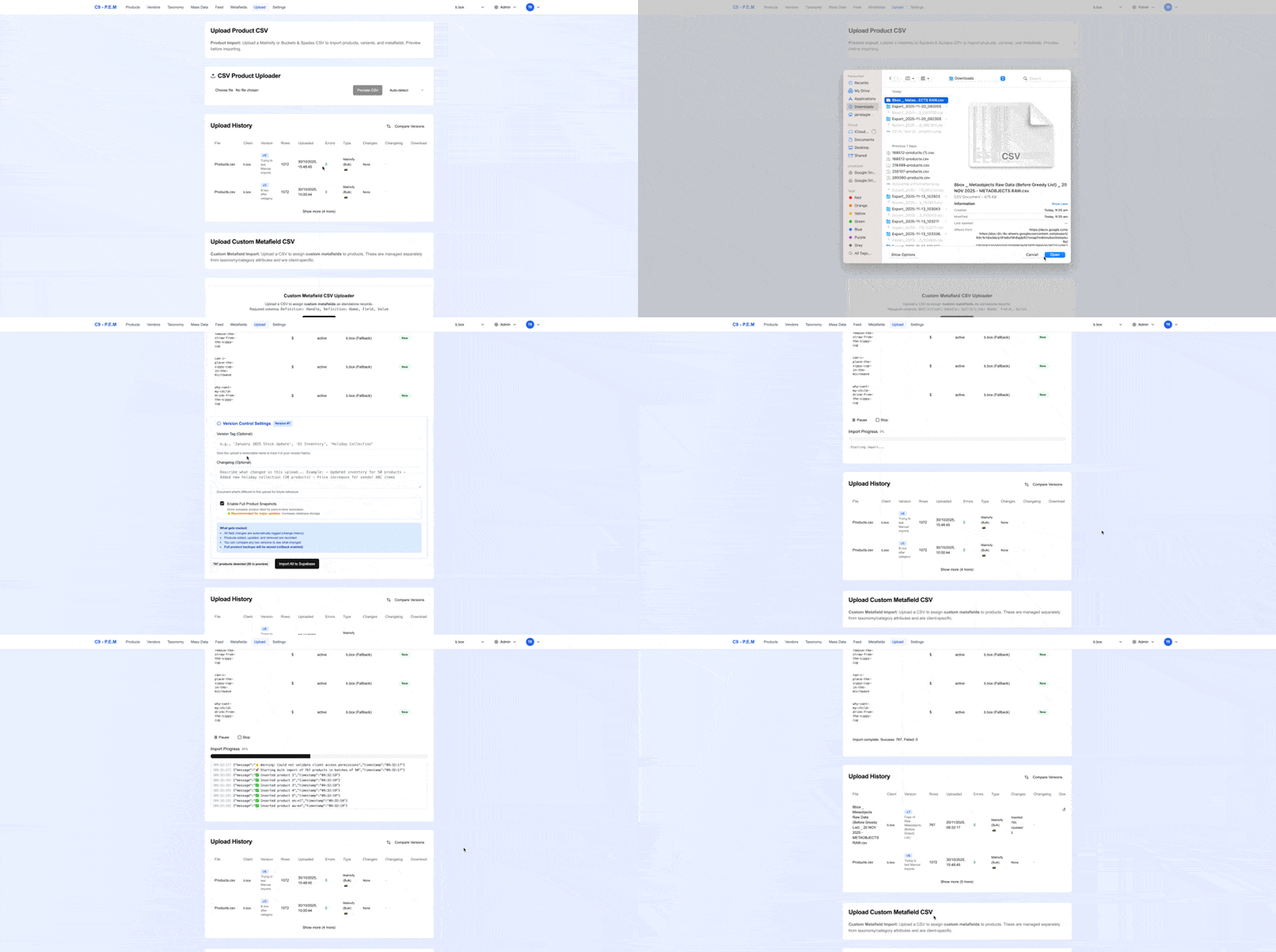 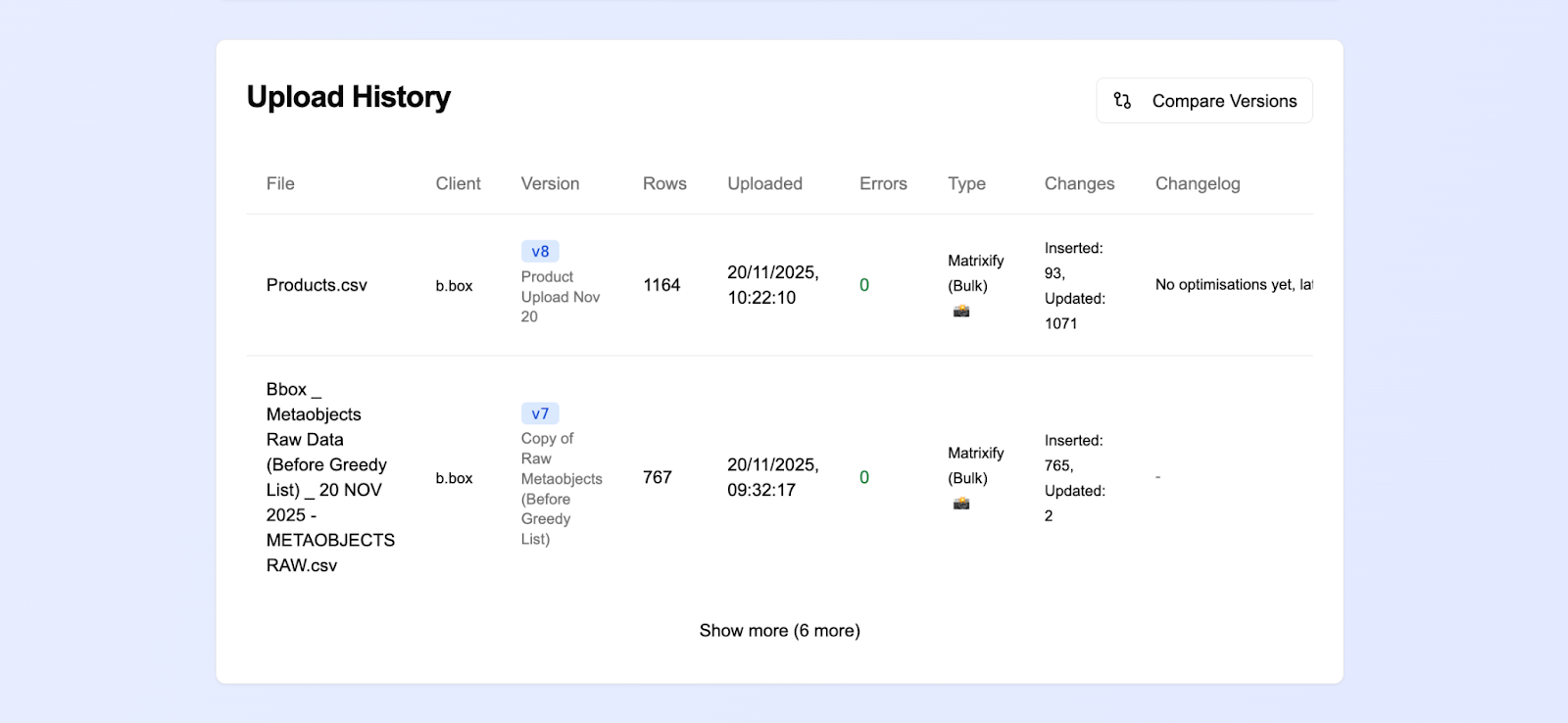 |
|---|---|---|
2 | Once you have those successfully imported, navigate to the Metafields tab and click Show me the path of greed | 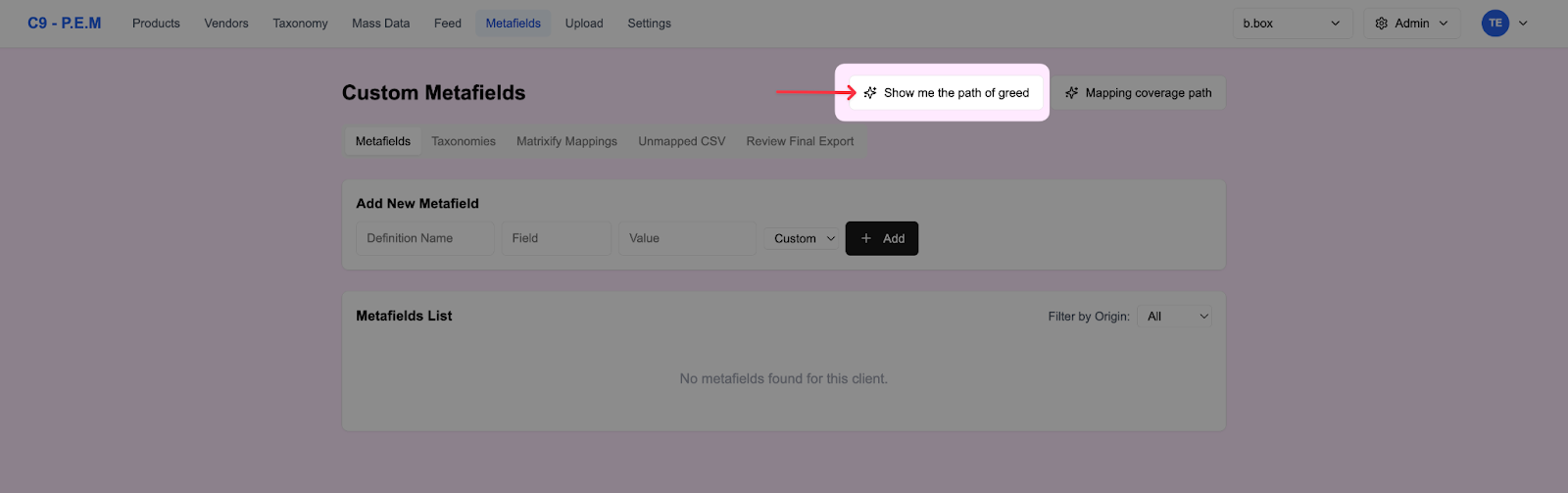 |
3 | This will generate a list of the most minimal product set that would cover all of the metaobject attributes. You can click on the Details button to inspect what particular ones each product is able to cover. When you’re happy with the list, click Select All then Export CSV. You’ve just generated your Greedy List! | 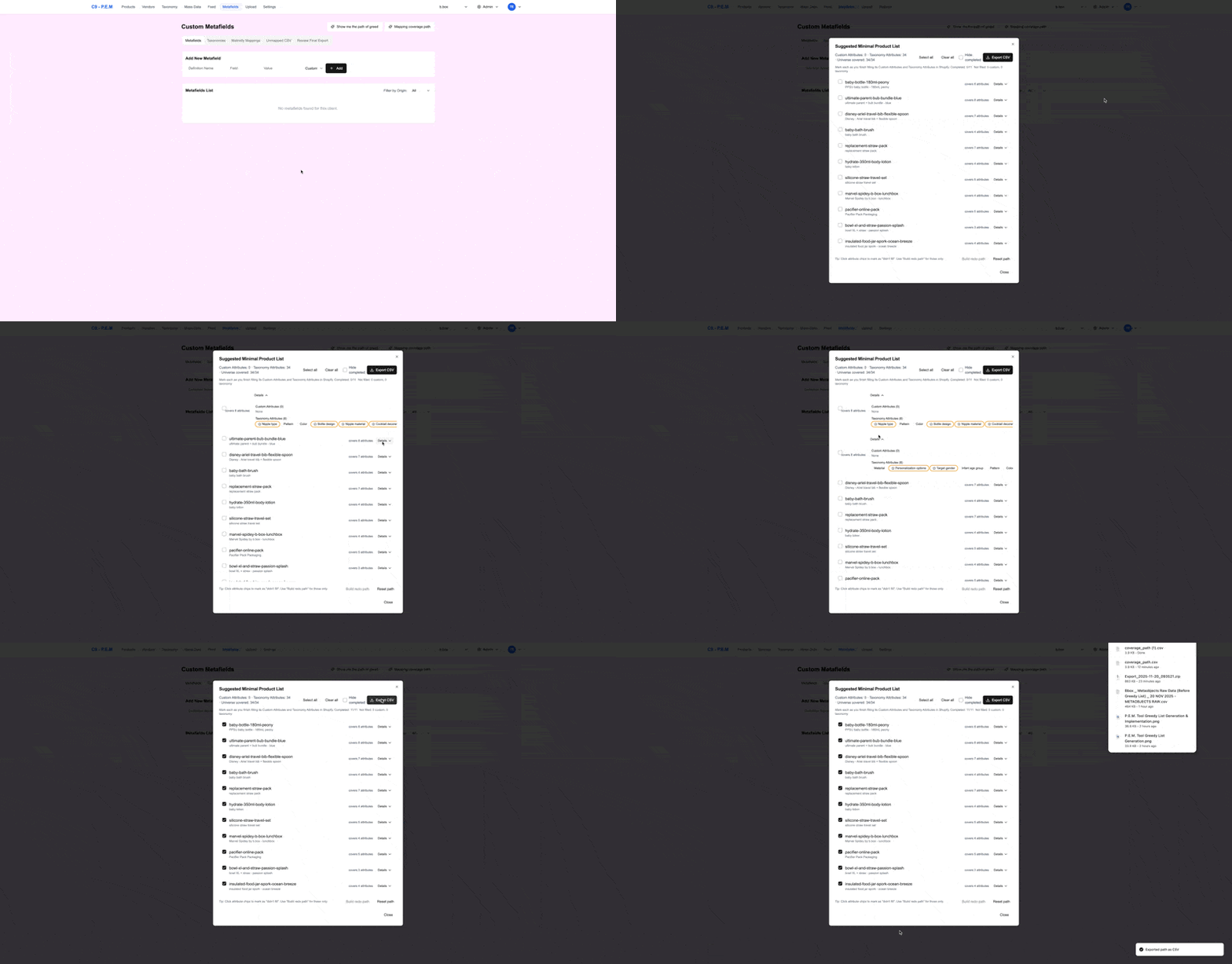 |
4 | You should end up with a CSV file that looks something like this. You only need to use the Handles or Titles to do the Greedy List Implementation. | 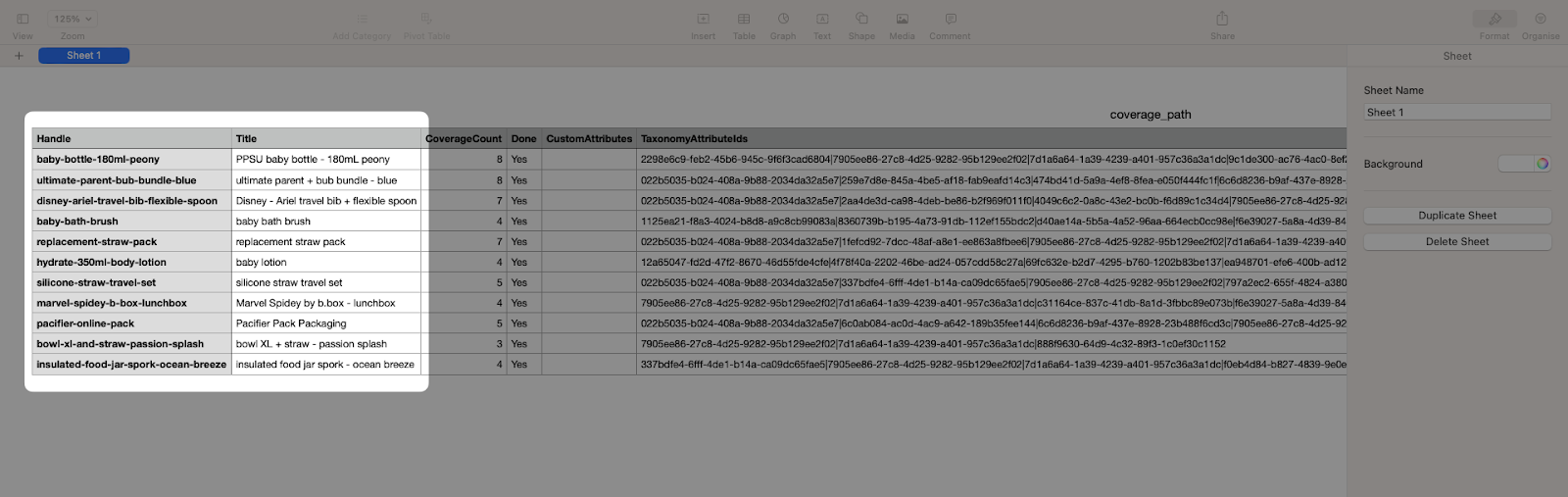 |
5 | While you have your Greedy List CSV file open, make sure you also have your client’s Shopify open. Copy the Handle from the sheet and paste in the Shopify Products search bar. Refer to the Title to check if you’ve clicked the correct product. | 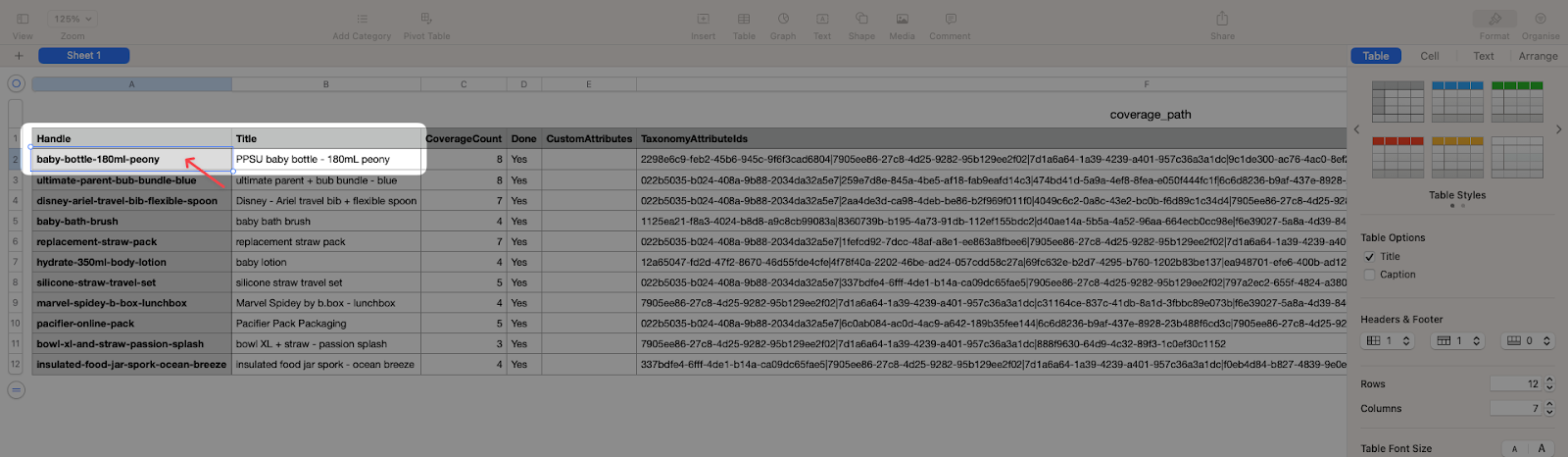 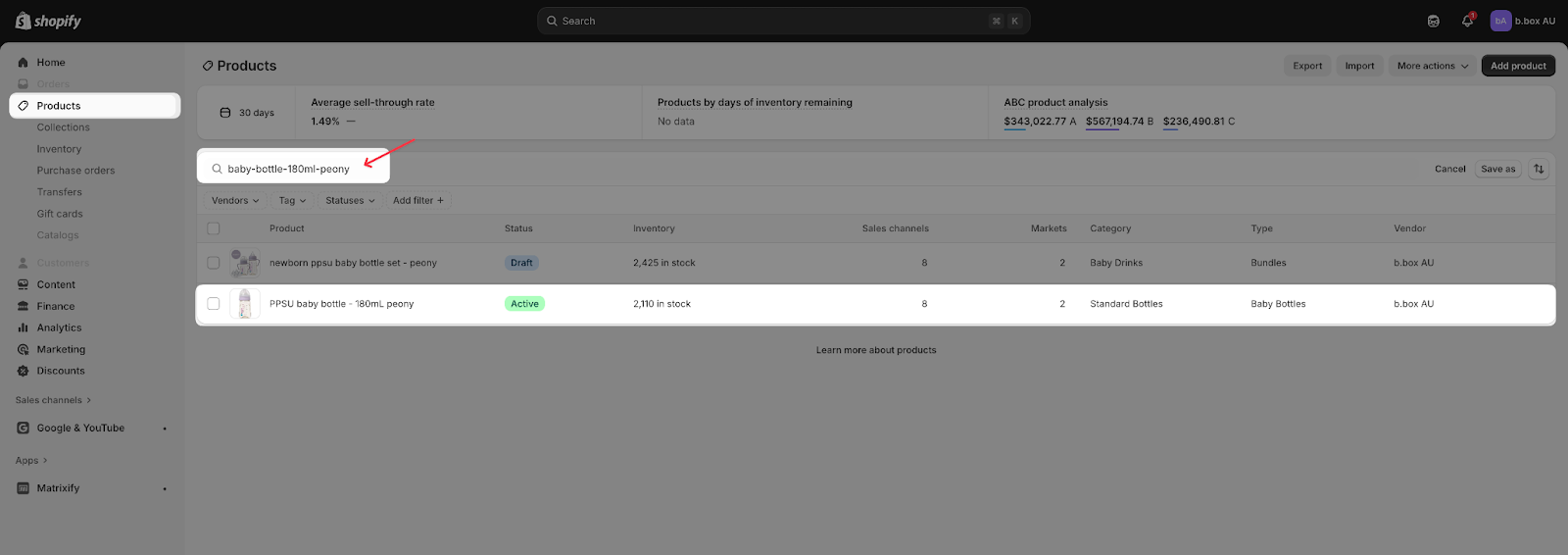 |
6 | You should see that this product has already got a Category assignment, which should in turn, reveal all of the Category Metafield attributes. | 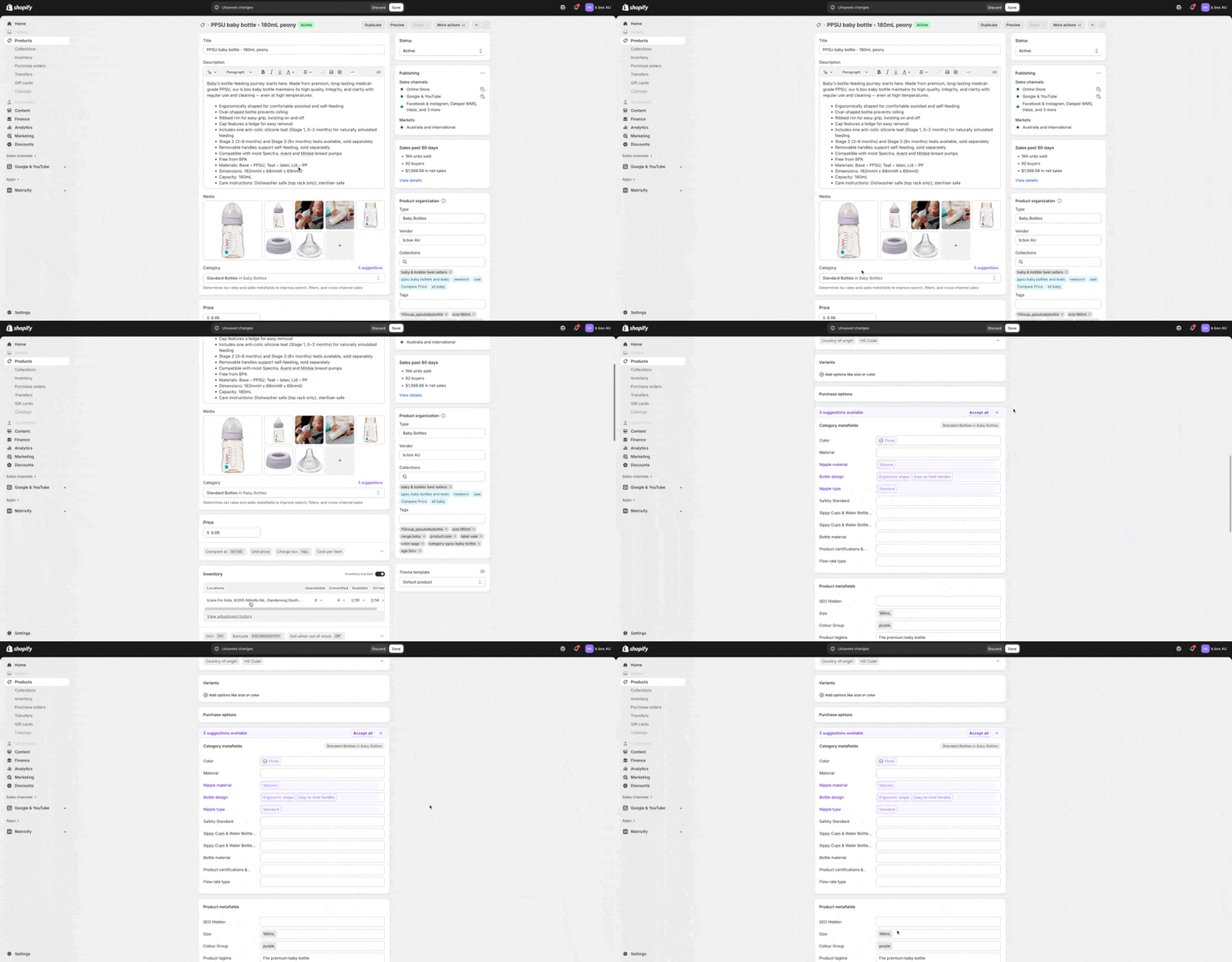 |
7 | Populate each Category Metafield attribute to the best of your ability manually then hit Save. Repeat the same process for all the products in the Greedy List. | 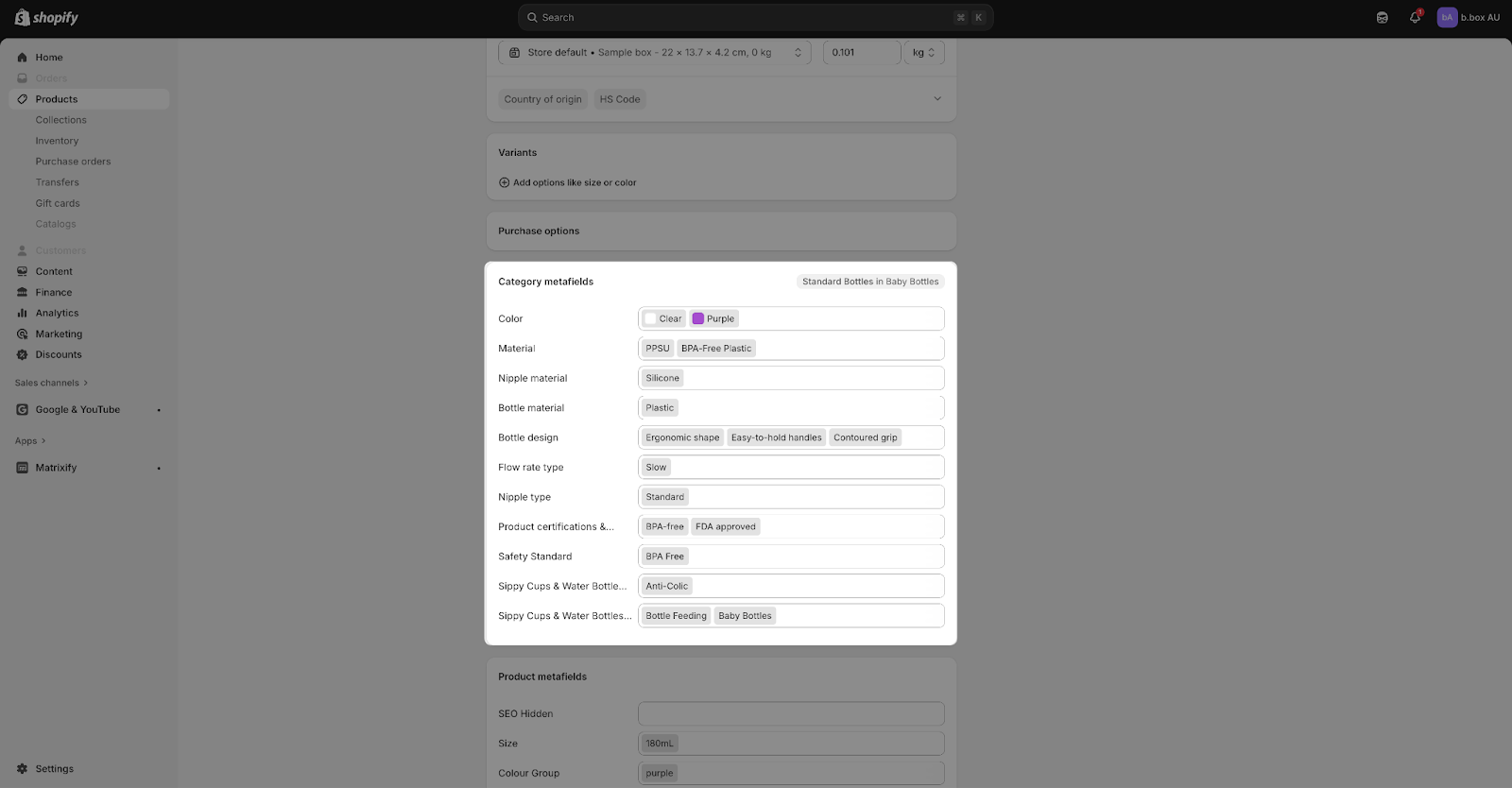 |
NEXT STEPS
Proceed to do the Placeholder Products for Metaobjects task