Article
Source
Doc
| Category | GMC |
|---|---|
| Type | Doc |
| Last Modified | 2 December 2025 |
| Location | Guides, SOPs & Policies (GMC) > Internal Guides |
Strategy Summary: PIM Enrichment (Internal Guide) | OCT 2025
From FAQ-Off, the Calibre9 knowledge base
This task involves compiling a summary of all Metaobjects that need to be created or updated in the Shopify backend. It will also outline the corresponding categories each Metaobject will be assigned to, so they can be used as Custom Category Metafields ready for population.
Pre-requisites
Make sure you have the following completed and opened, ready for use.
- Product Category Research – You need the list of all the Categories and relevant Semantic Category Keywords
- Attribute Research – You need this to be able to cross-reference the individual Category tabs
- Shopify Taxonomy – You need this to be able to identify any parallel categories, and identify all of the PCD Attributes (aka Shopify attributes)
- P.E.M. Tool (Taxonomy Explorer) – You need this to be able to identify any parallel categories, and look for existing default category Shopify attributes
Set Up Steps
1
| Make a copy of the Strategy Summary: PIM Enrichment template Rename the file: Ensure the file is saved within the Client’s Google Merchant Center folder of that year: | 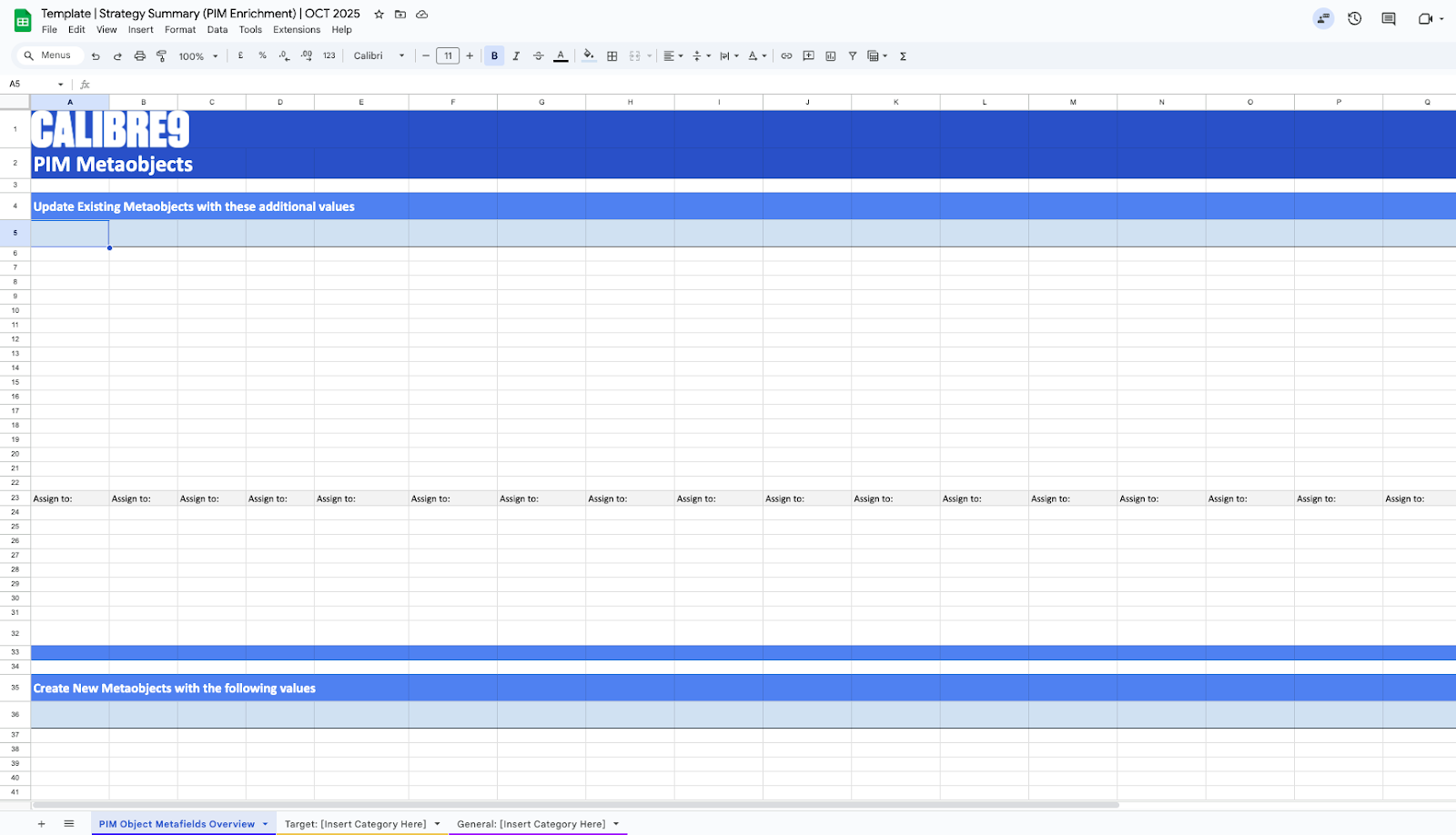 |
|---|---|---|
2
| Create duplicates and rename each of the Templated tabs of the sheet. The tab name should represent the end breadcrumb of the category. Yellow = Target Categories Purple = General Categories Use the Product Category Research to reference these. Note: If a category has Semantic Category Keywords, rename the tab and sheet title with slashes (“/”) | 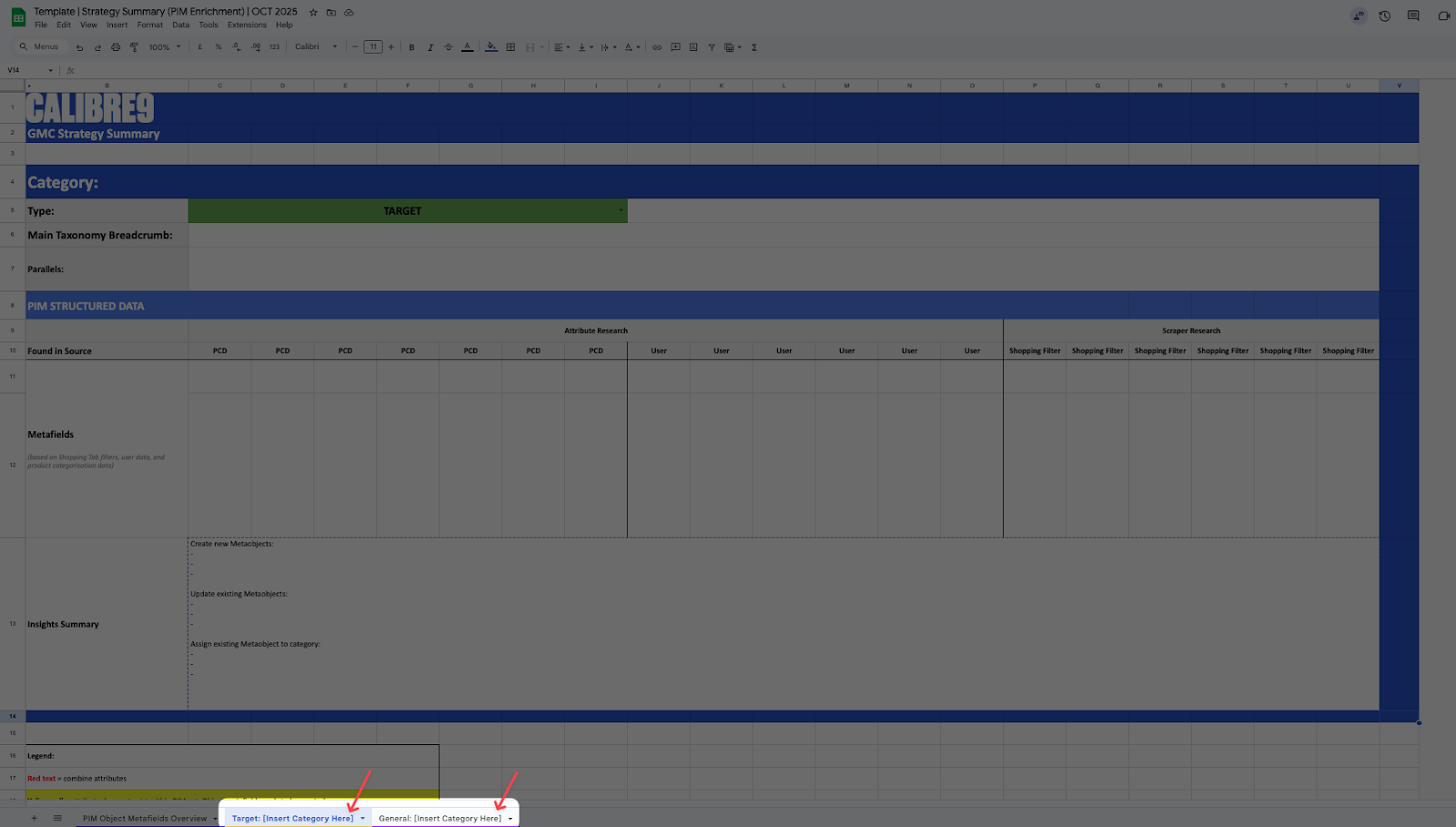 Example: 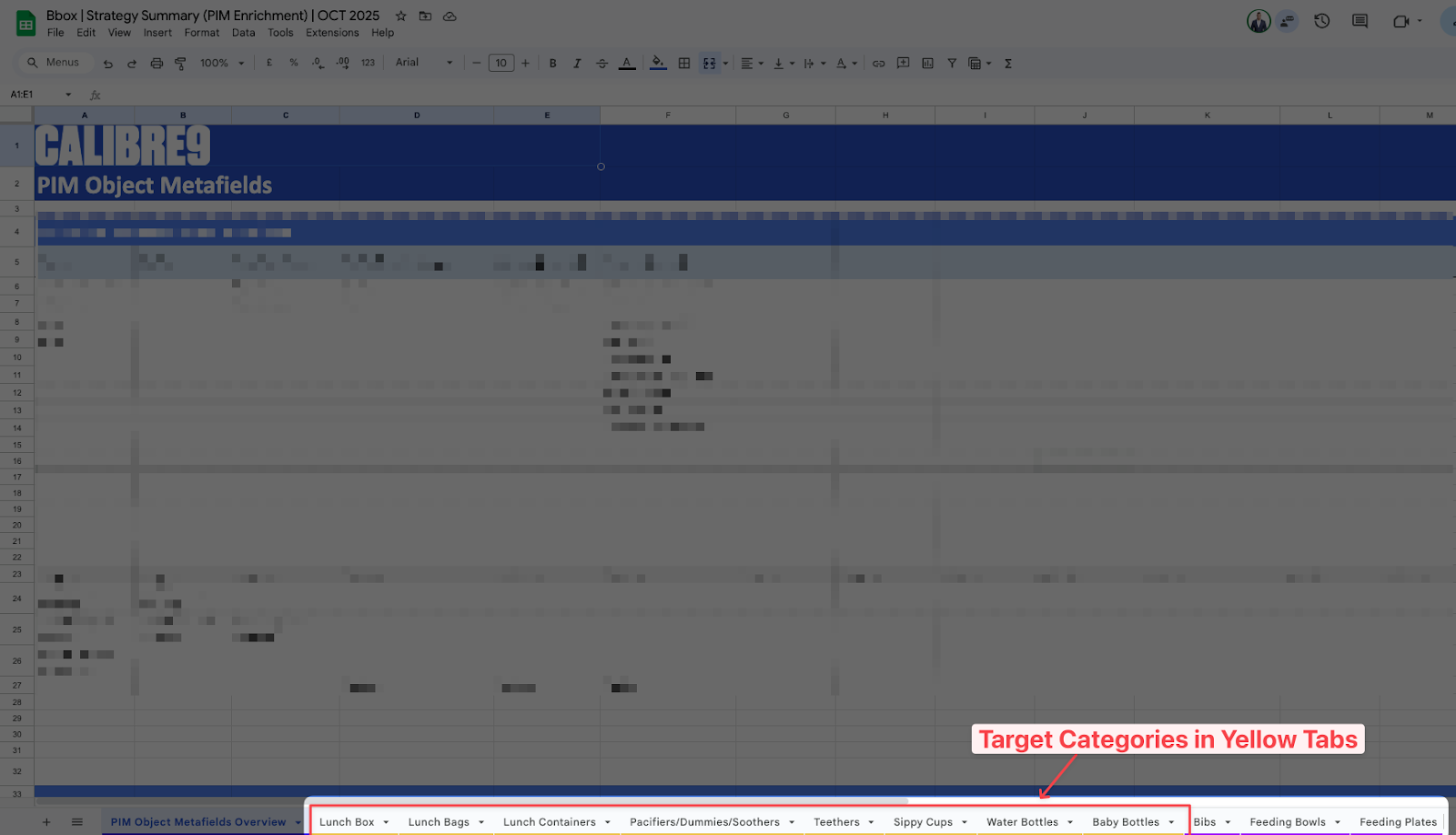   |
Task Steps
Now that you have set up the sheet, you are now prepped to start performing the task.
1
| Inside the tab, add in the Main Taxonomy Breadcrumb based on the Shopify Standard Product Taxonomy. | Strategy Summary (PIM Enrichment) Sheet 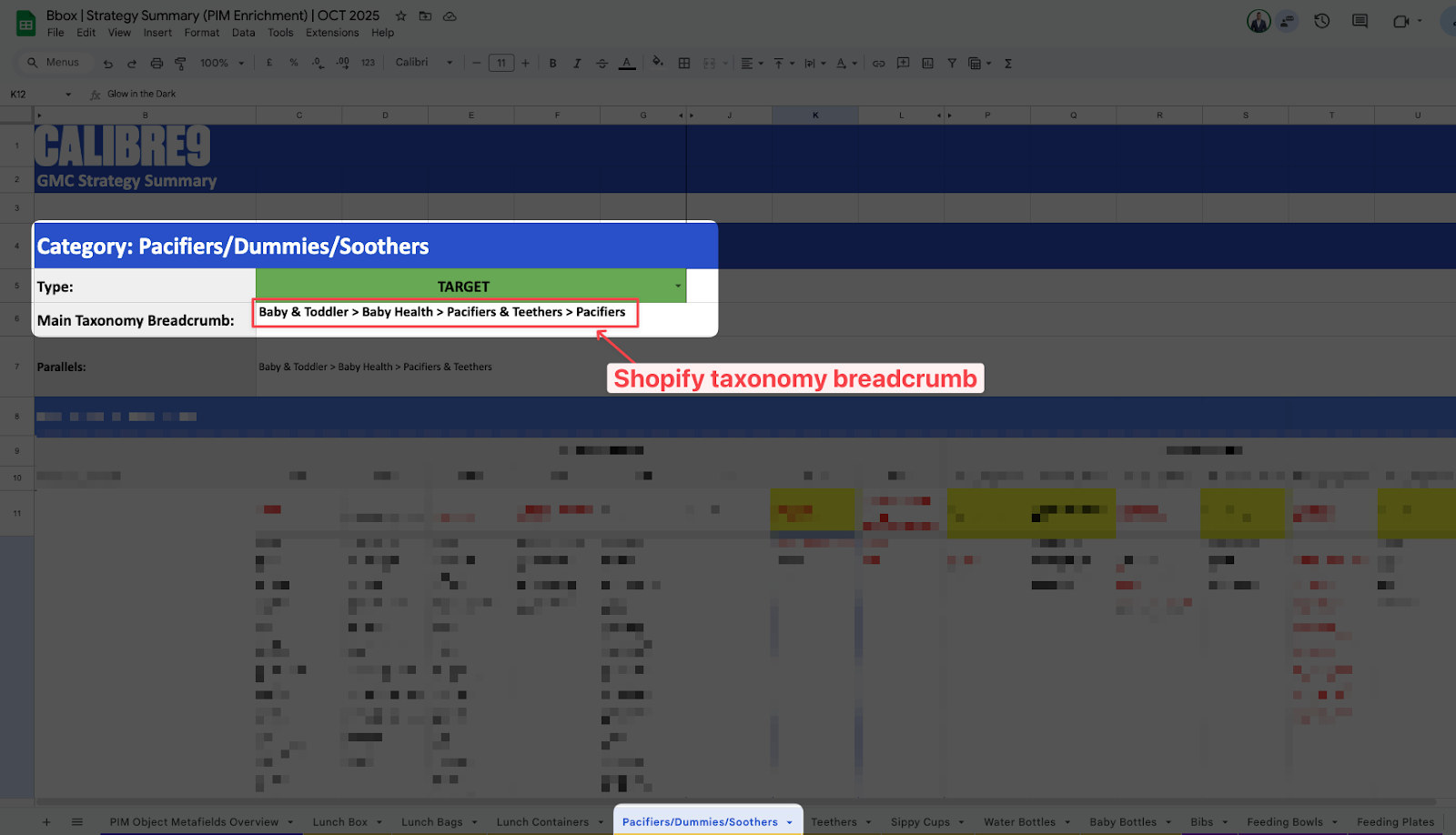 Shopify Standard Product Taxonomy 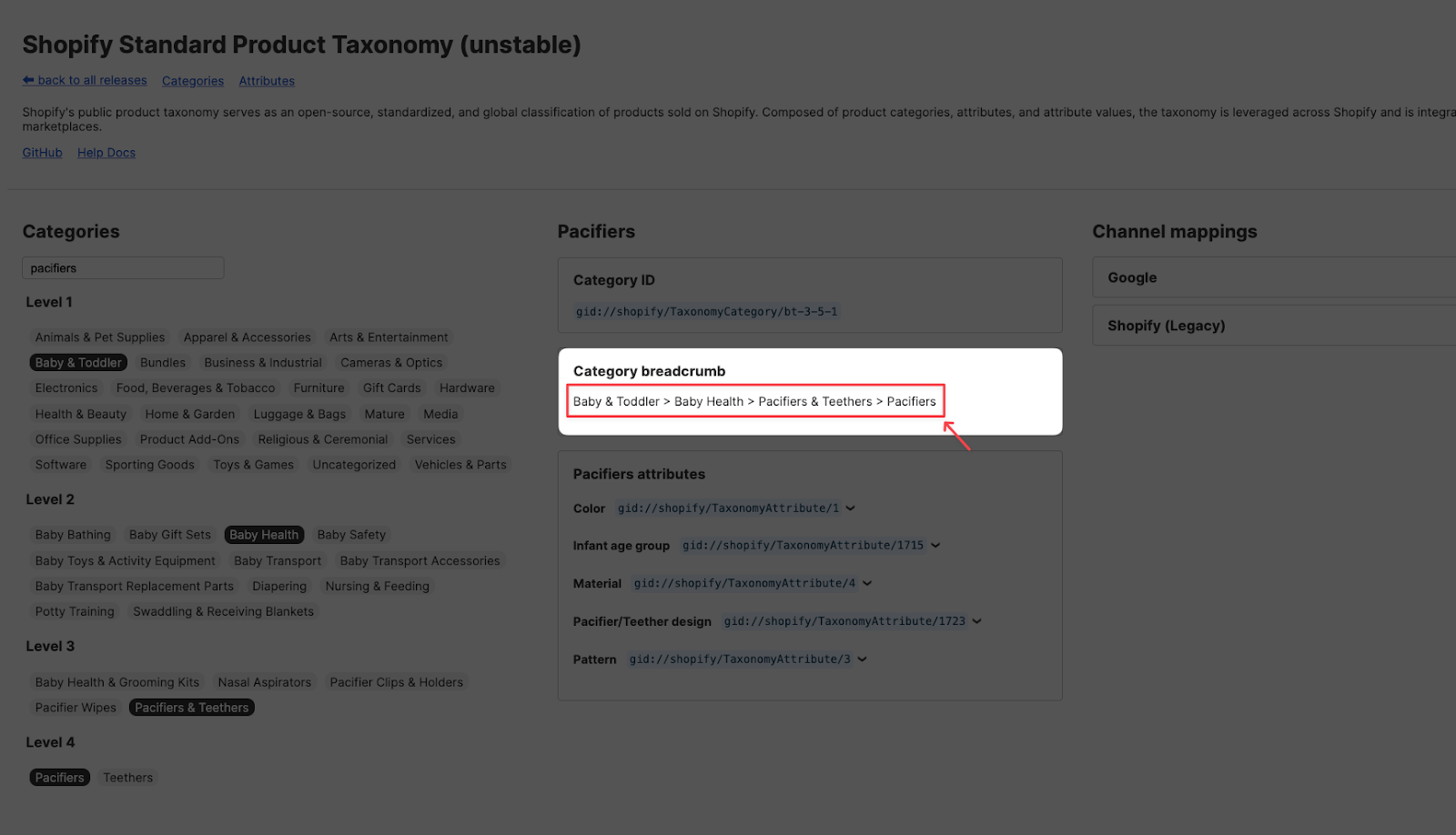 |
|---|---|---|
2
| Log in to the P.E.M. Tool and navigate to the Taxonomy Explorer. Enter the Category name within the Search Taxonomy section. The search results should reveal any Parallel categories you can note down. | P.E.M. Tool 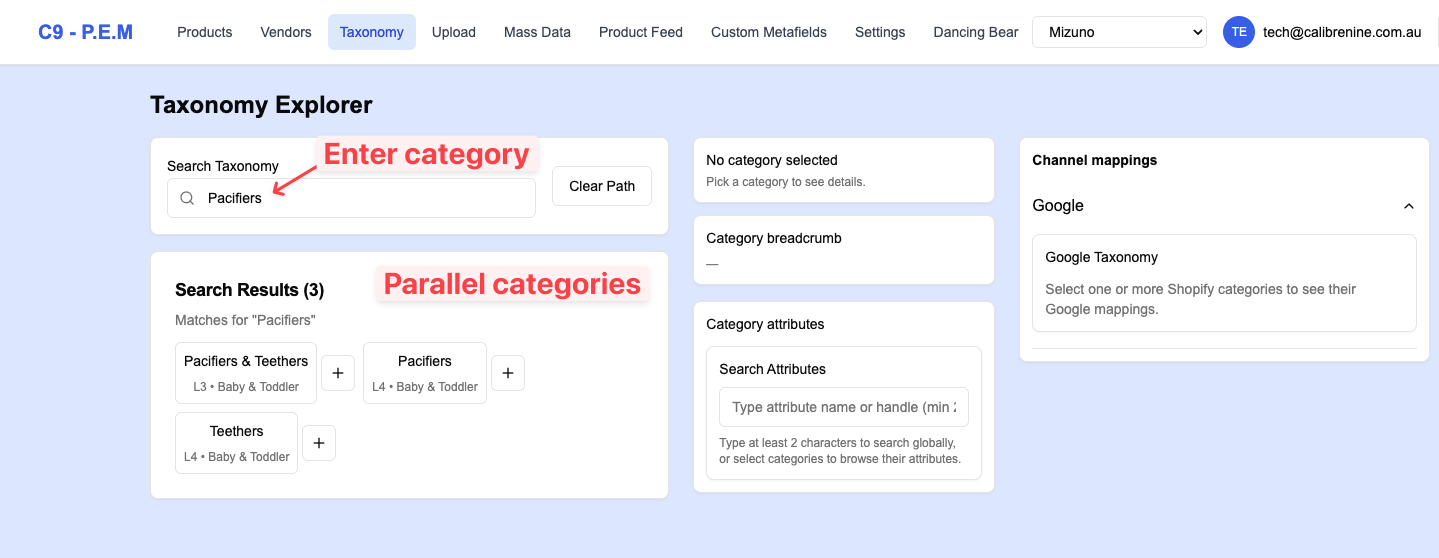 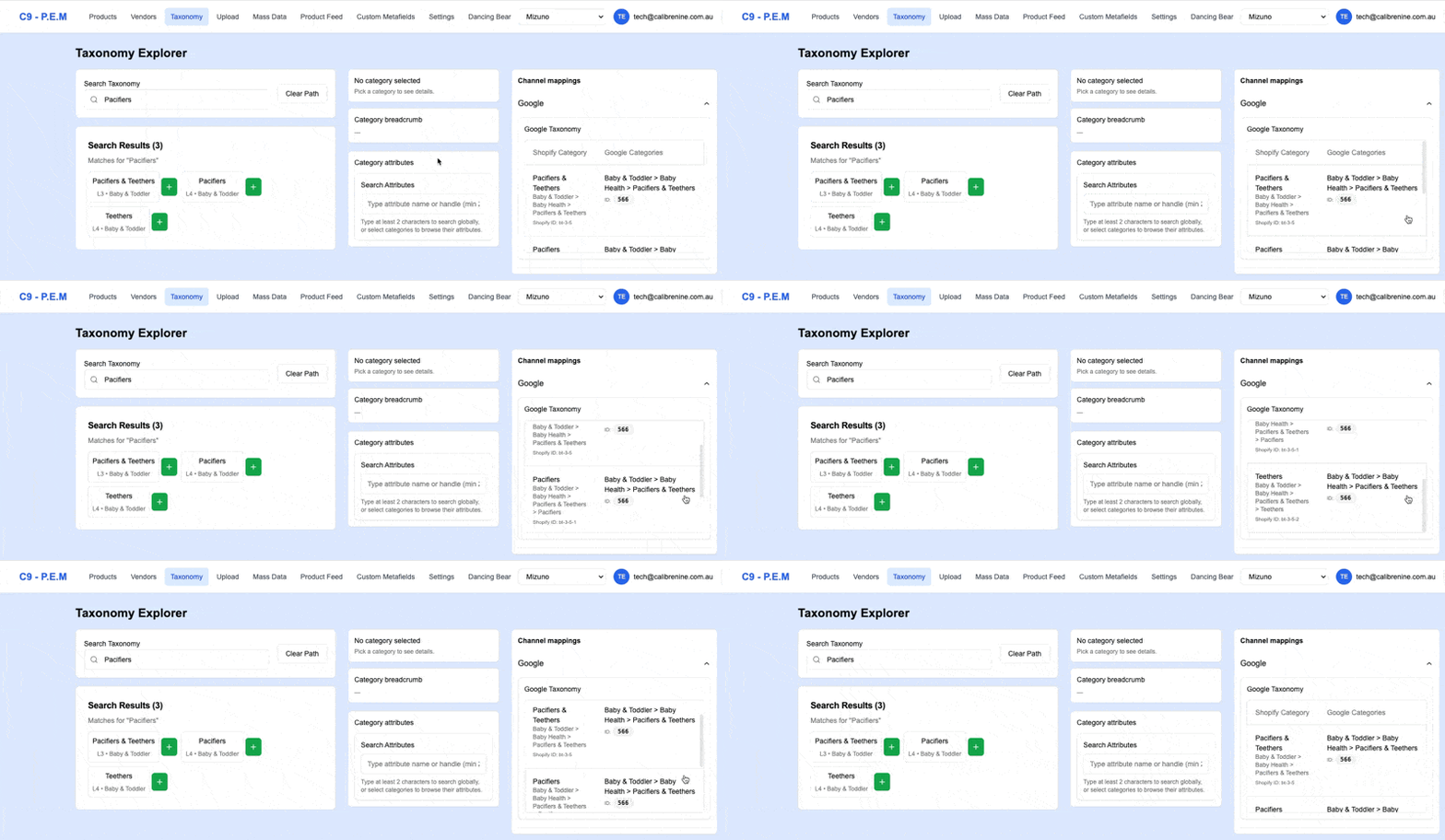 |
3
| Enter the Parallel categories you’ve identified in the sheet tab. *Note:
Identifying parallel categories is important for when we start to implement attributes within the PIM.
| Strategy Summary (PIM Enrichment) Sheet 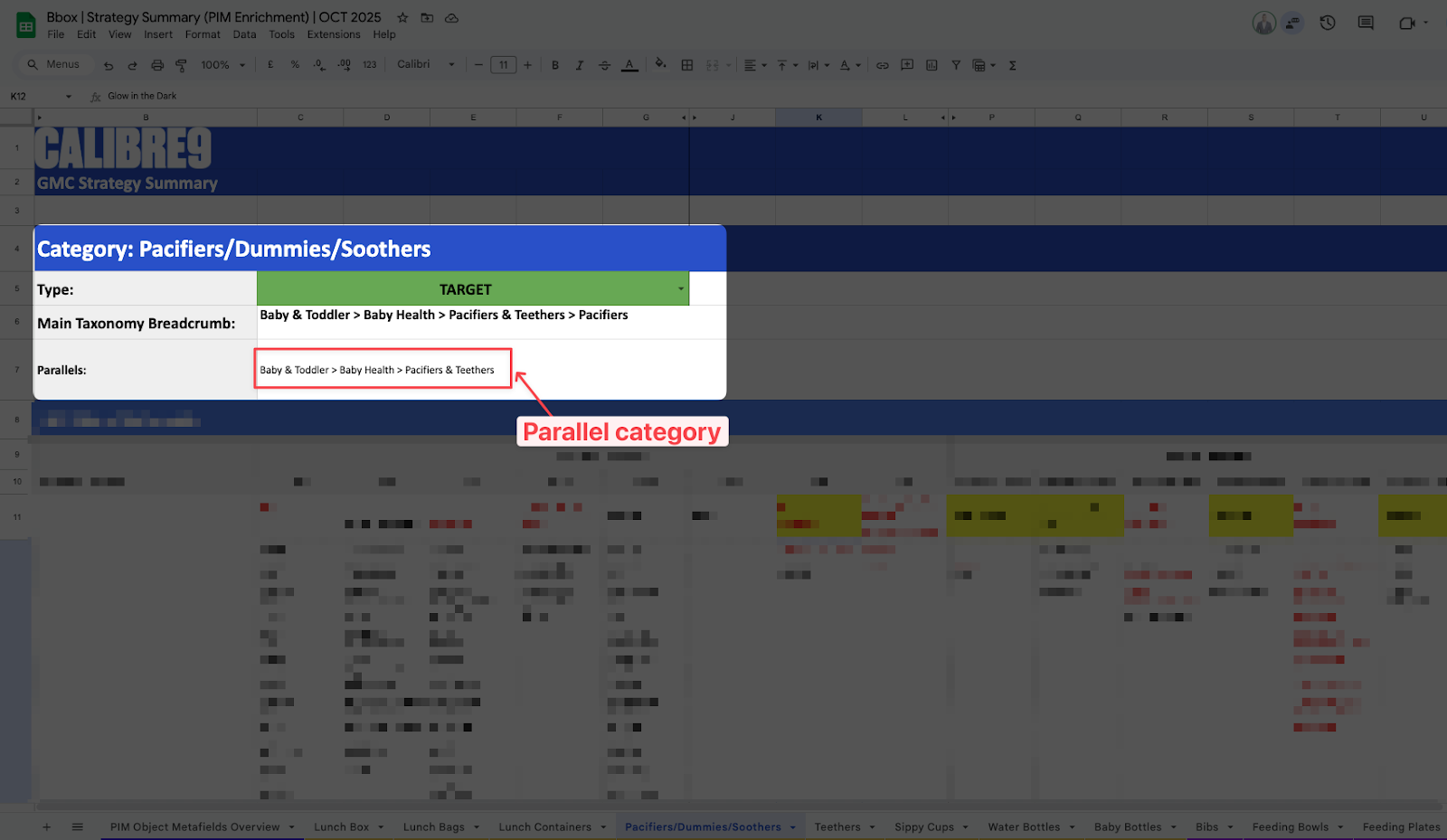 |
4
| Within the Shopify Standard Product Taxonomy, enter the Category again. This should reveal all of the attributes (aka Category Metafields) that have been assigned to that Category. With this, let’s work on populating the PIM STRUCTURED DATA > Attribute Research > PCD section of the sheet. Enter each of these attributes under the PCD columns (referring to “Product Categorisation Data”). Add additional columns to the right if needed. | Shopify Standard Product Taxonomy 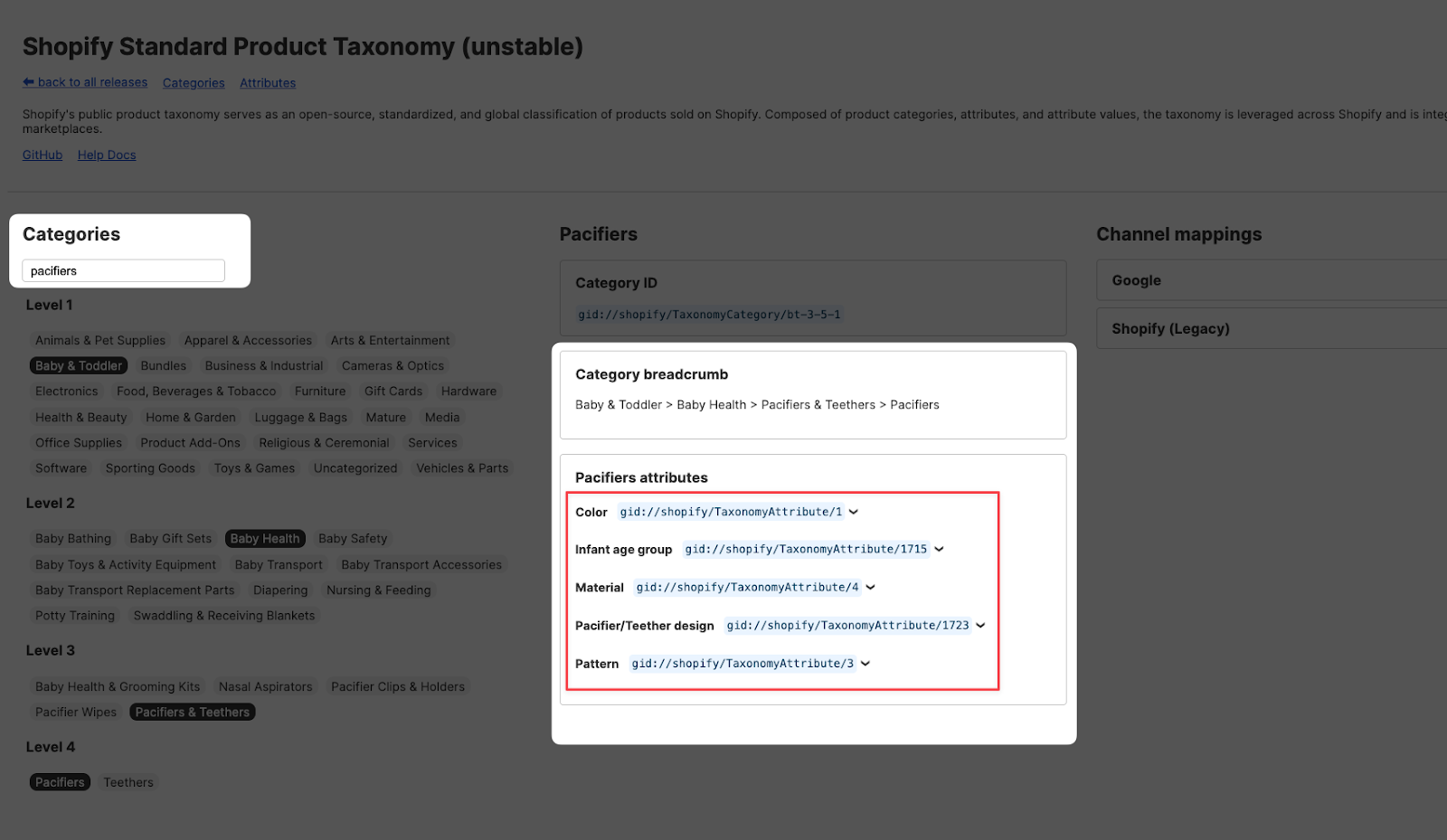 Strategy Summary (PIM Enrichment) Sheet 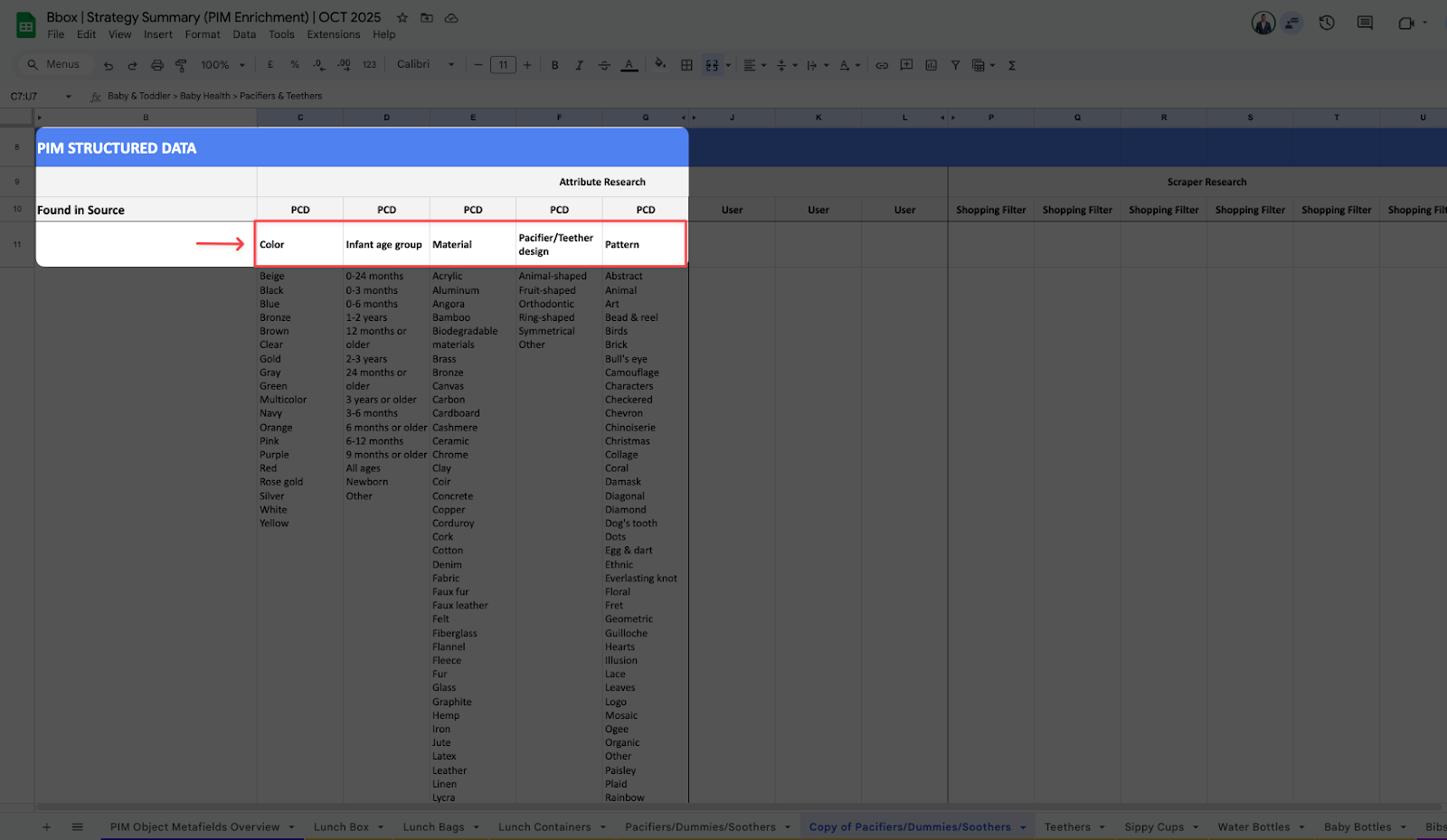 |
5
| The Shopify Standard Product Taxonomy should also reveal all of the default attribute values under each attribute. In the sheet, enter all the values under each attribute. | Shopify Standard Product Taxonomy 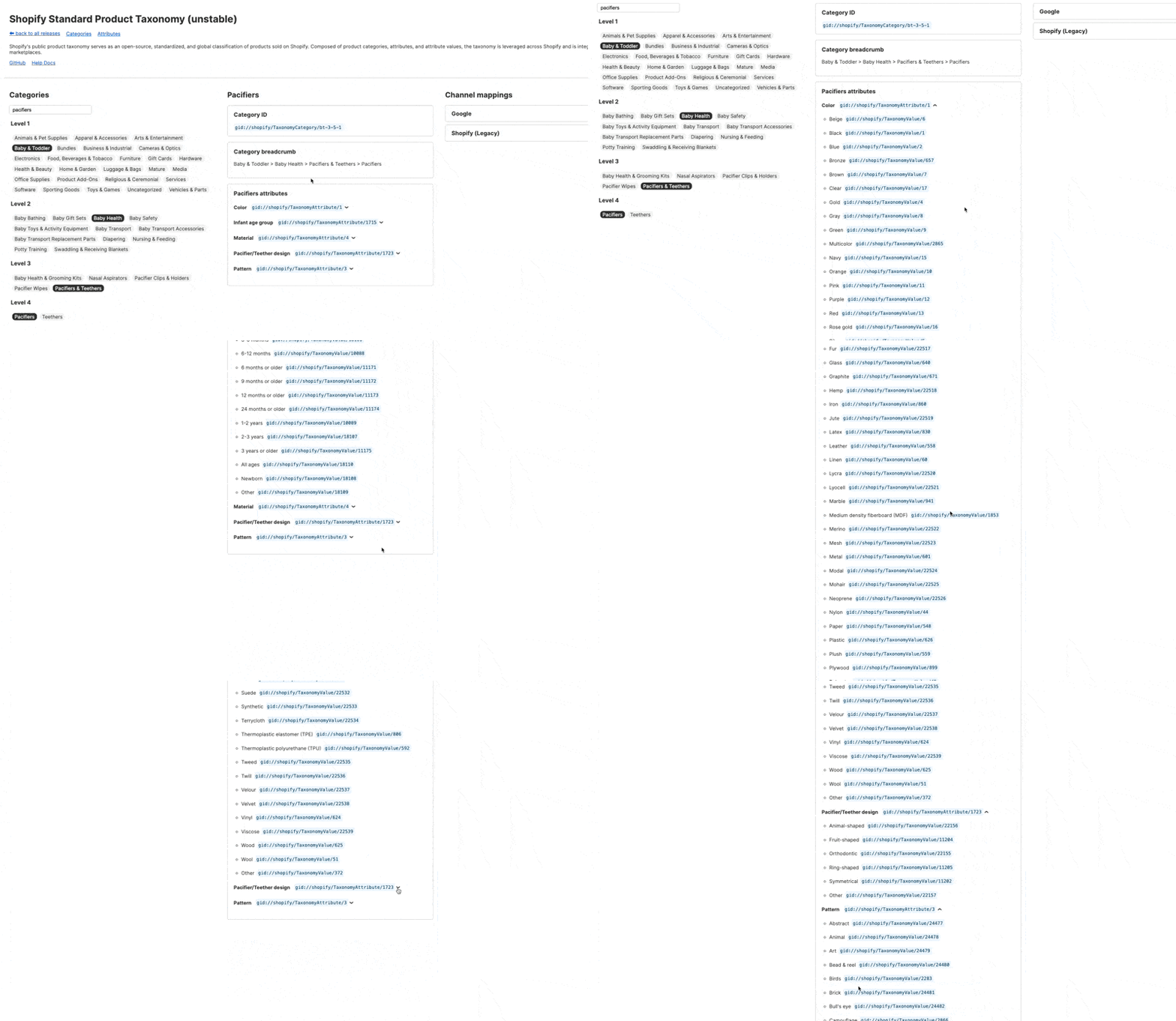 Strategy Summary (PIM Enrichment) Sheet  |
6
| Open the Attribute Research sheet. Within each tab, you will find the “Attributes/Category Metafields” section of the research. | Attribute Research 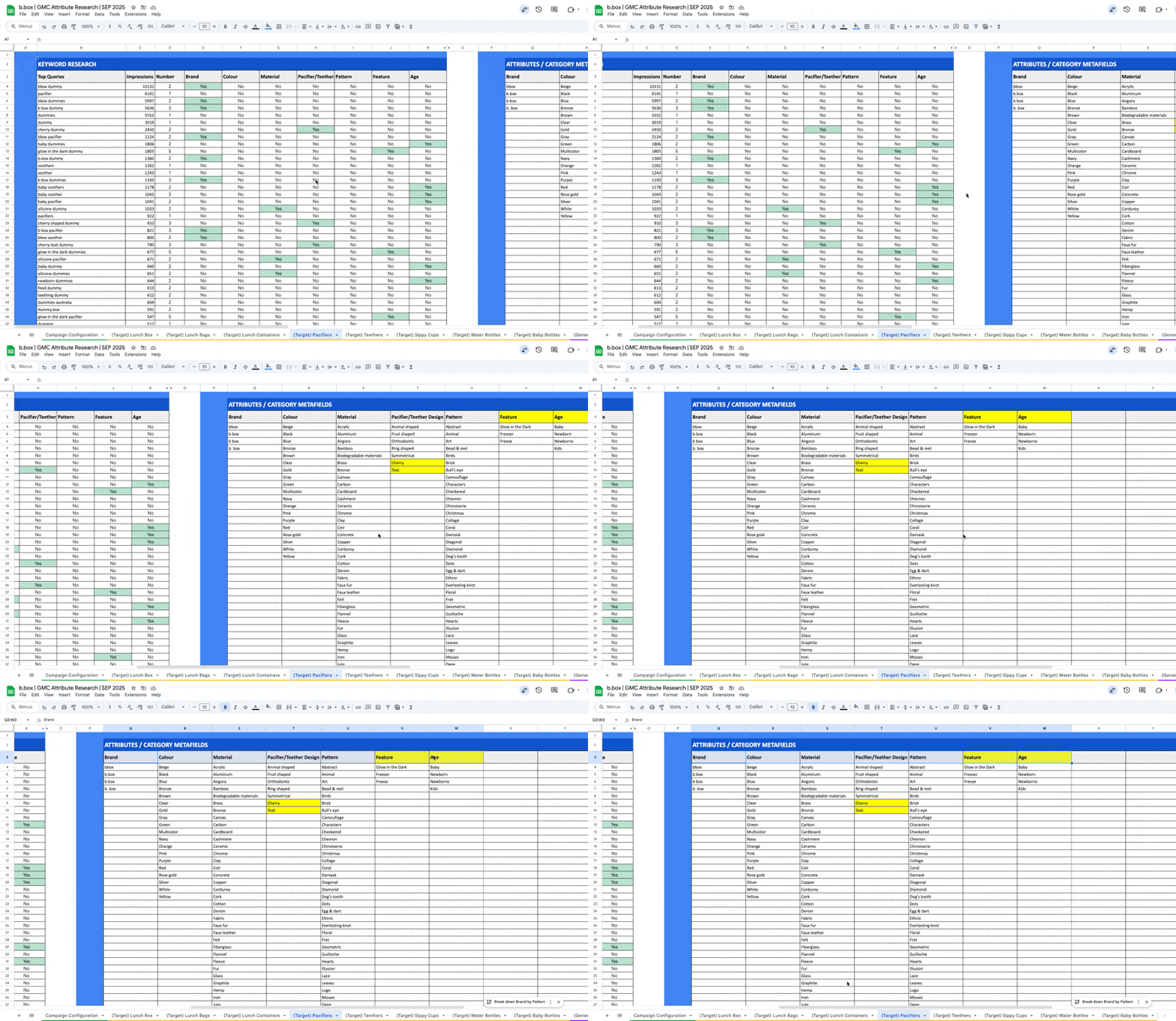 |
7
| Now let’s work on populating the PIM STRUCTURED DATA > Attribute Research > User section of teh sheet. Enter each of the additional attributes found under the “User” columns (referring to User data found from Search Console), and enter the values for each. | Strategy Summary (PIM Enrichment) Sheet 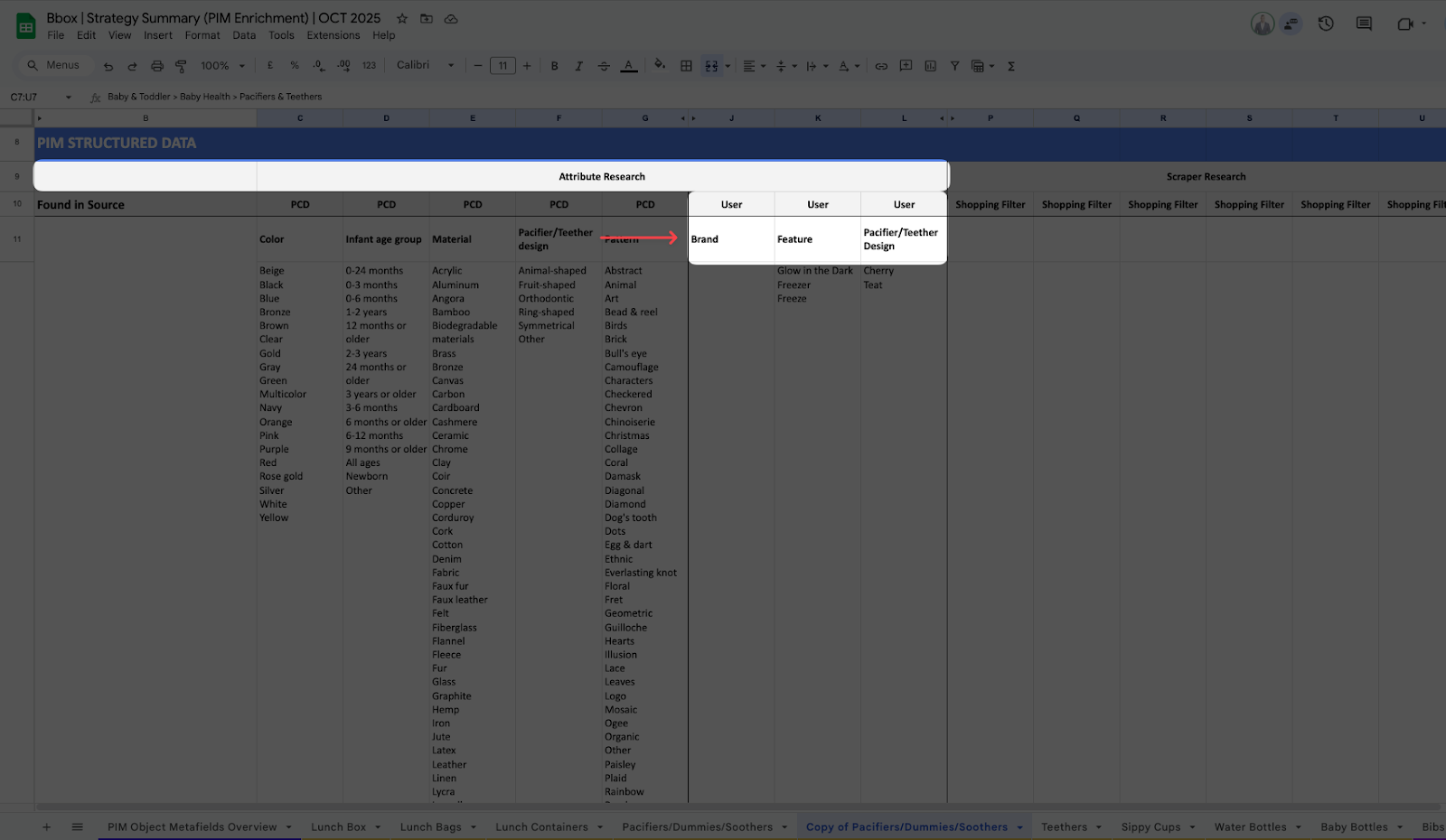 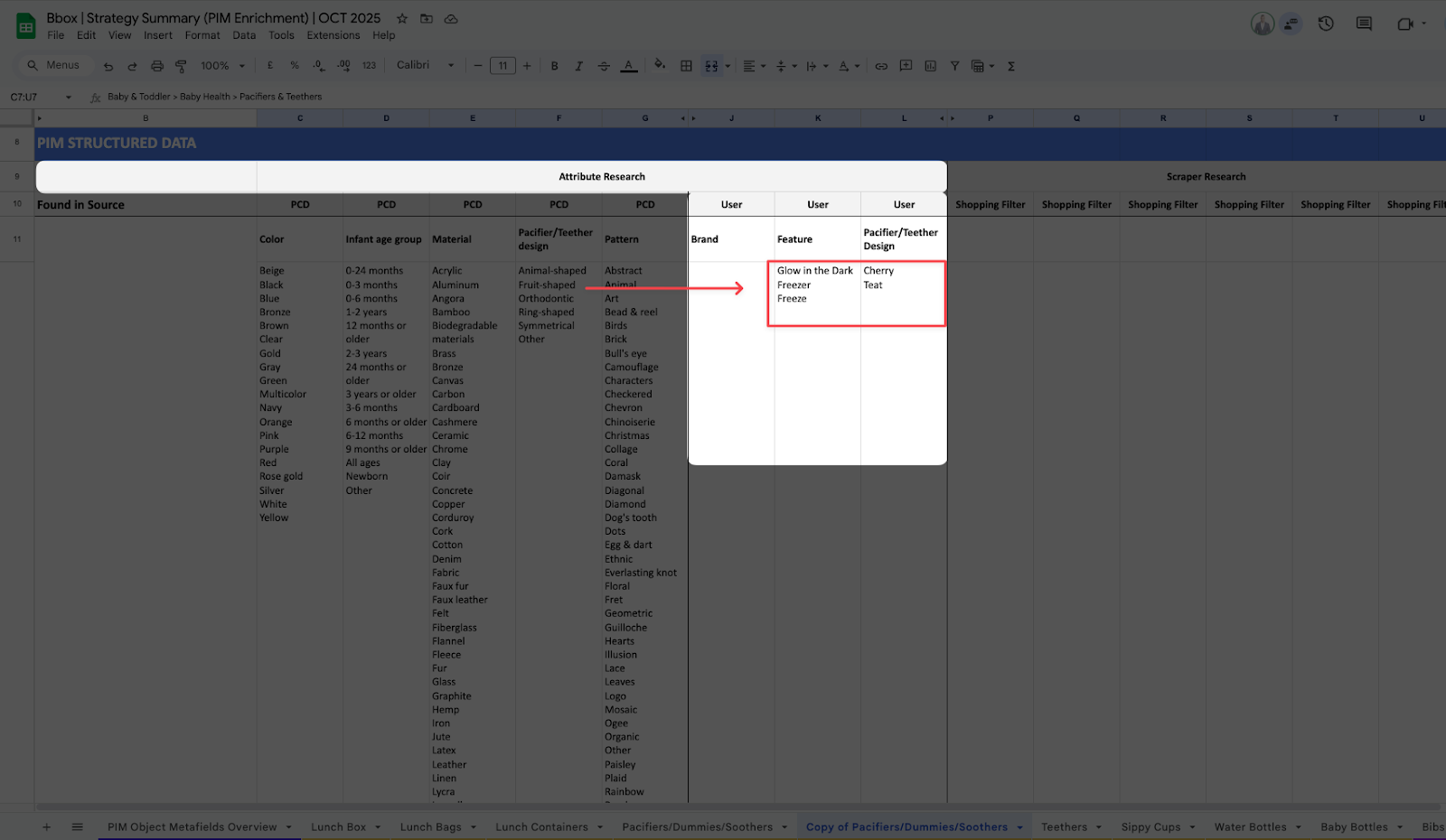 Attribute Research 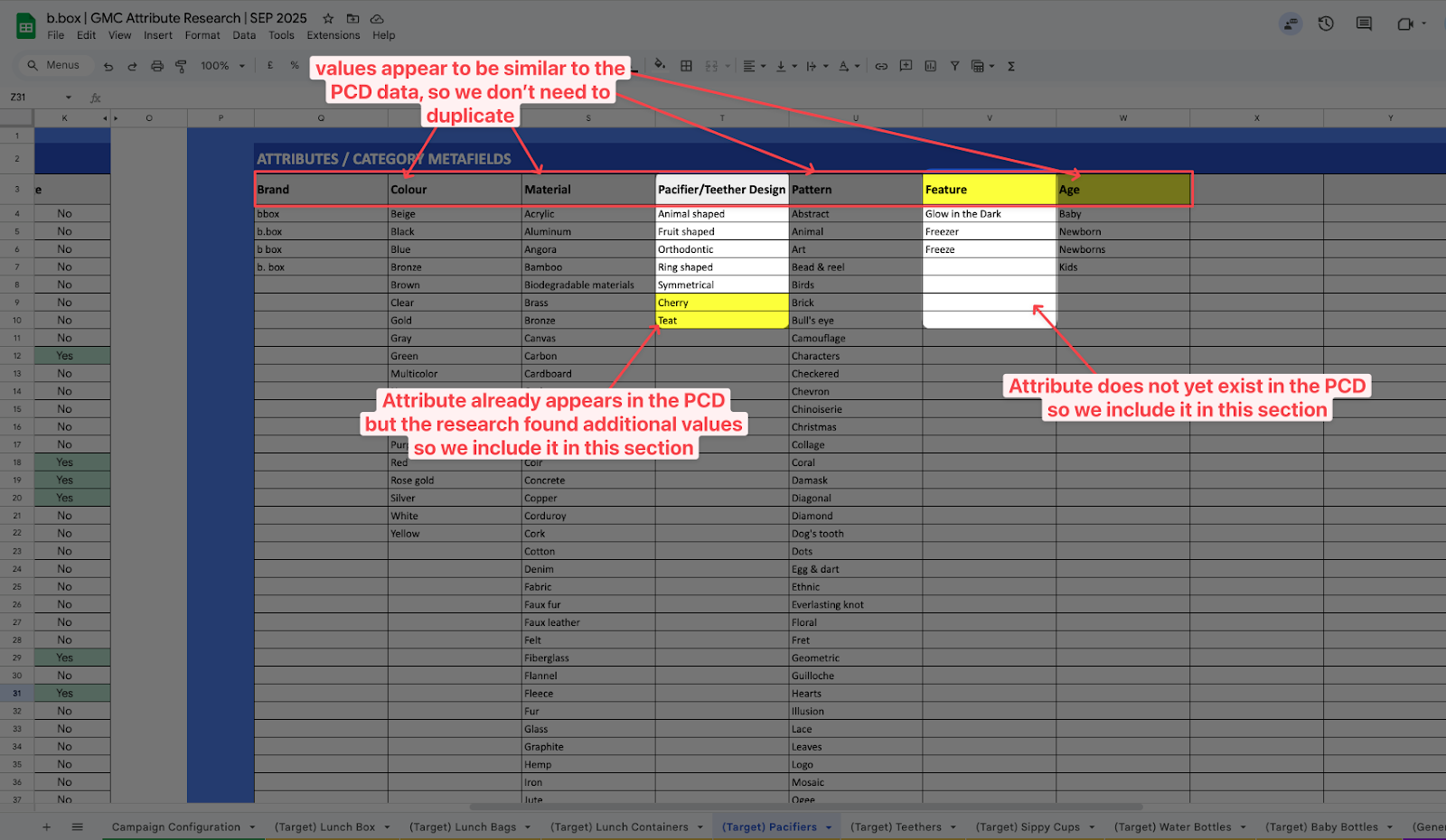 |
8
| Now let’s work on populating the PIM STRUCTURED DATA > Scraper Research > Shopping Filter section of the sheet. Open the Google Shopping tab and enter the Category Keyword. Pay attention to the filters that appear on the left-hand side. Make note of each of these attributes and their values. | Google Shopping tab 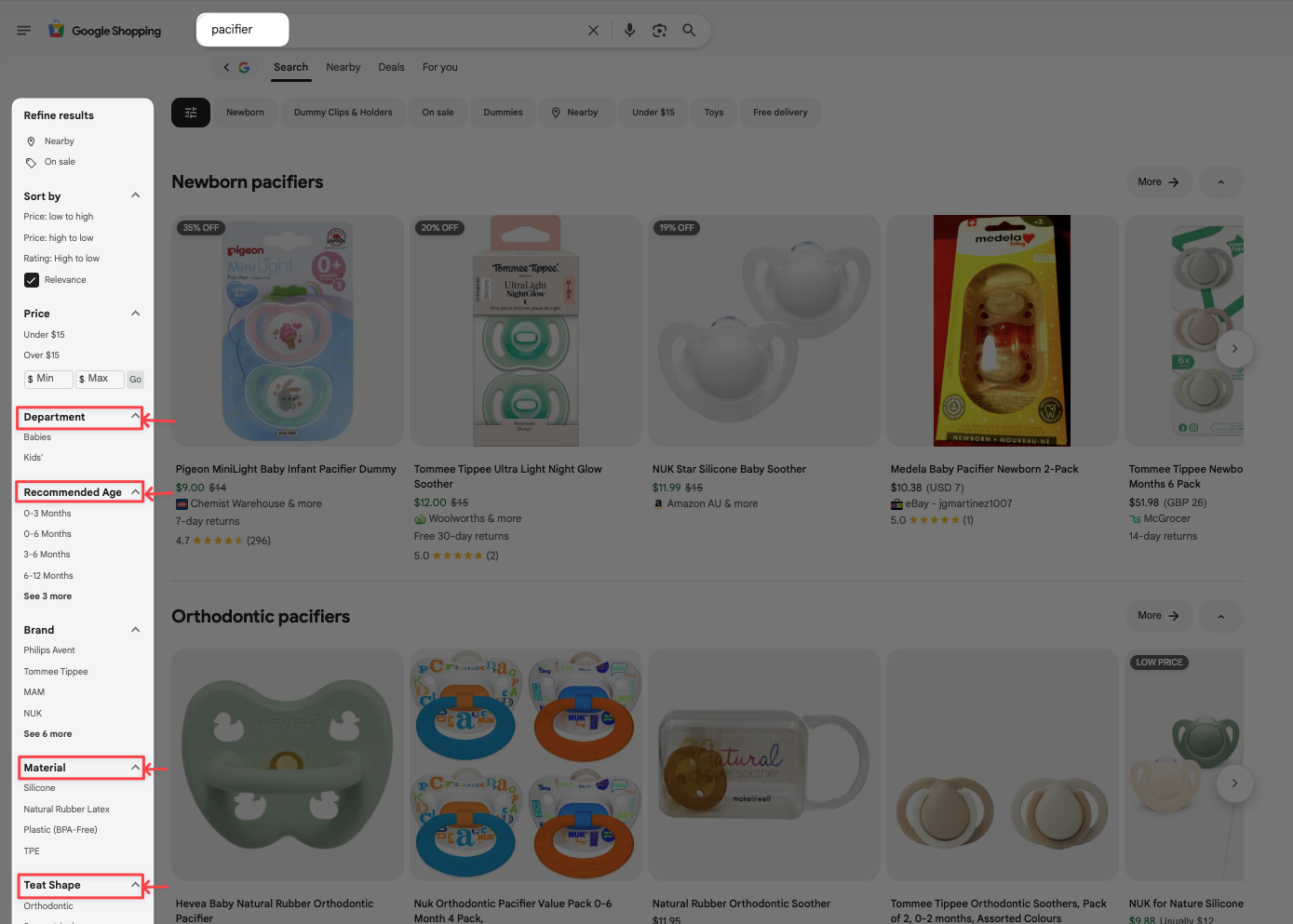 Strategy Summary (PIM Enrichment) sheet 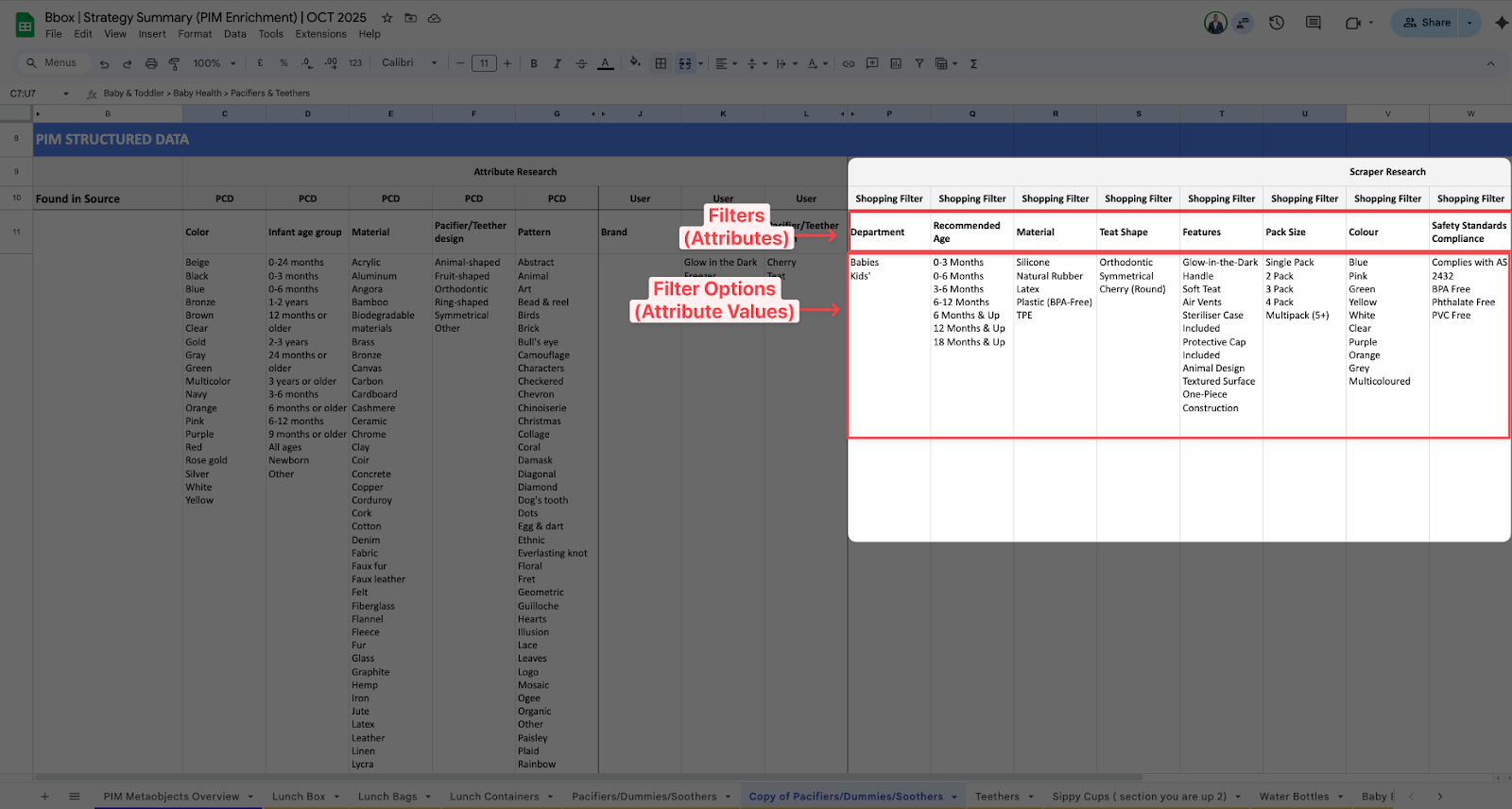 |
9
| Once you have all the attributes and values laid out, we can now perform our comparisons and use the legend at the bottom of the sheet to indicate what attributes need to be either:
| Strategy Summary (PIM Enrichment) sheet 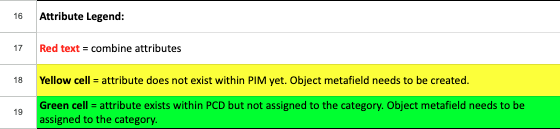 |
10
| In the example on the right, we can see that Color already exists in the Shopify Standard Product Taxonomy and has been assigned to this category already. We also see it’s showed up as one of the Filter Attributes within the Shopping Tab. According to the legend, this should be marked as red text. In brackets “()”, write down what the matching attribute within the PCD it refers to. “Colour” appears on the Shopping tab. So in the example, edit the text under Shopping filter to appear as: “Colour (Color)” Note: This is so that the Specialist in charge of implementing this know what PCD attribute is being referenced
Repeat the same process for the other attributes. If there are any values that have been discovered through the Shopping Filters that do not yet exist within the PCD attribute values, mark it as red text as well. | Example: 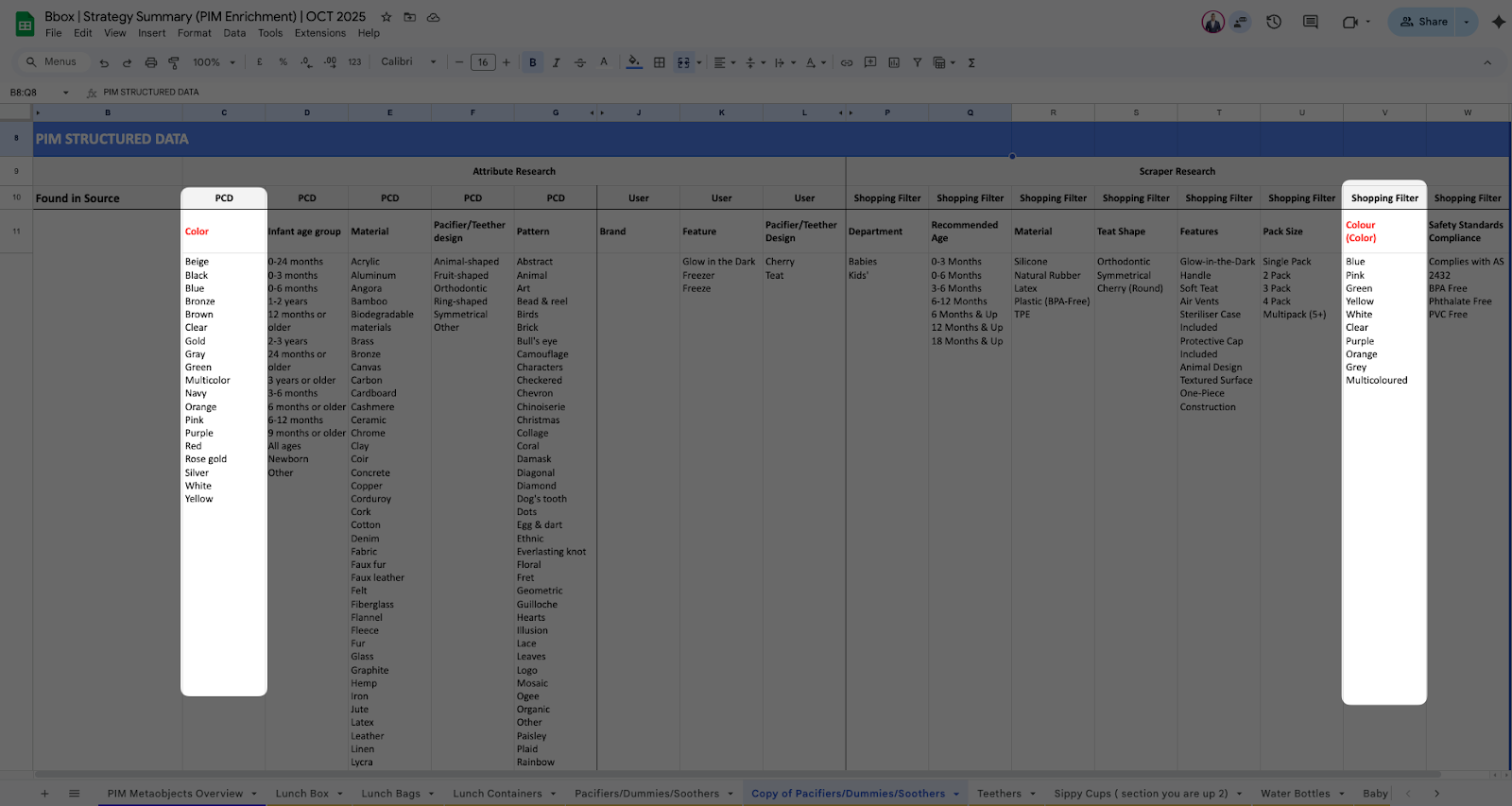  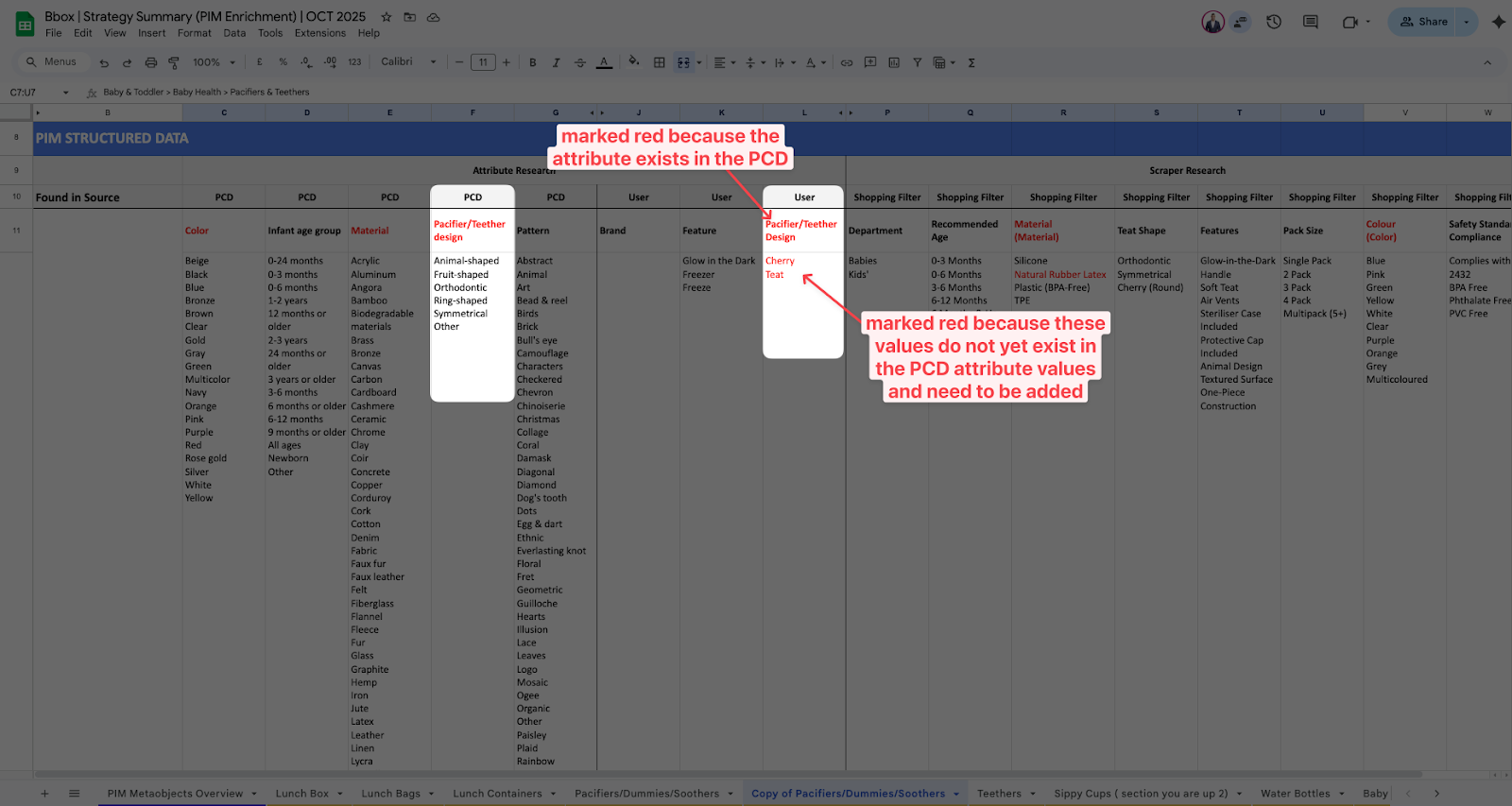 |
11
| Within the User and Shopping Filter sections, mark with Yellow cell fill if the attribute does not yet appear as one of the attributes within the Shopify Standard Product Taxonomy. That is to note that we need to create new Metaobjects for those attributes in the PIM. | Strategy Summary (PIM Enrichment) sheet Example: 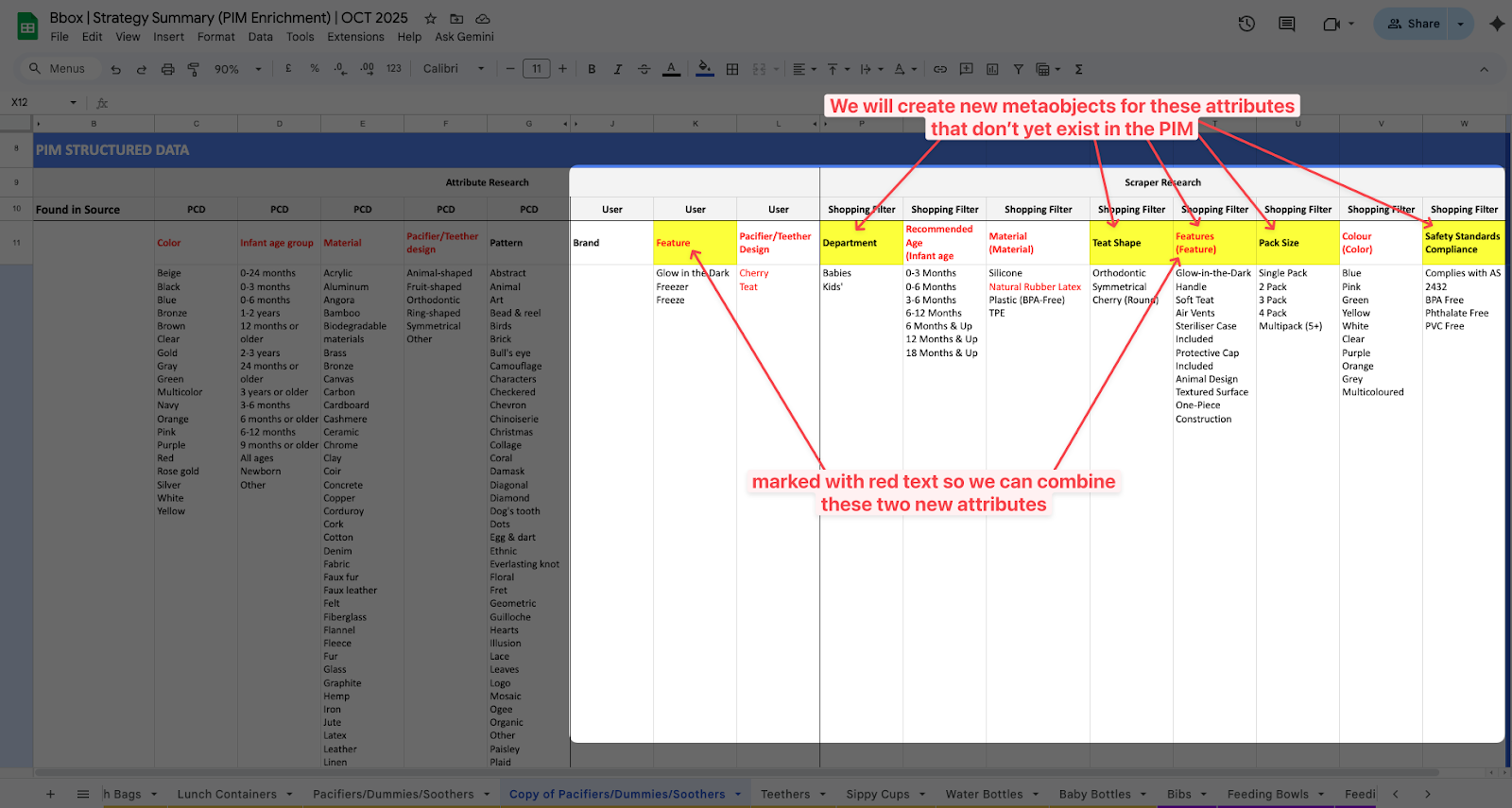 |
12
| There might be instances where an attribute under the User or Shopping Filter section of the sheet is an actual attribute that is available within the Shopify Standard Product Taxonomy but just isn’t assigned to that category. Mark that with Green cell fill to note that we just need to assign that attribute to the category. Use the P.E.M. Tool Taxonomy Tab to search the Shopify Standard Product Taxonomy for particular attributes that exist. | Shopping tab 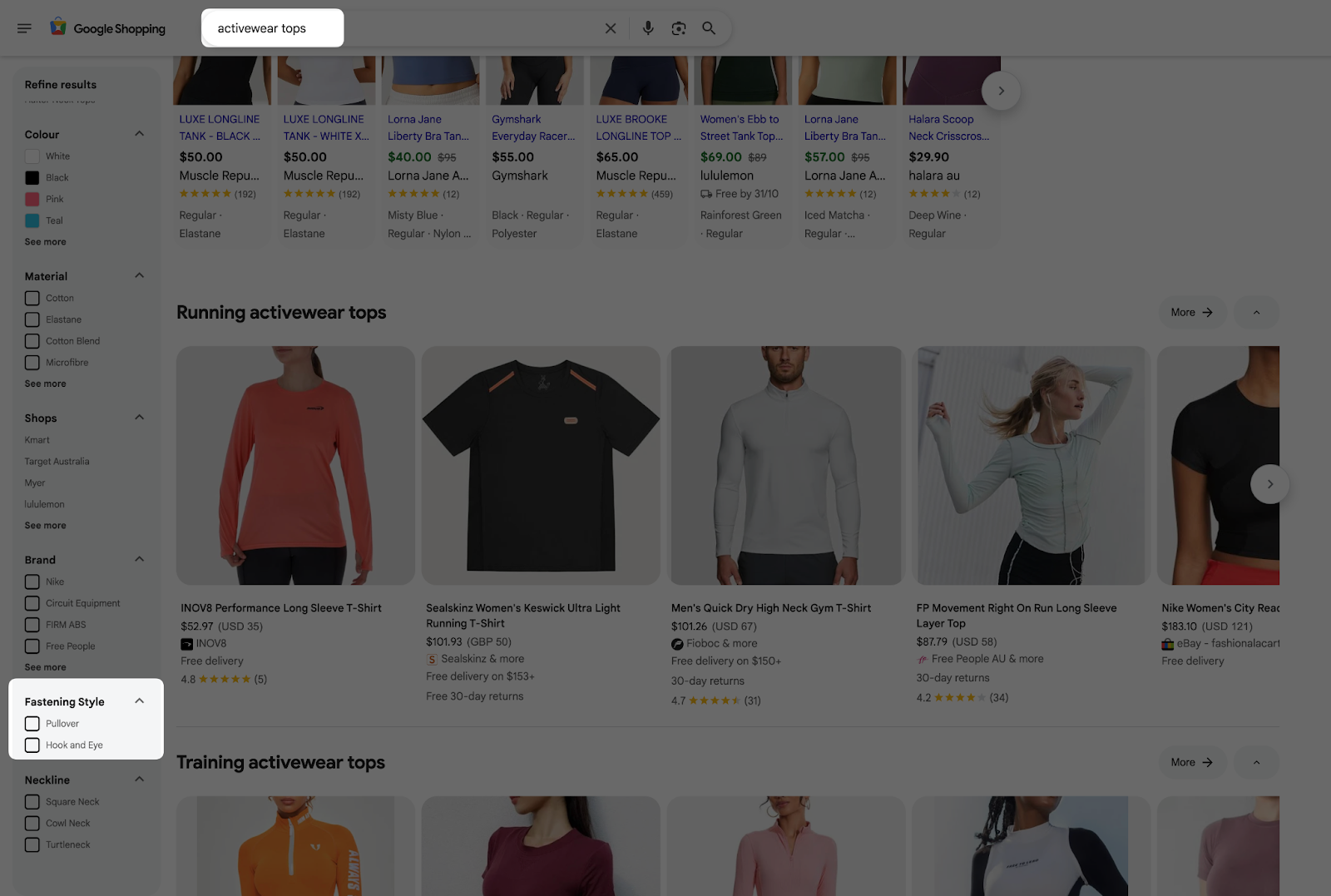 Strategy Summary (PIM Enrichment) sheet  P.E.M. Tool 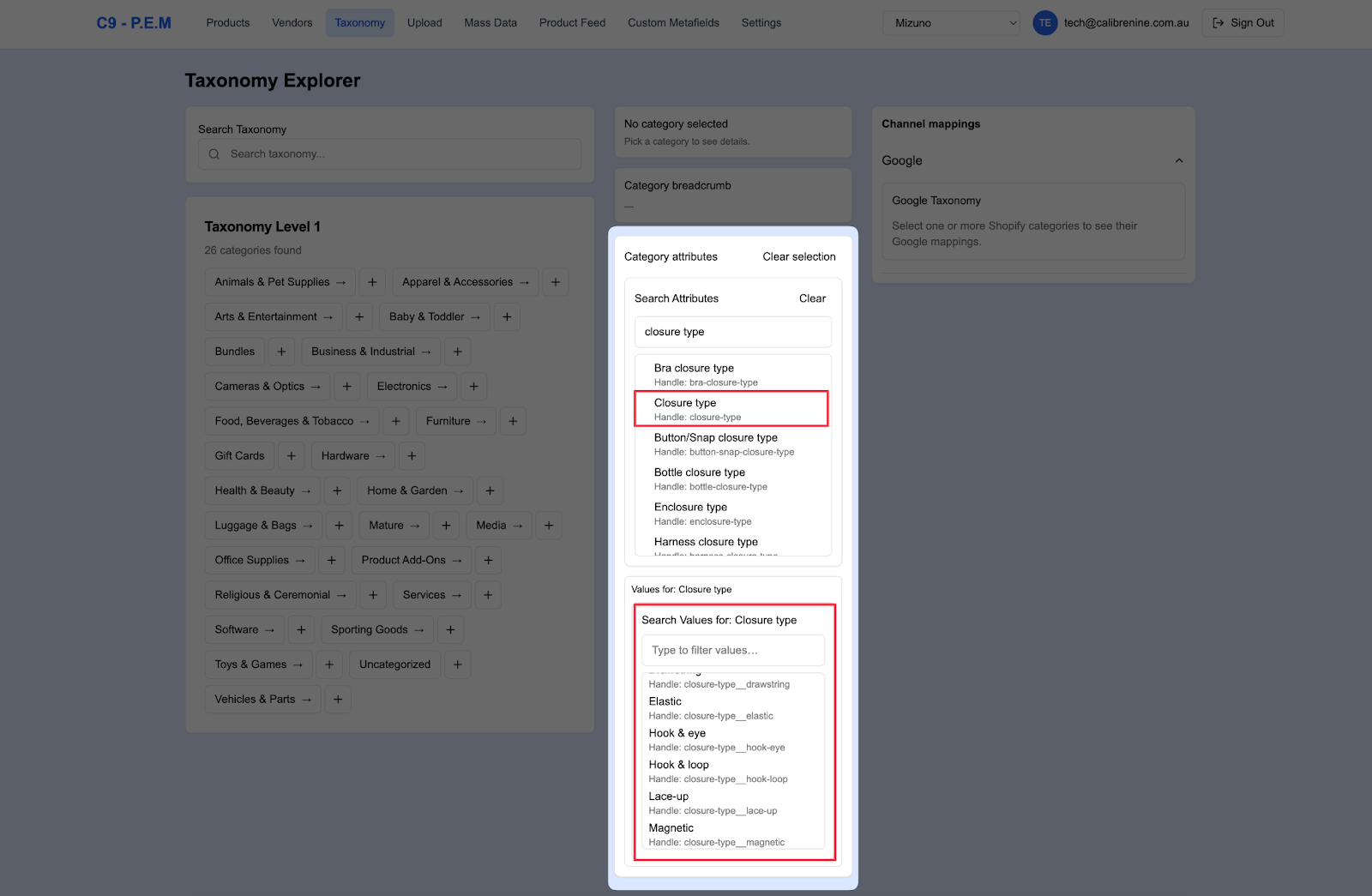 |
13
| Now that we’ve completed the legend assignments, we now have everything we need to populate the Insights Summary section of the sheet. In the “Create new Metaobjects” section, note down in bullets all of the new attributes you’ve marked with the Yellow cell fill. These are all the completely new custom attributes we need to set up as metaobjects on Shopify PIM. In the “Update existing Metaobjects” section, note down in bullets all of the existing Shopify taxonomy attributes that you’ve marked with Red text, followed by all the custom values we’ve identified. Separate each attribute from its values with a colon (:). These are all of the existing attributes we just need to add the custom values that we’ve found to. In the “Assign existing Metaobjects to category” section, note down in bullets all of the existing Shopify taxonomy attributes that you’ve marked with Green cell fill, followed by all of the custom values (if any) that we’ve identified. Separate each attribute from its values with a colon (:). These are all of the existing attributes we just need to assign to that specific category. | Strategy Summary (PIM Enrichment) sheet template  Example: Strategy Summary (PIM Enrichment) sheet 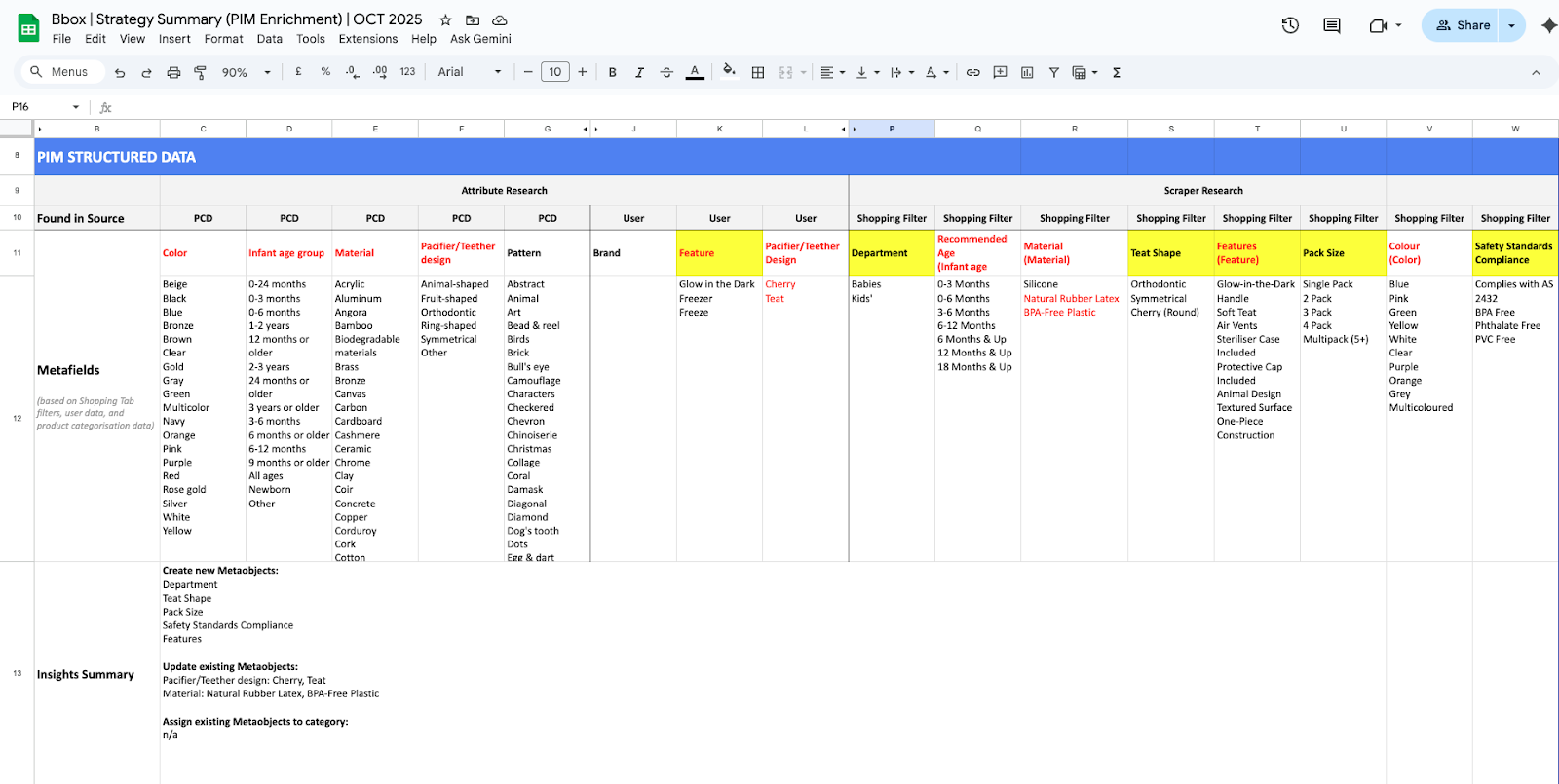 |
14
| Navigate to the PIM Metaobjects Overview.
In the “Update Existing Metaobjects with these additional values and assign to the following categories” section:
Note: These would have been all the ones in red text and green cell-fill
Note: Keep a separate row for each category to make it easier for quick scanning when the Specialist completes the implementation later on.
| Example: Strategy Summary (PIM Enrichment) sheet 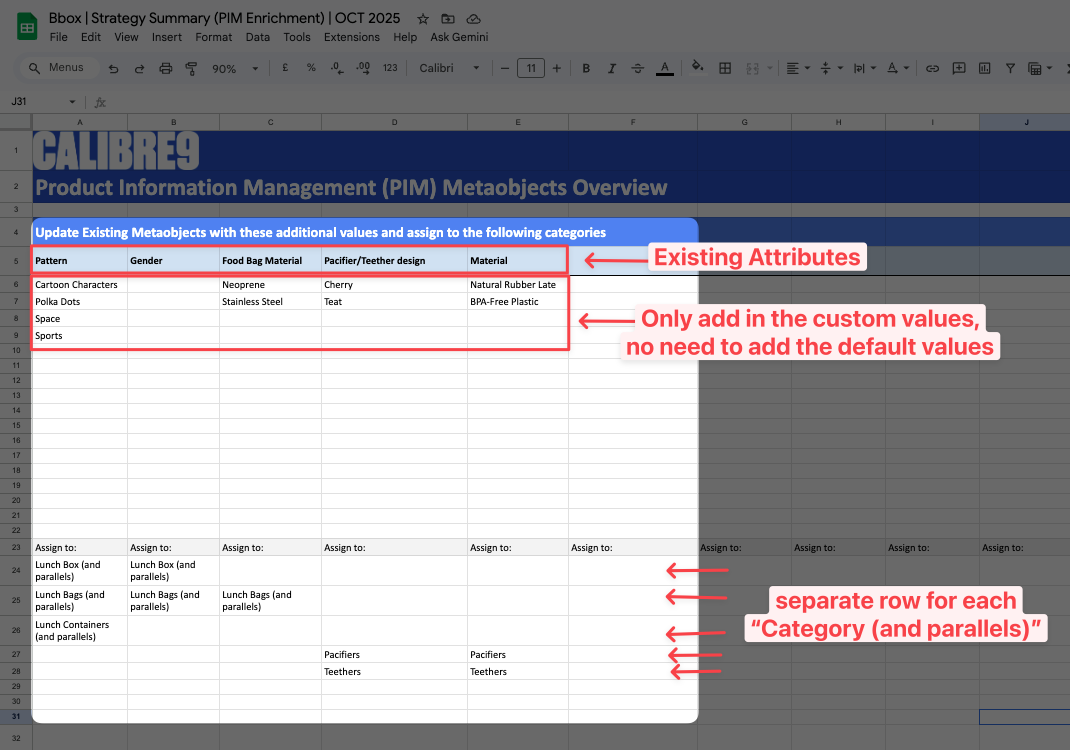 |
15
| In the “Create New Metaobjects with the following values and assign to the following categories” section:
Note: These would have been all the ones in yellow cell-fill
Note: You can choose to include additional values that are relevant to that attribute (even though it wasn’t included in the original research) but just make sure to mark them with blue text.
Note: You may also include any additional categories (even if they weren’t part of the original research). Just make sure to mark these additions in blue text.
And same as above, keep a separate row for each category to make it easier for quick scanning when the Specialist completes the implementation later on.
| Example: Strategy Summary (PIM Enrichment) sheet  |
16
| Repeat all of these steps until you’ve completed all of the dedicated category tabs and the PIM Metaobjects Overview tab. |
Categories:
GMC
Guides, SOPs & Policies (GMC)