Article
Source
Doc
| Category | Documentation |
|---|---|
| Type | Doc |
| Last Modified | 6 October 2025 |
| Location | Tools > Google Analytics (GA4) |
GA4 Guide | GSC Report in GA4
From FAQ-Off, the Calibre9 knowledge base

GA4 Reports
Cowie's GA4 Guide
This guide teaches a user how to link Google Search Console (GSC) to Google Analytics 4 (GA4) and then publish and access a search console report in GA4.
.
How to Link GSC and Publish Report
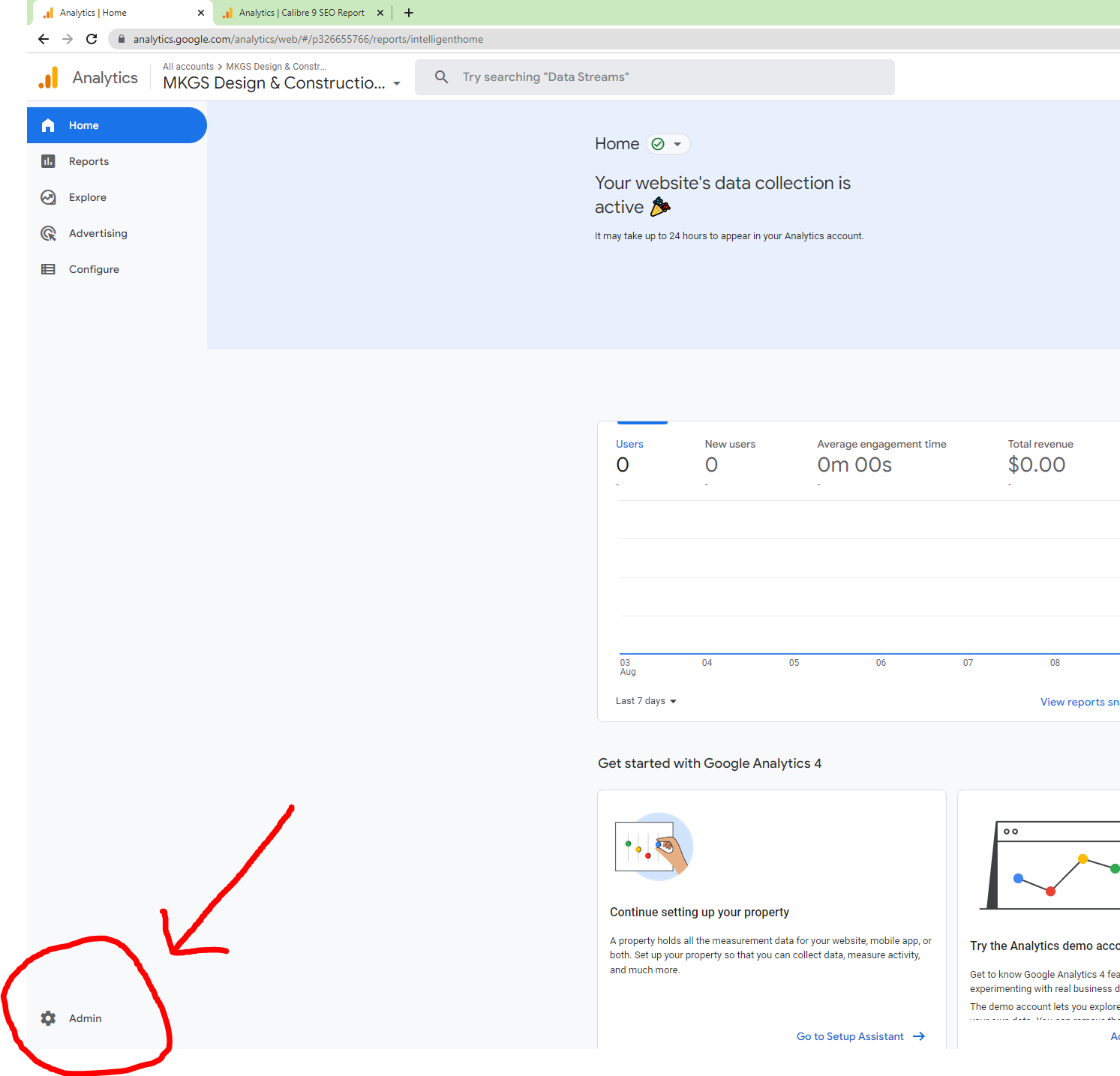
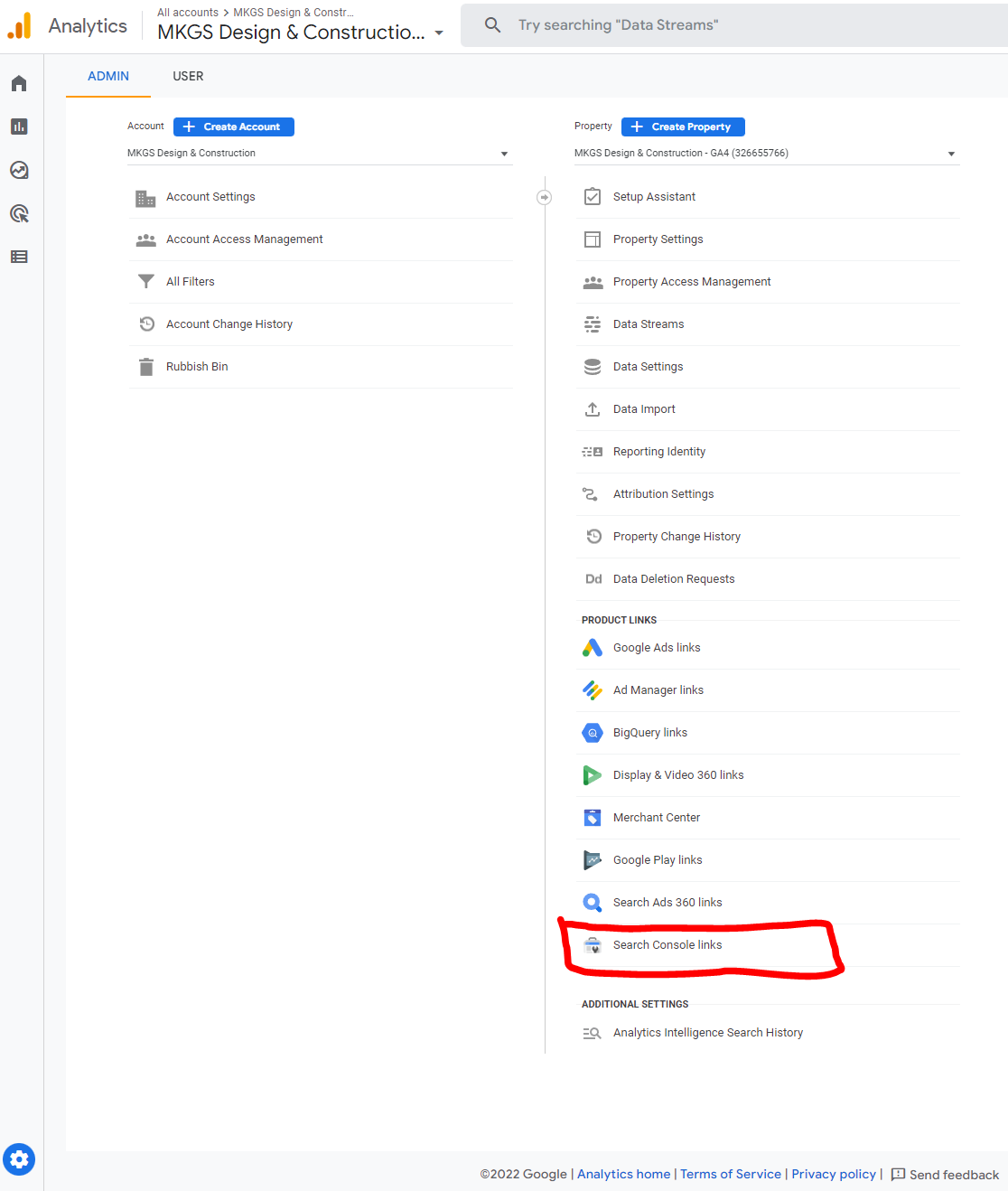
1 | Go to Admin then Search Console Links
|   |
|---|---|---|
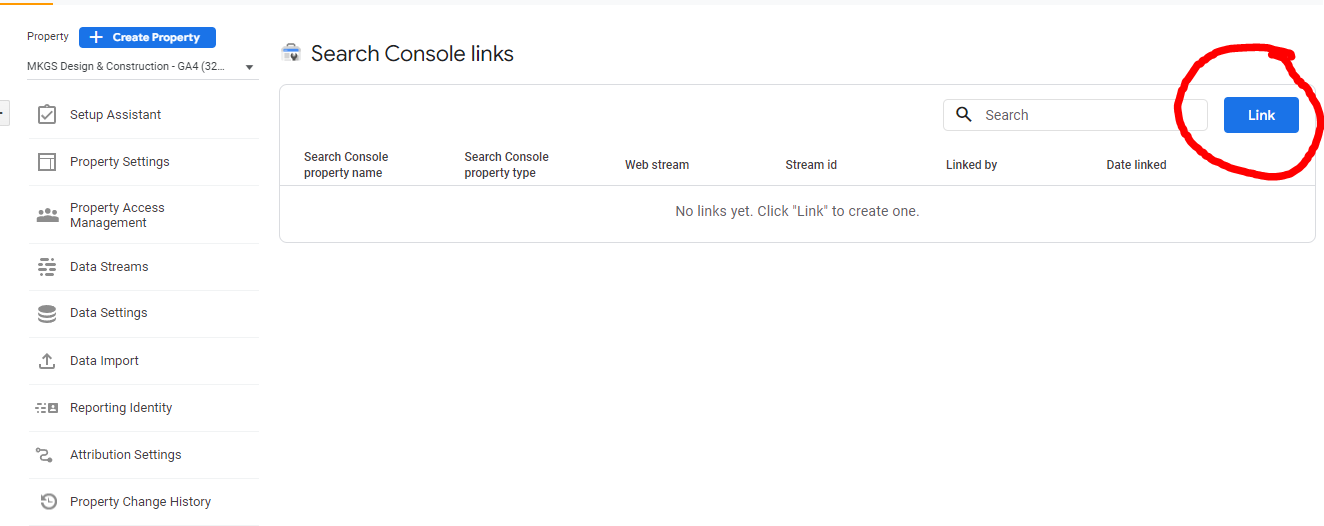
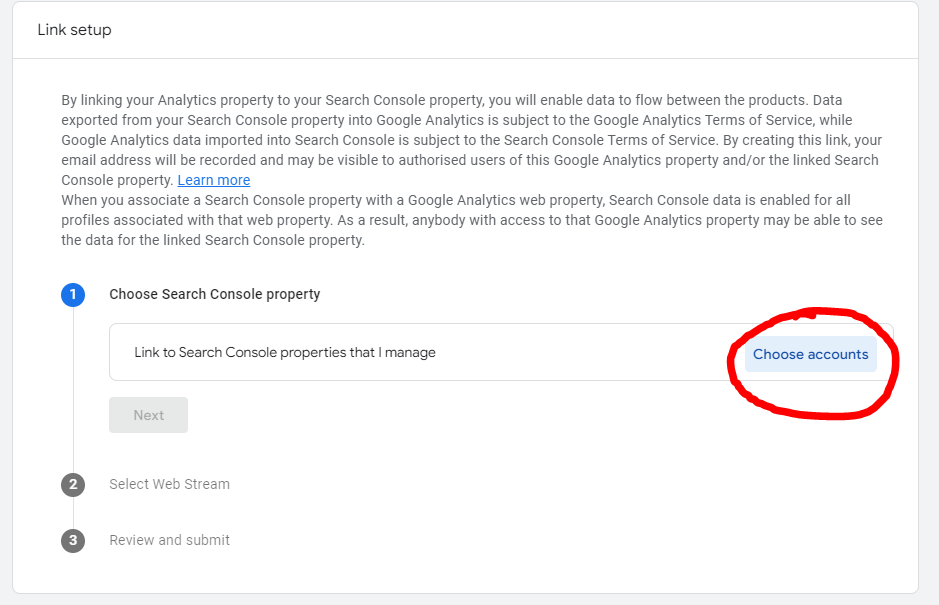
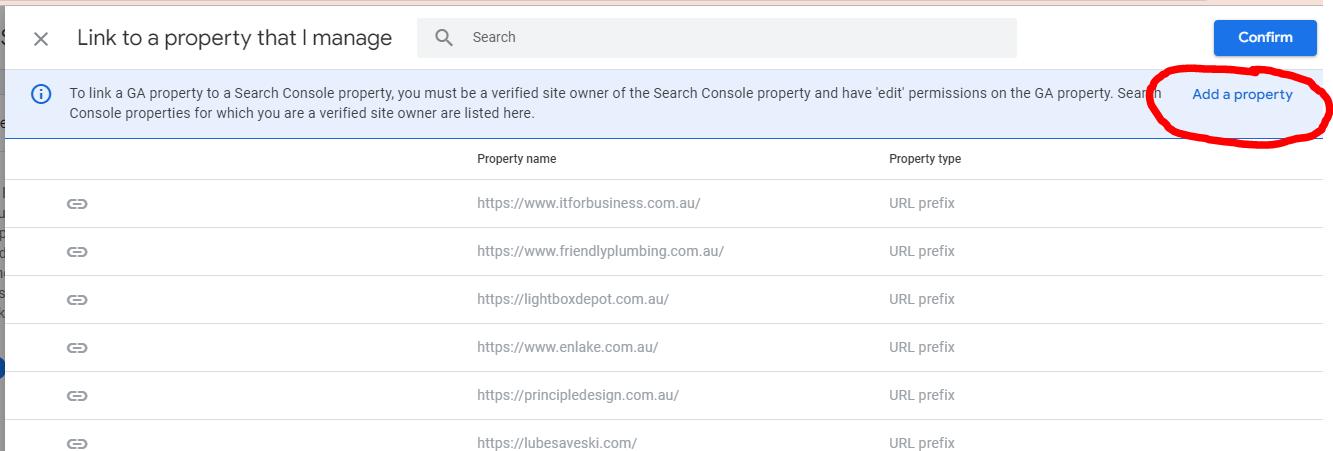
2 | Click Link in the top right and Choose Accounts then Add a property
|    |
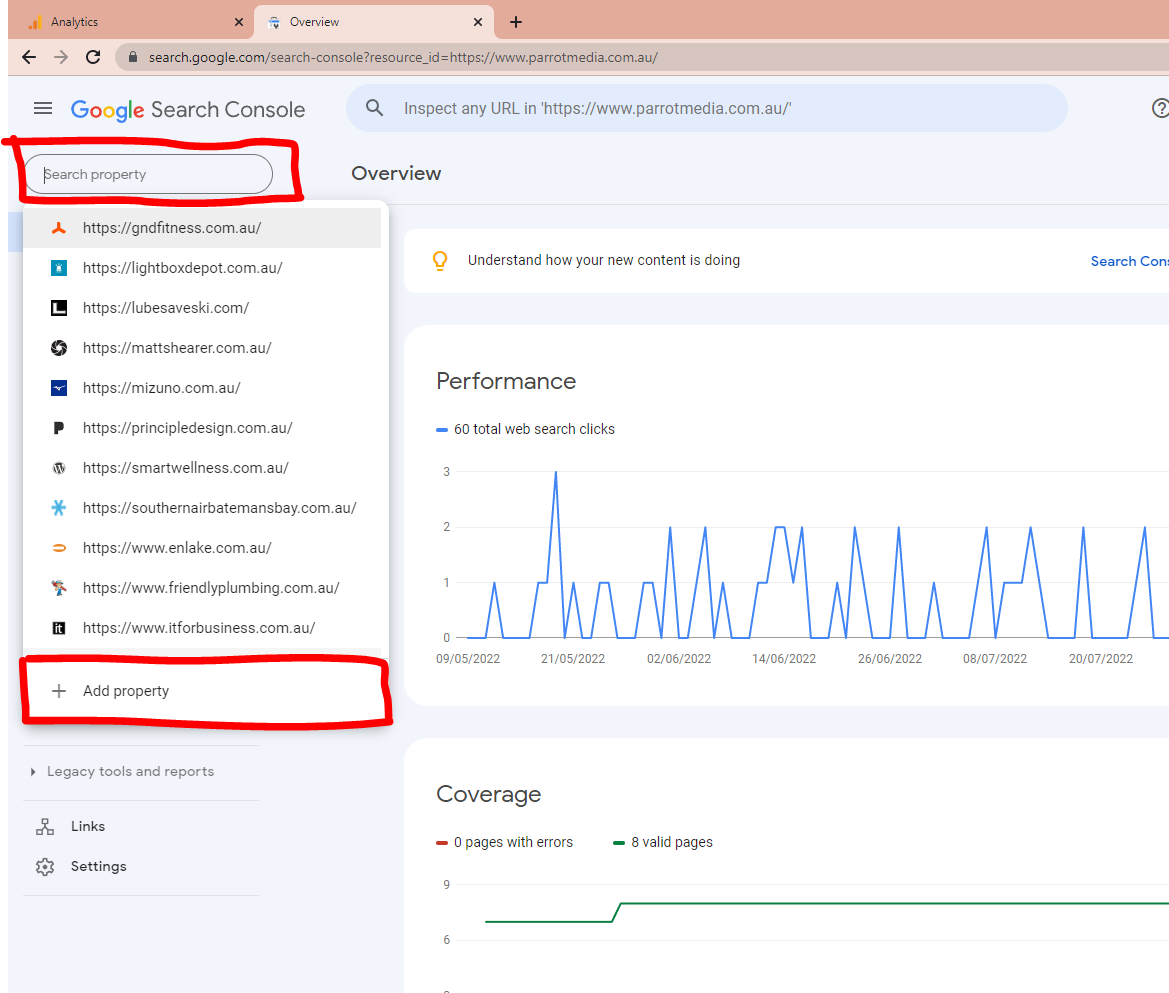
3 | Once on Google Search Console, open the property menu and Add property
|  |
4 | Paste the homepage of the site you’re adding in the right hand box and click Continue
Your ownership of the site should be “auto verified” through your GA account but occasionally you have to add a tag to the site. | 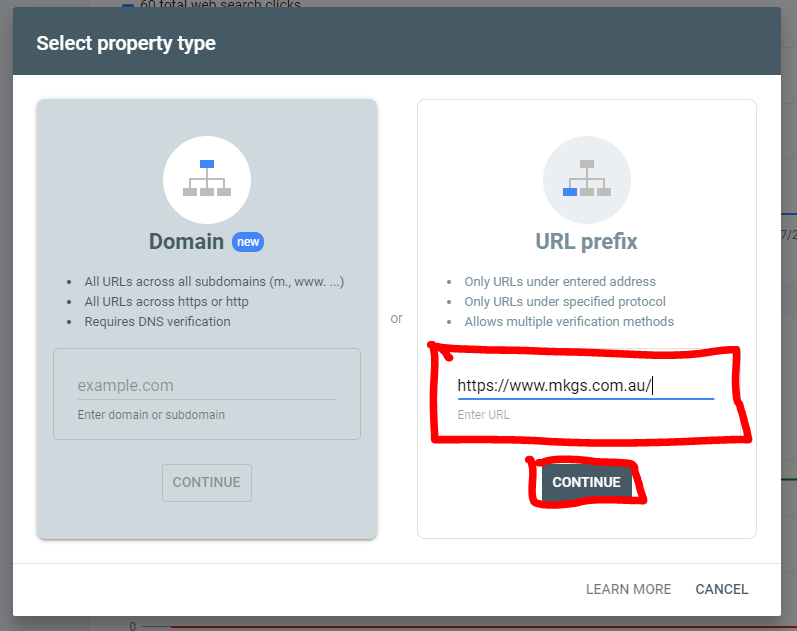 |
5 | Go back to Google Analytics and Refresh the page then click Link and Choose Accounts just like you did earlier. | 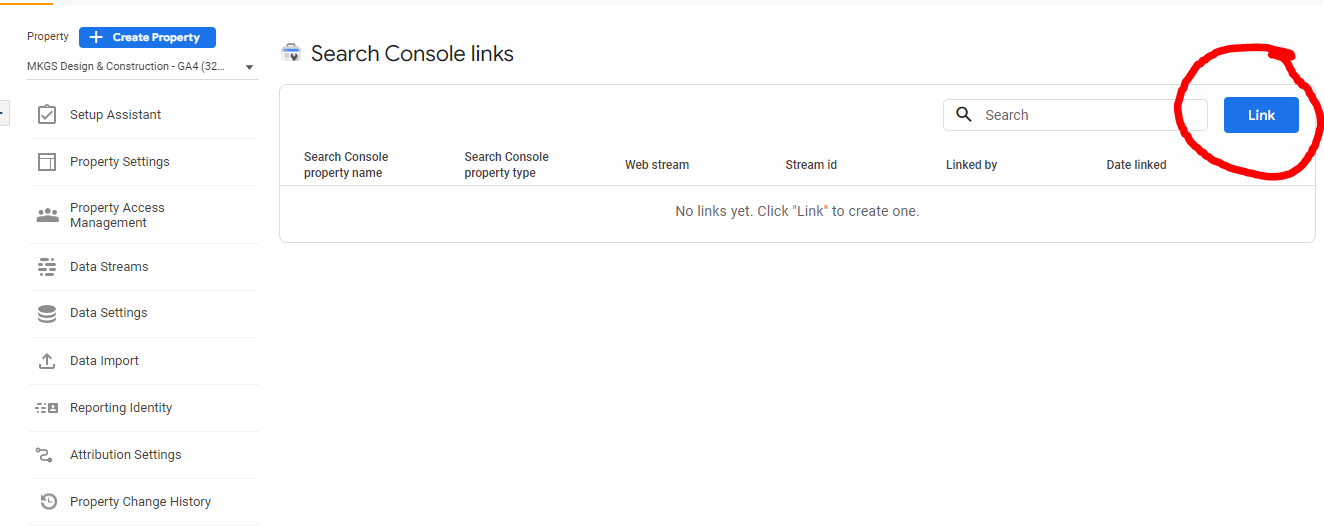 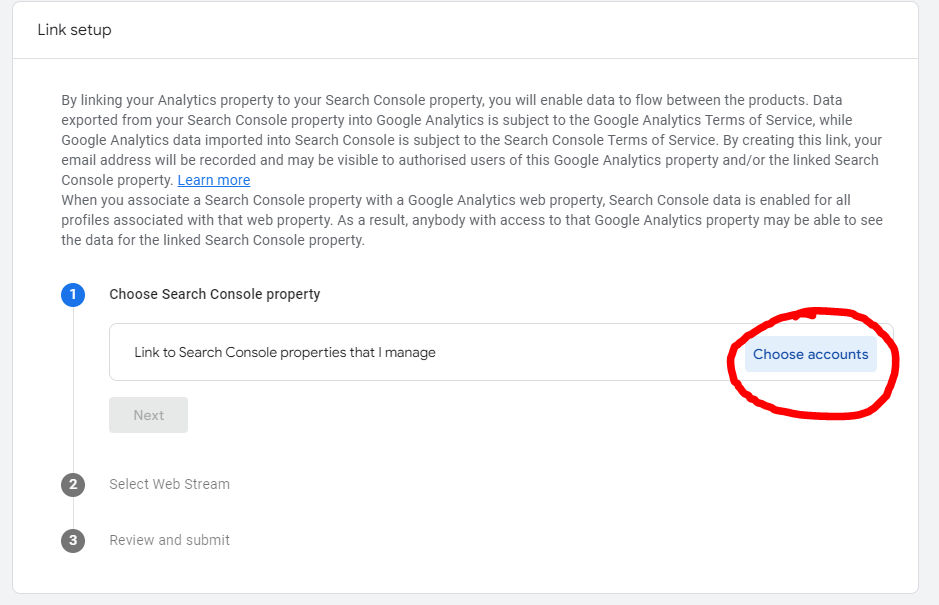 |
6 | This time there should be a new property for the website you want to connect Tick it then Confirm | 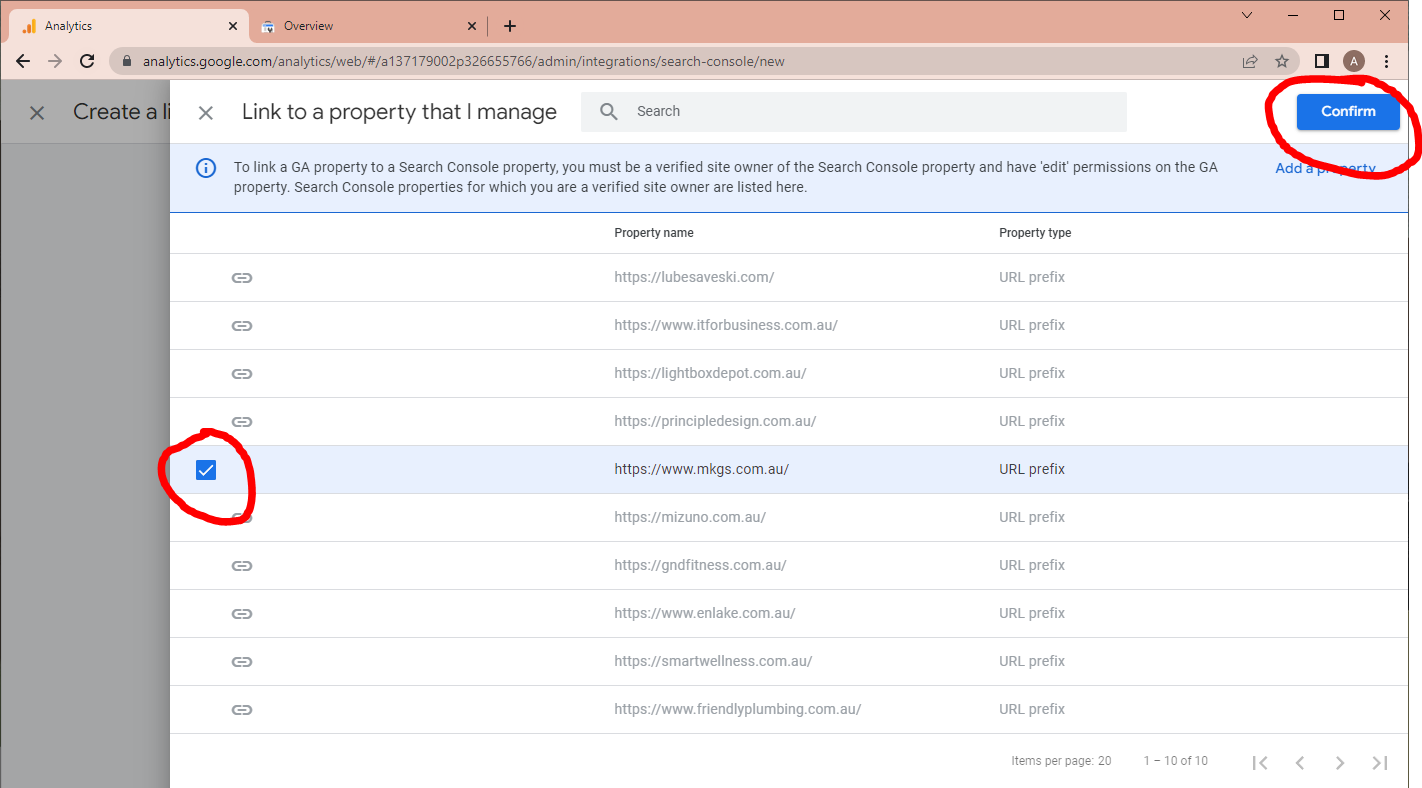 |
7 | Select a web stream (whichever web stream is tracking data; there’s usually only one) then Submit | 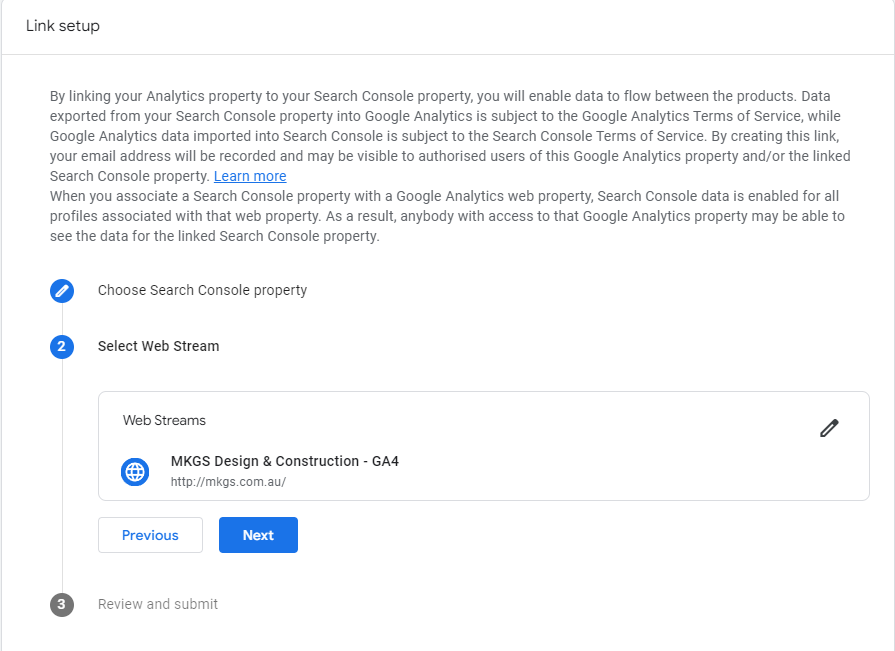 |
8 | Go to Reports then Library in the sidebar | 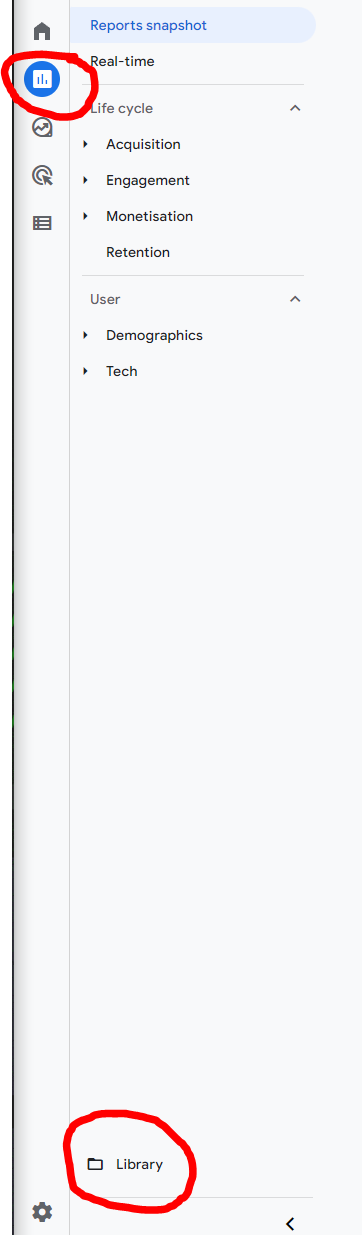 |
9 | Go to the Search Console Collection Settings then Publish the report. | 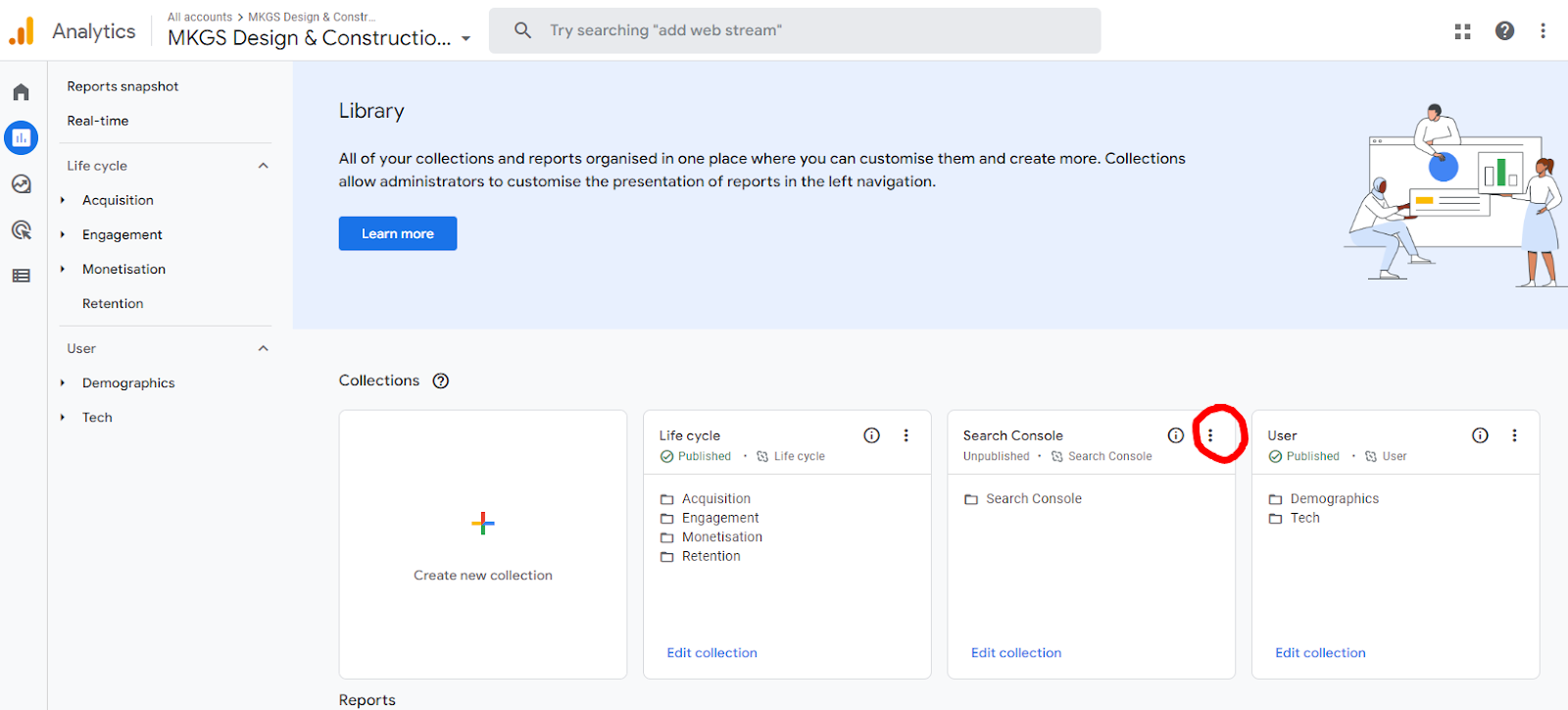 |
10 | There should now be a Search Console report in your reports section. | 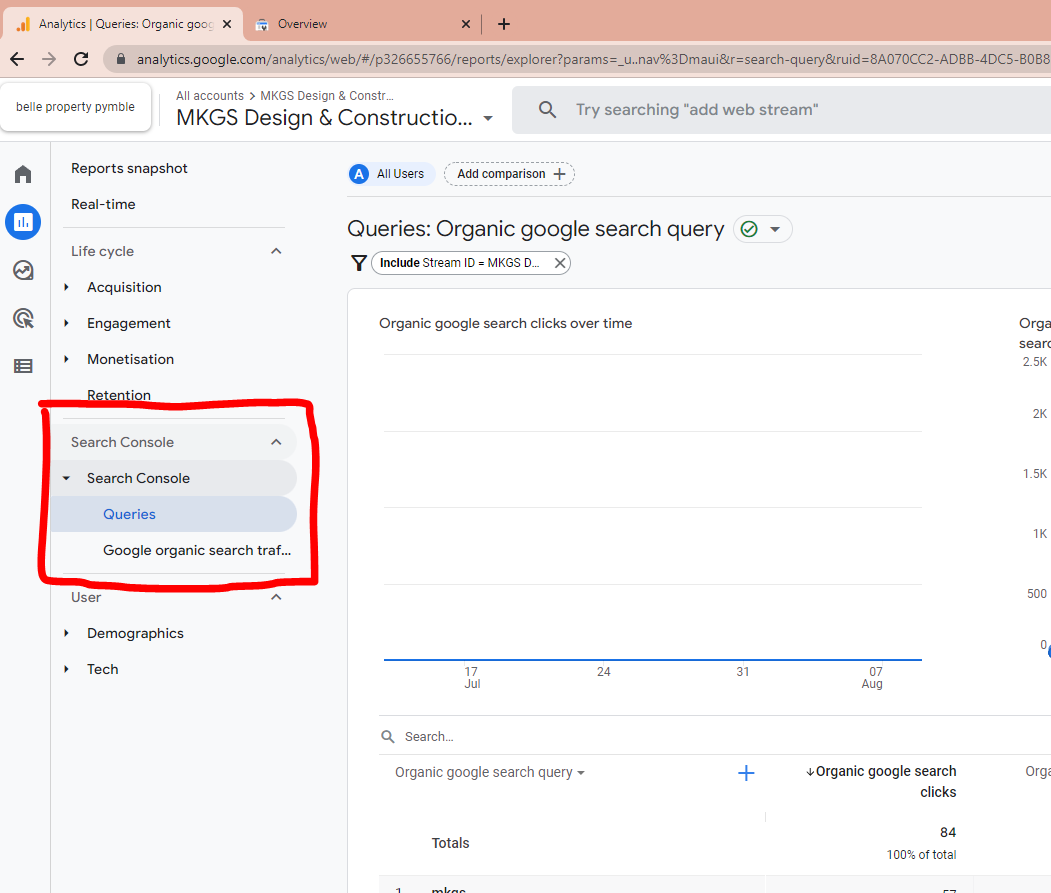 |
How to View Search Console Report
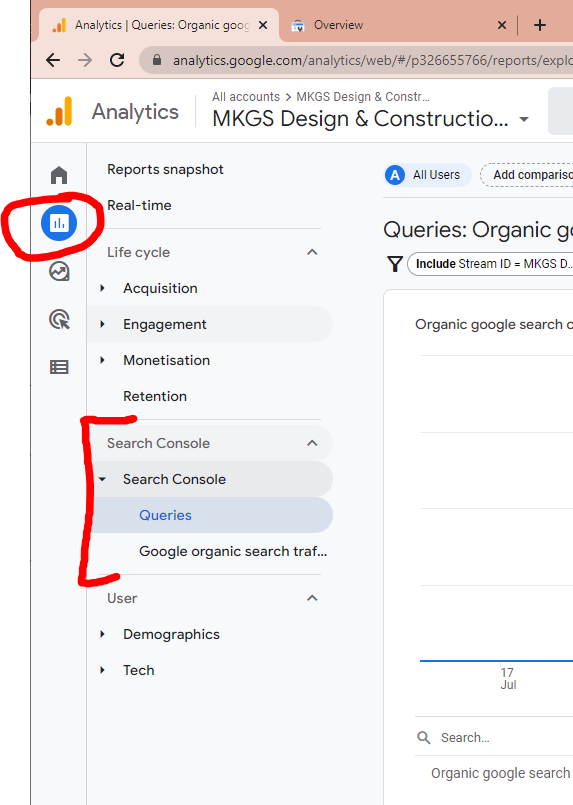
1 | Go to Reports then Search Console and pick Queries or Google organic search traffic
|  |
|---|---|---|
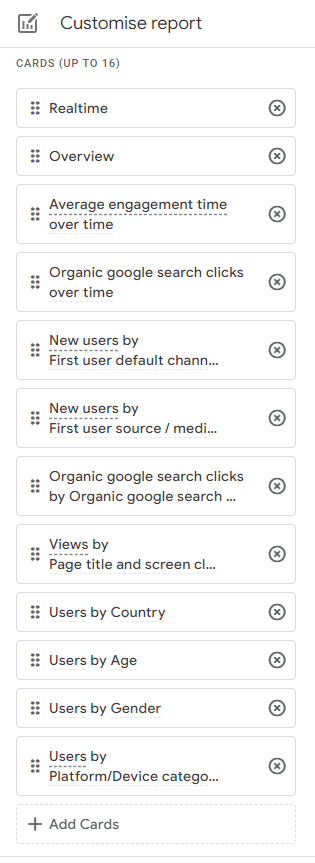
2 | These screens are reports that you can customise | |
3 | ||
4 | ||
5 | ||
6 | ||
7 | ||
8 | ||
9 | ||
10 | ||
11 |
Categories:
Documentation
Tools