Article
Source
Doc
| Category | Documentation |
|---|---|
| Type | Doc |
| Last Modified | 6 October 2025 |
| Location | Tools > Google Analytics (GA4) |
GA4 Guide | Finding 404 Pages
From FAQ-Off, the Calibre9 knowledge base

Using GA4 to Find 404 Pages
Lachlan's GA4 Guide
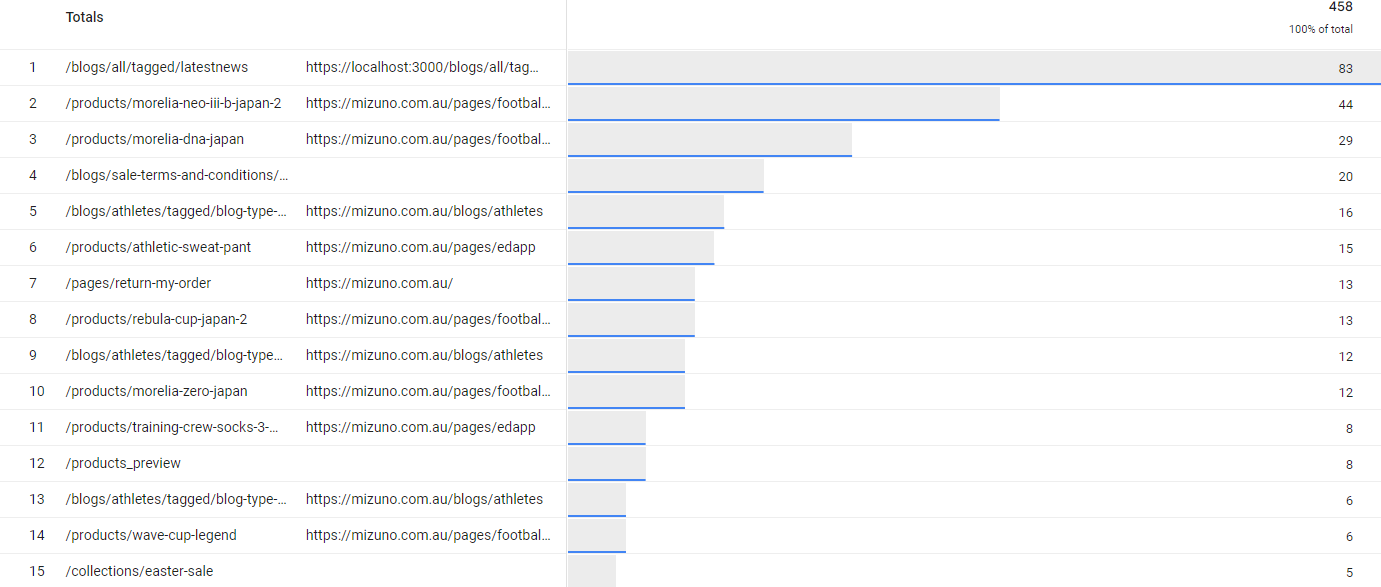
This guide teaches a user two methods to locate 404 pages in Google Analytics 4. It also teaches you to check how many users have been to a 404 page and which page they came from.
This is especially useful for SEO if a backlink to a clients website has an incorrect address, as we can set up a redirect to still receive that link’s authority.
.
Finding 404 pages in Reports
1 | Go to Reports in the GA4 Property sidebar | 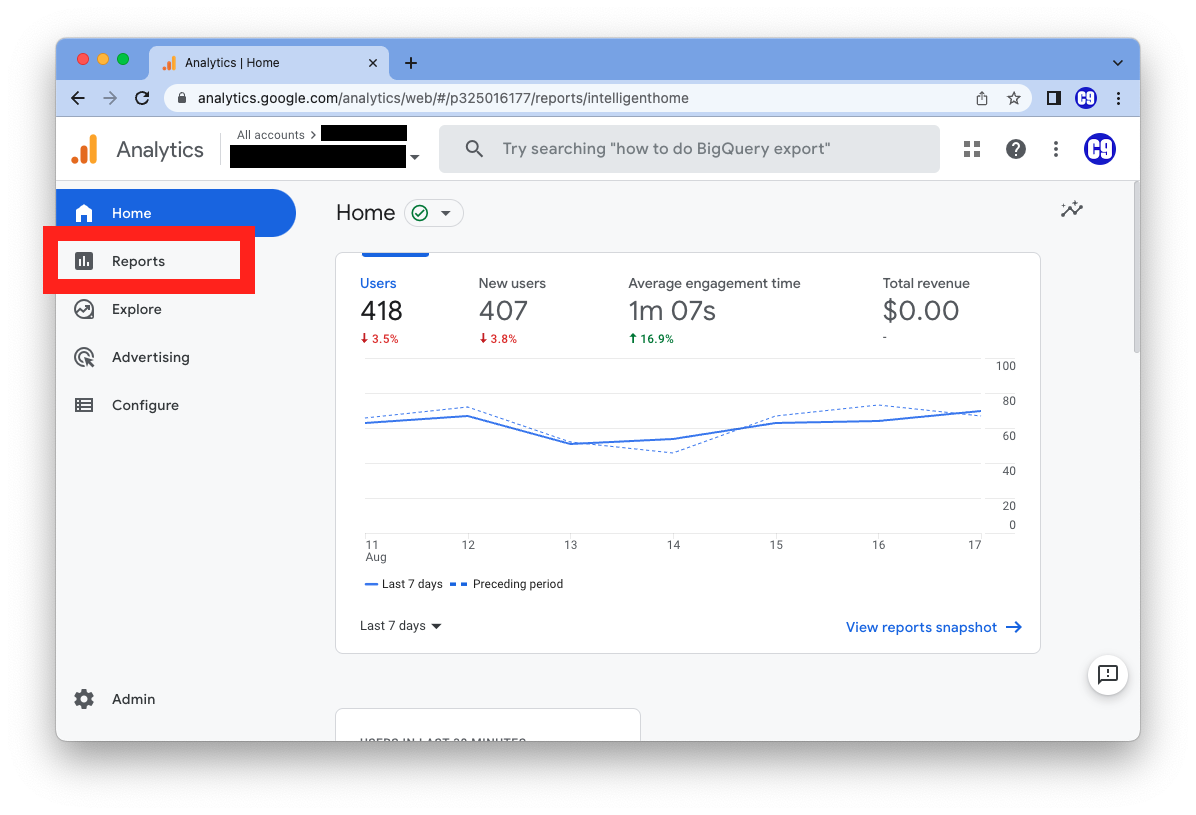 |
|---|---|---|
2 | Go to Engagement in the lefthand menu and then Pages and screens in the sub-menu | 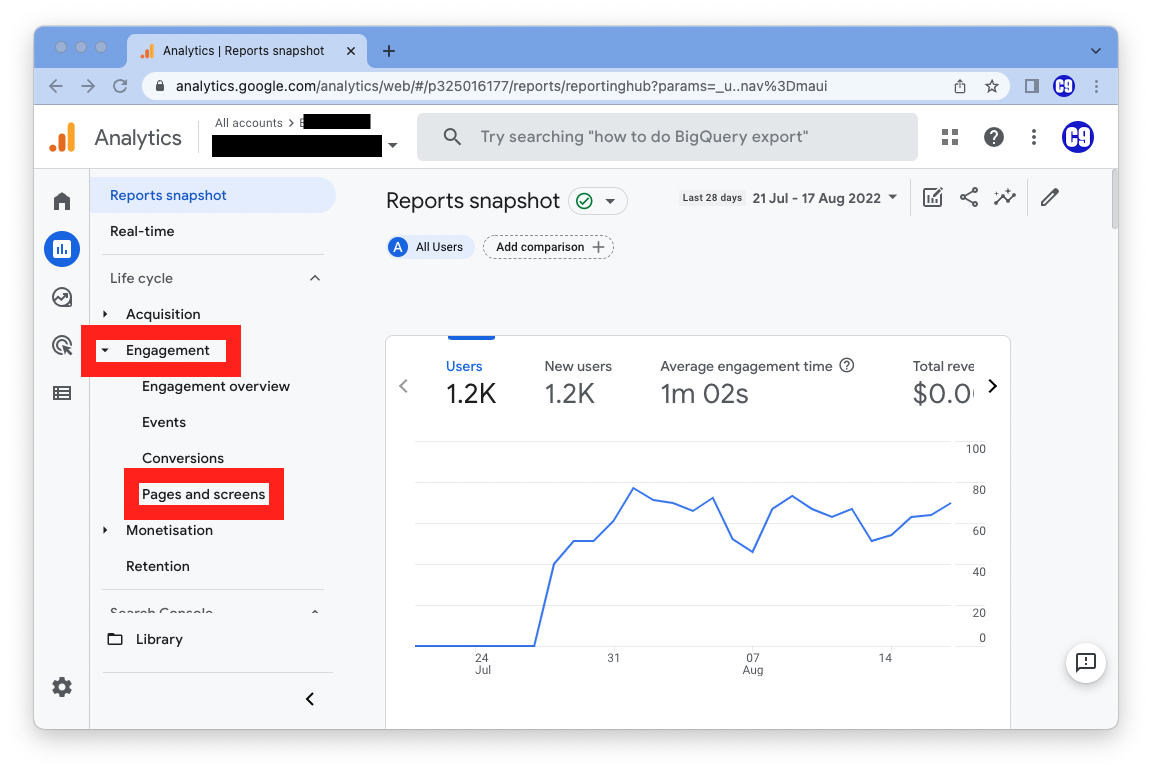 |
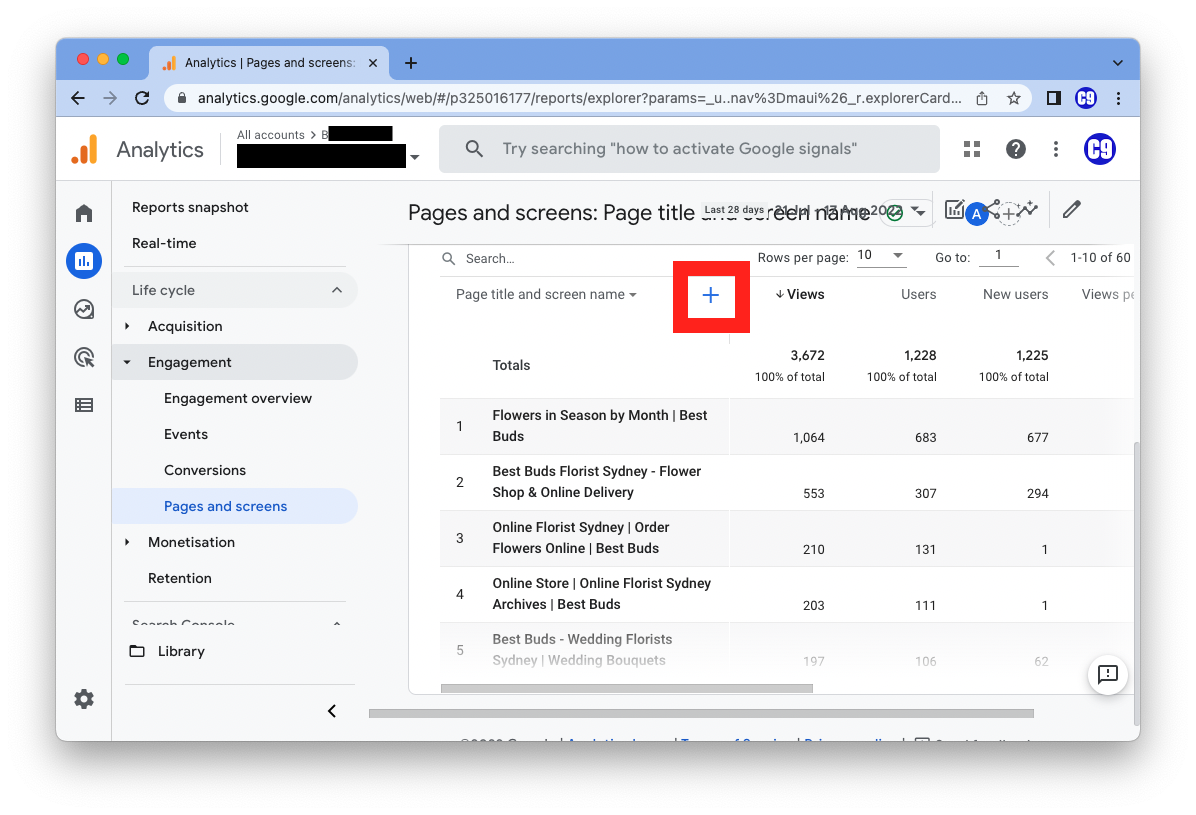
3 | Scroll down to the table and select Page title and screen name from the drop-down menu under the search bar | 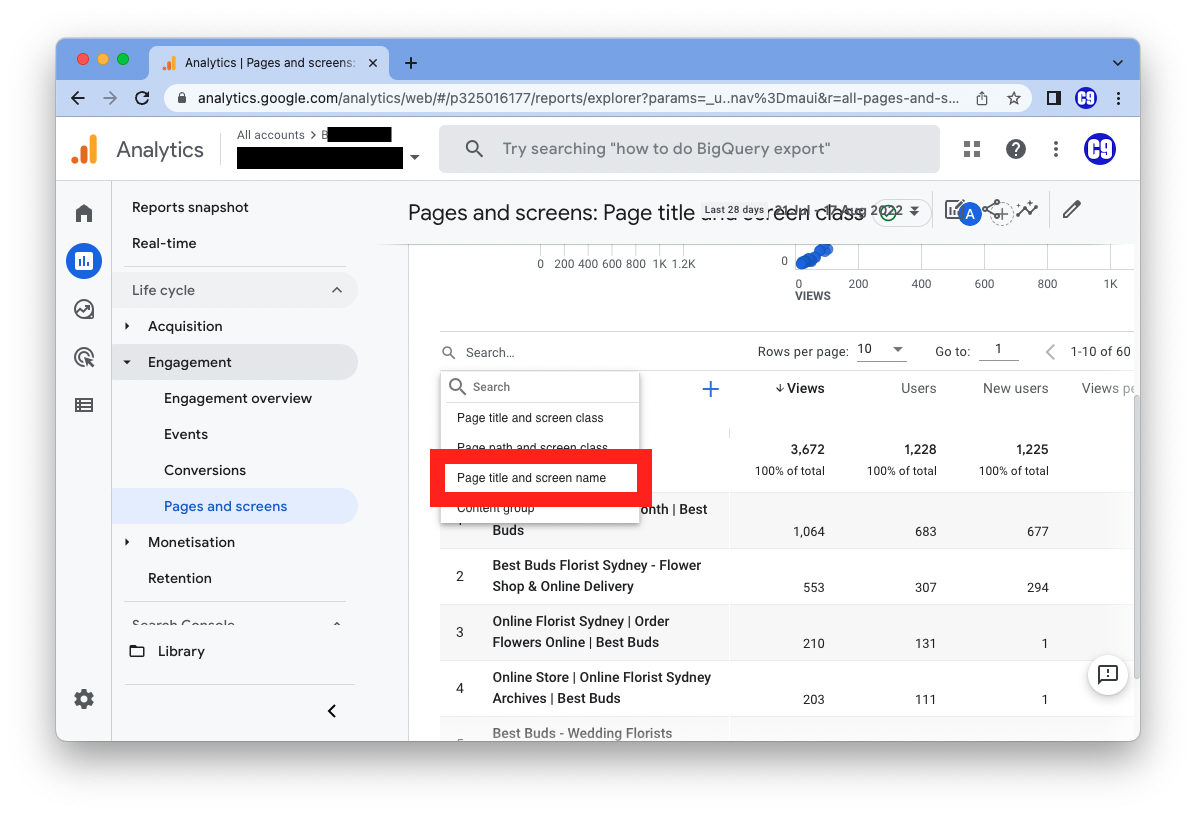 |
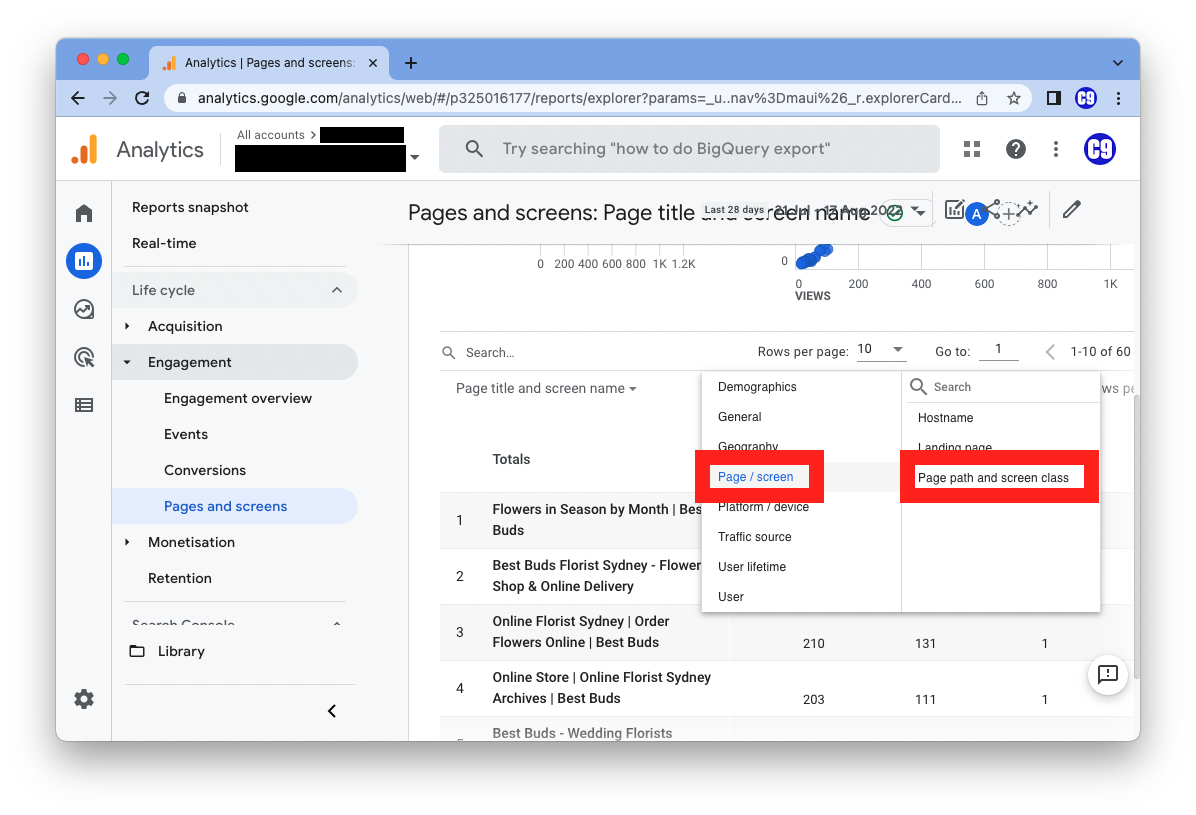
4 | Click the “+” next to it and then go to Page / screen and add page path and screen class
|   |
5 | Find the name of the 404 page on your website | 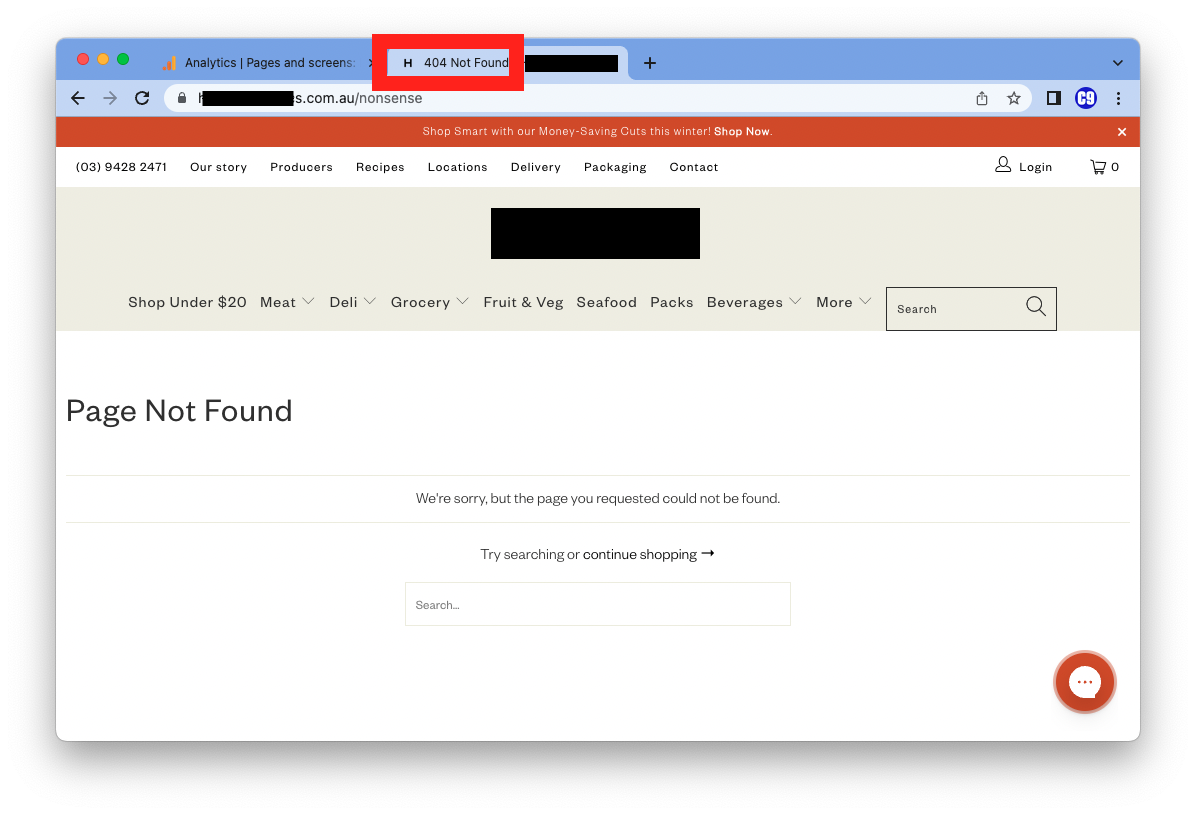 |
6 | Put the name of your 404 page into the search bar above the table in Google Analytics | 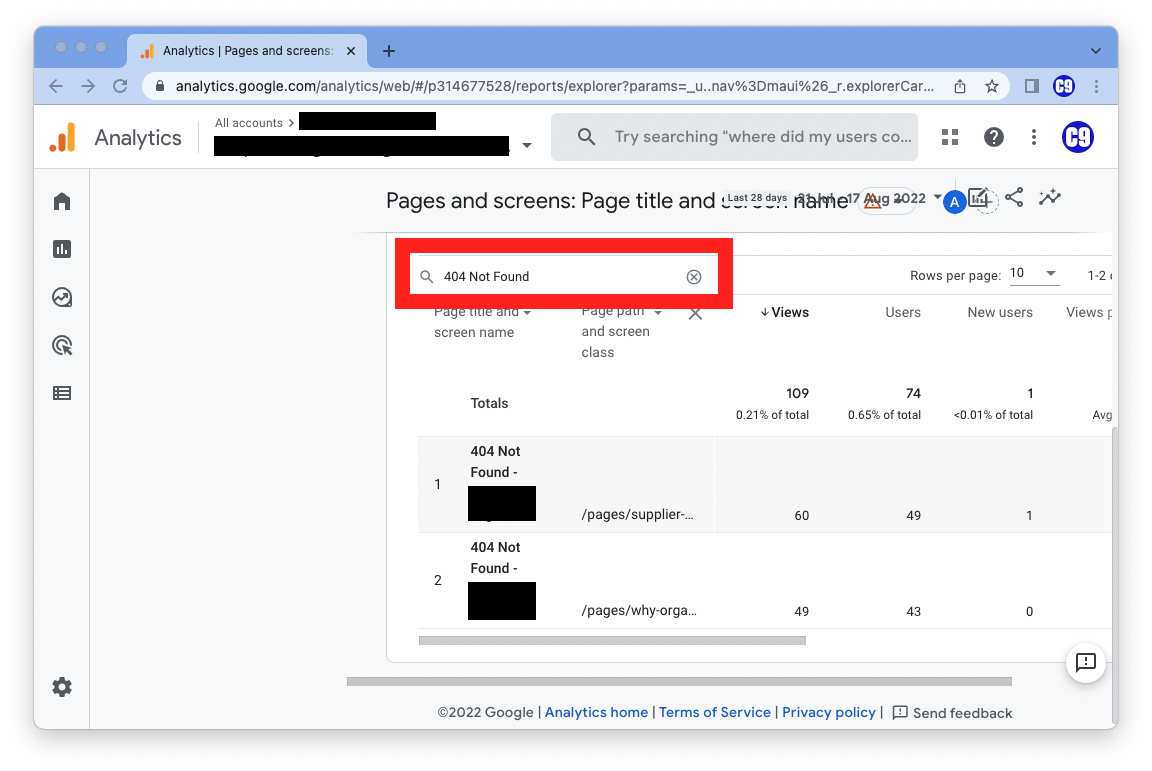 |
7 | OPTIONAL: Increase rows per page in top right of table to see all pages | 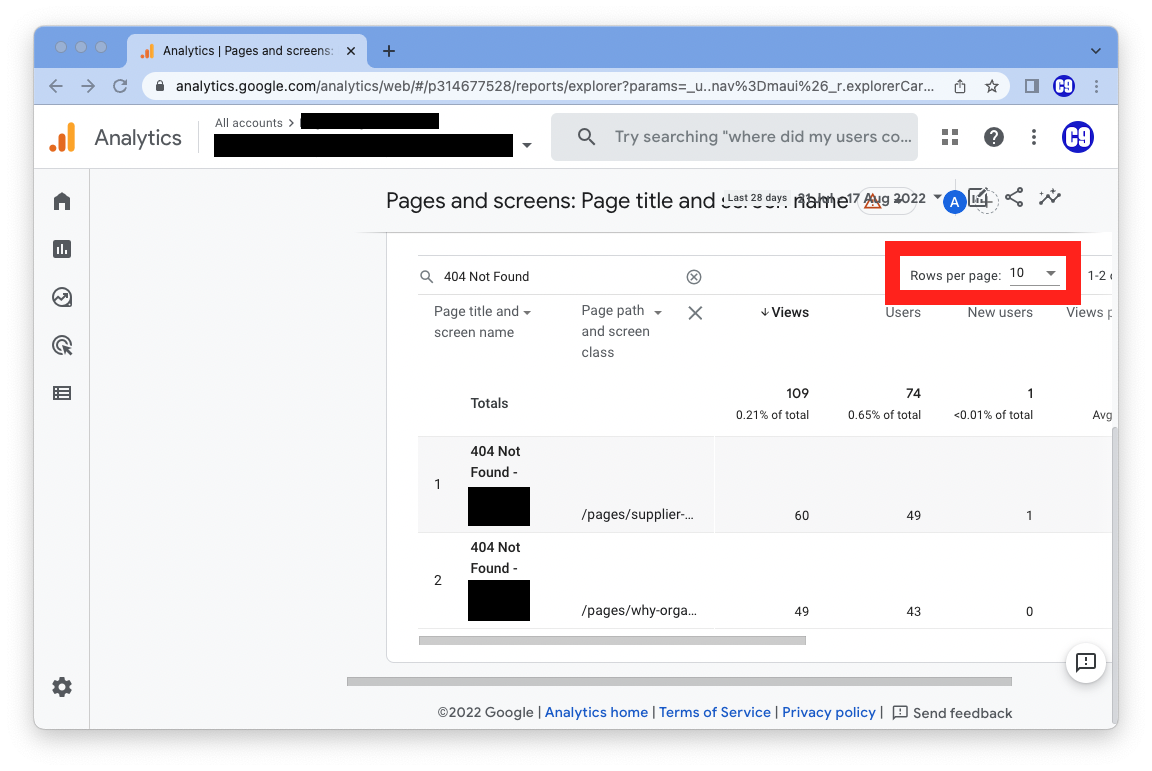 |
Finding 404 Pages in Explore
1 | Go to Explore in the sidebar | 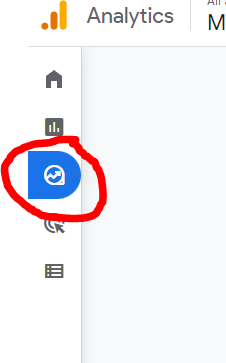 |
|---|---|---|
2 | Click Blank | 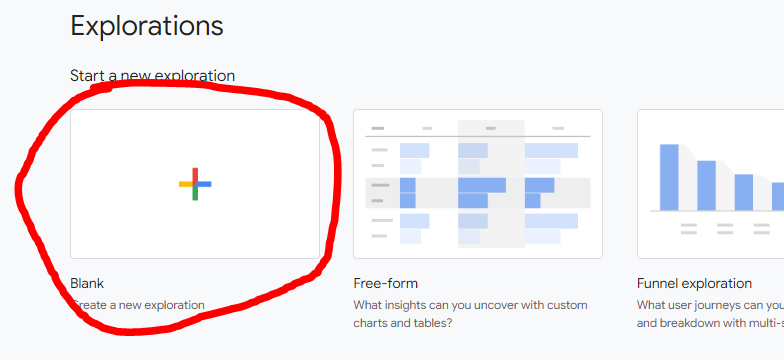 |
3 | Click the “+” next to dimensions and add the dimensions: Event name, Page path and screen class, Page referrer, and Page title then click Import in the top right | 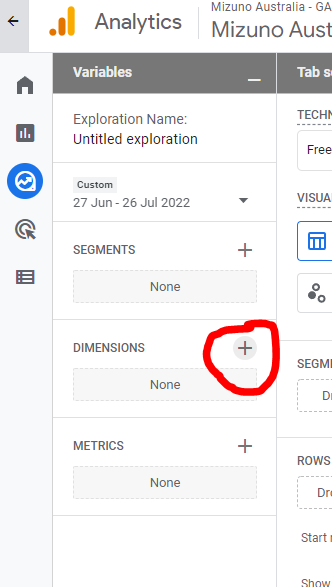 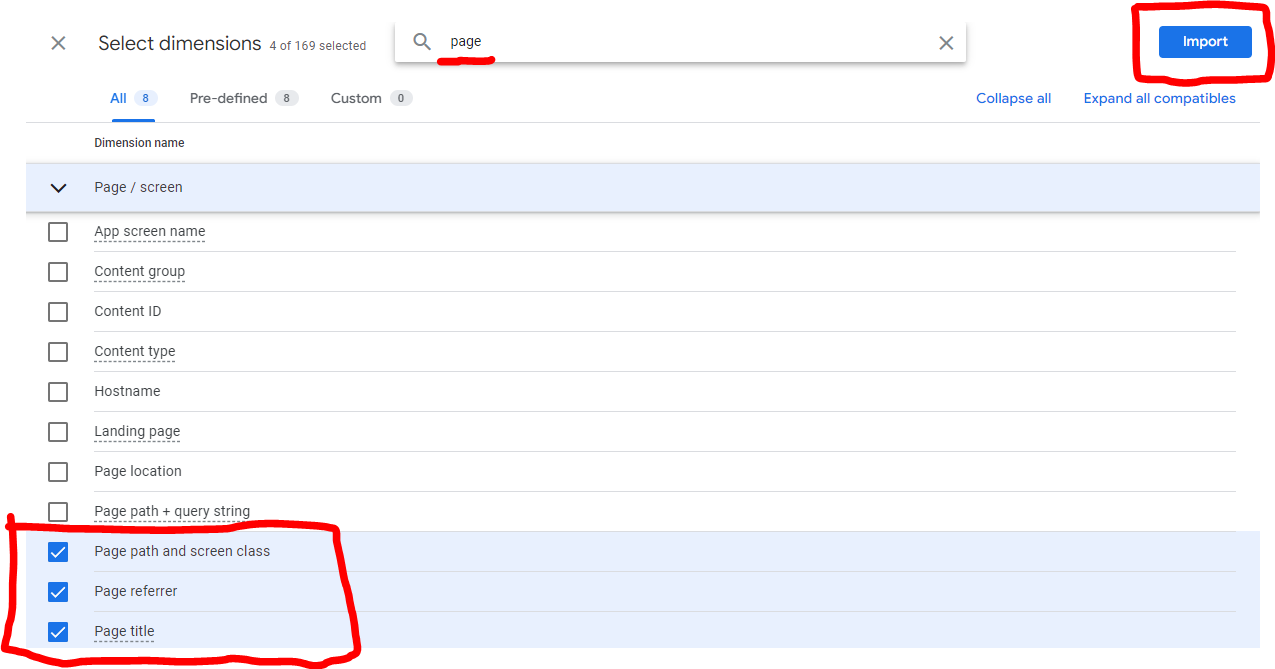 |
4 | Click the + next to Metrics and add Event count then click Import in the top right | 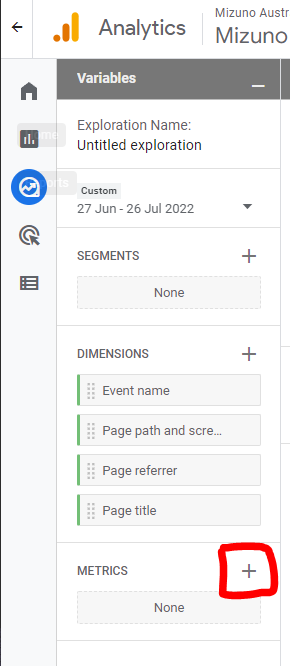 |
5 | TIP: The things you’ve added to the leftmost “Variables” column serve as a kind of “palette” that you can add to make the next column over to make graphs. Try dragging and dropping them in different places.
| 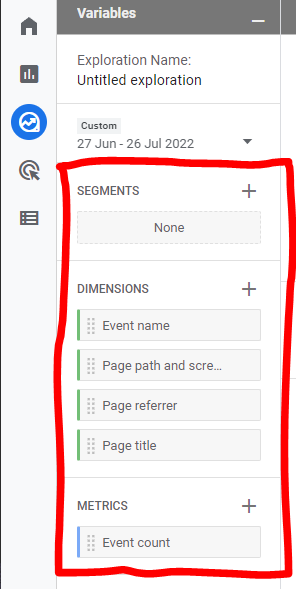 |
6 | Drag or double click to add Both
Page path and screen name and Page referrer to the Rows section of the second column | 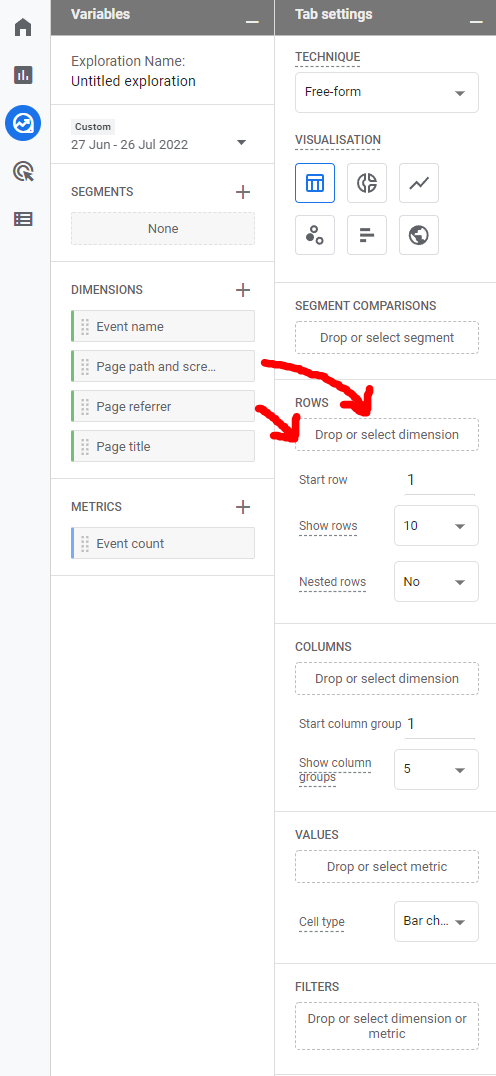 |
7 | Drag or double click to add Event count to the Values section of the second column | 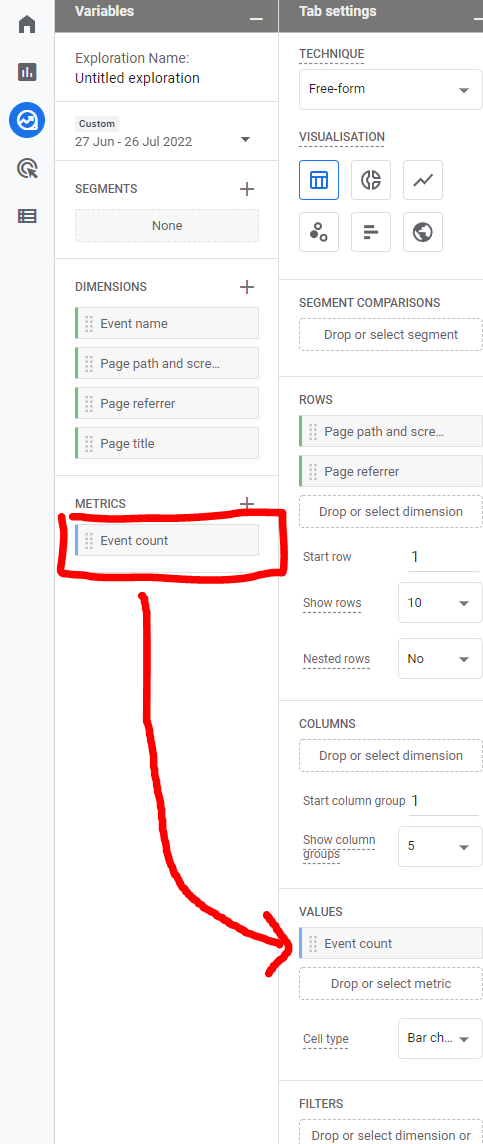 |
8 | Apply filter to the Filters section of second column to that says Event name
exactly matches
page_view (to make sure you’re only seeing page view events) | 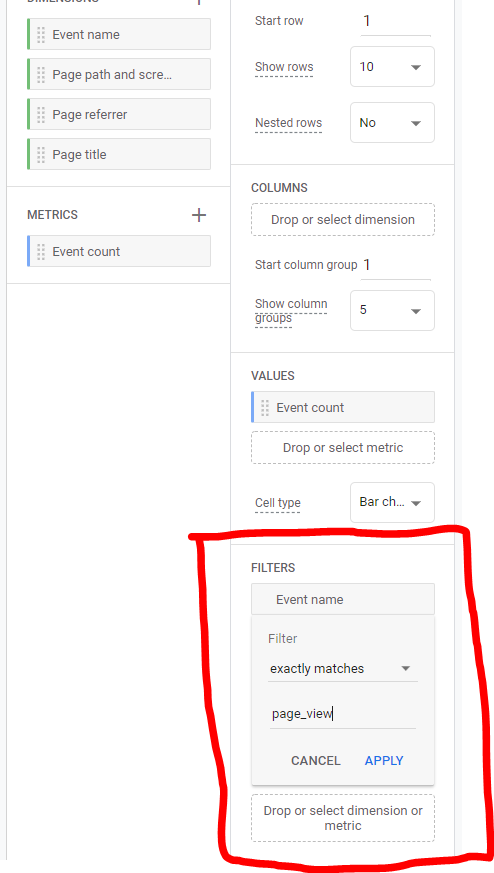 |
9 | Apply filter to the Filters section of second column to that says
Page title
contains
*Insert the name of the 404 page on your website* (So you only see page view events on 404 pages) You can only add filters that were added to your “palette” during step 3 | 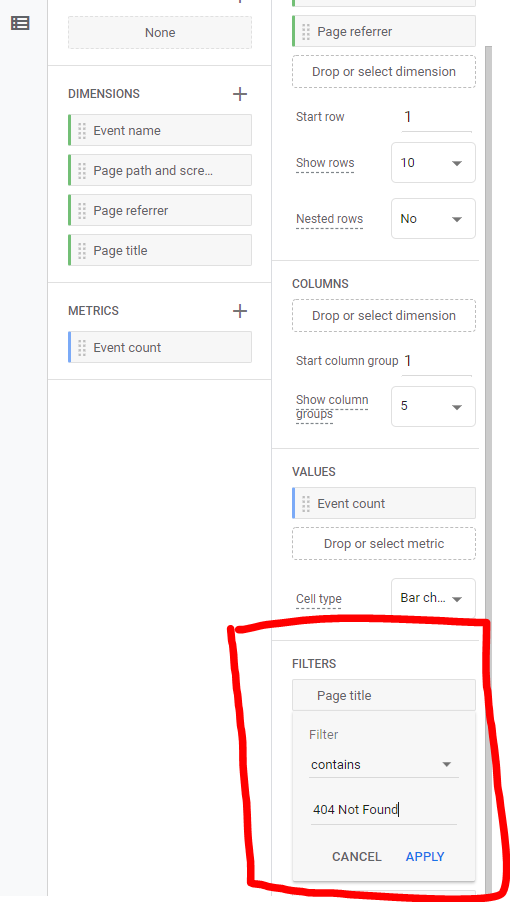 |
10 | OPTIONAL: Increase rows per page in rows section to see all pages | 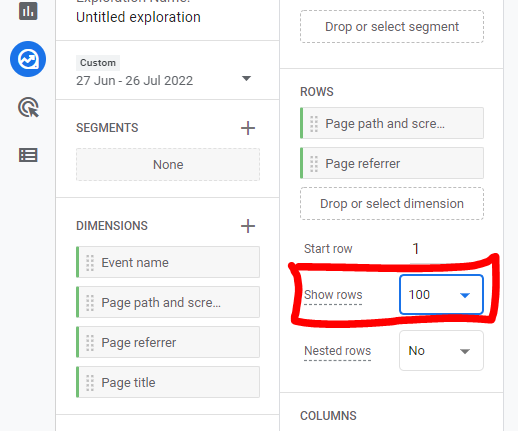 |
11 | Click Export Data in the top right corner of the table to export the table | 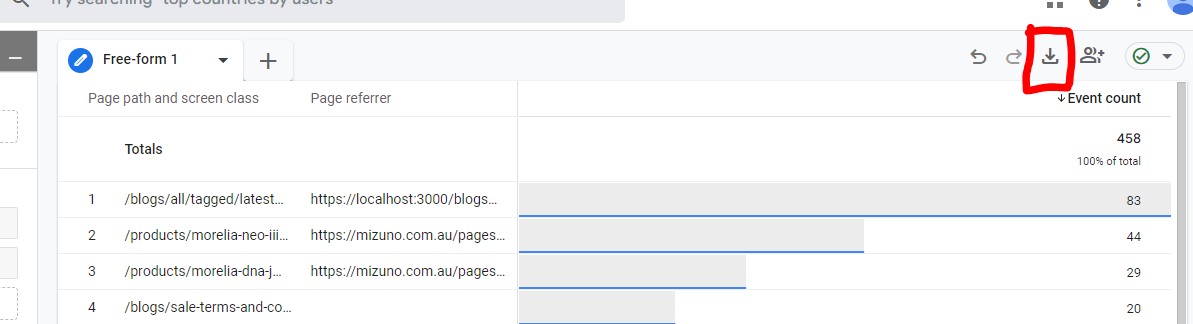 |
Categories:
Documentation
Tools