| Category | GMC |
|---|---|
| Type | Doc |
| Last Modified | 5 December 2025 |
| Location | Guides, SOPs & Policies (GMC) > Internal Guides |
P.E.M. Tool Pre-Audit Upload (Internal Guide) | OCT 2025
This task requires uploading all the necessary raw data into the P.E.M. Tool in preparation for the GMC Audit and all CMS optimisation tasks leading up.
STEPS
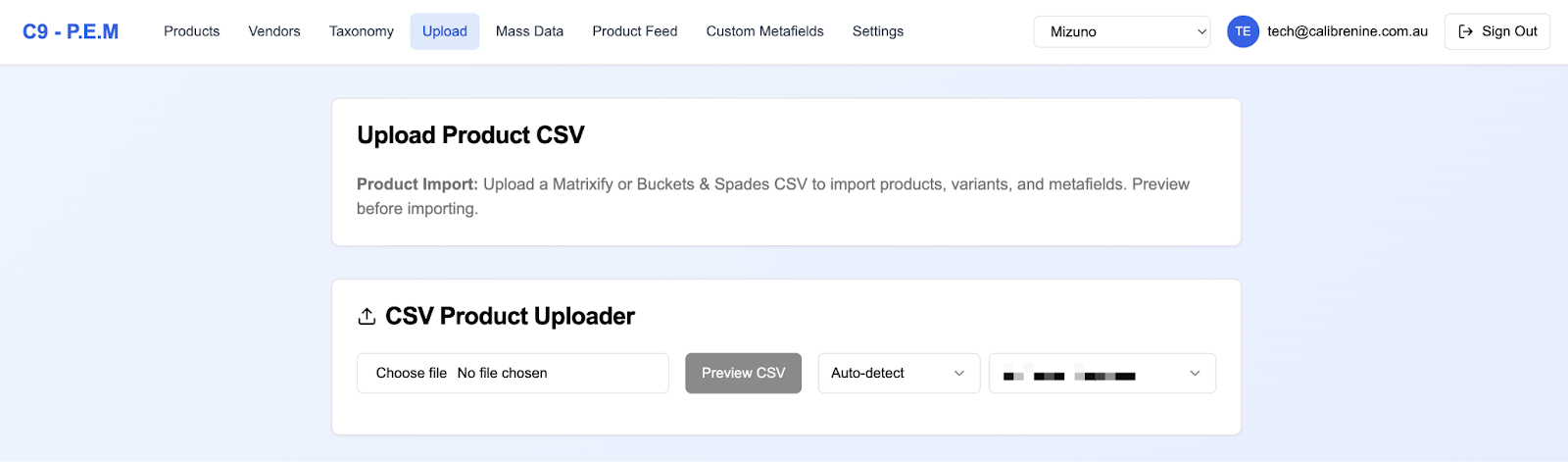
1. Log in to the P.E.M. Tool Dashboard and select the Upload tab
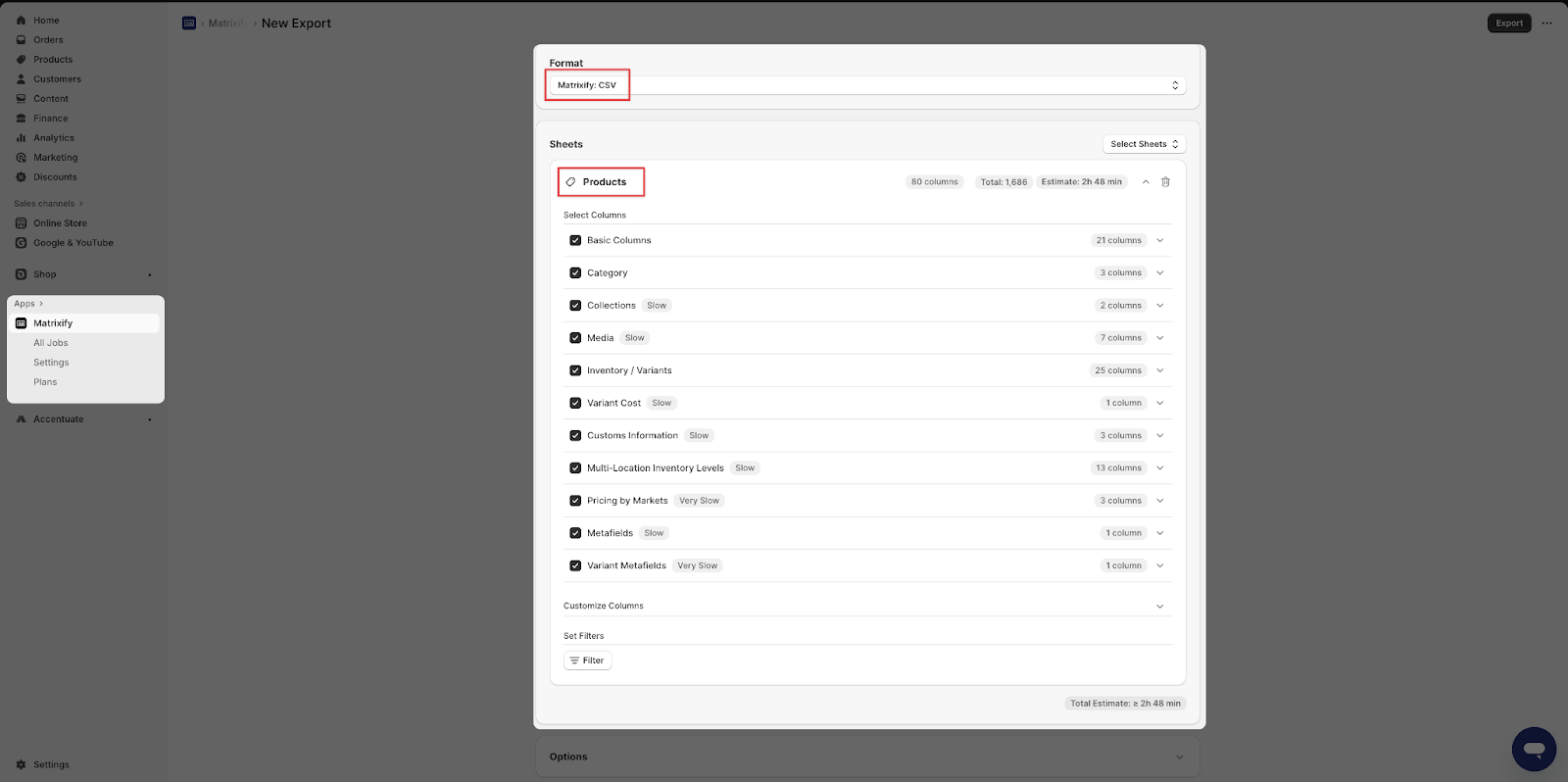
2. Navigate to the client's Matrixify on Shopify and create an export of the all of the Products.
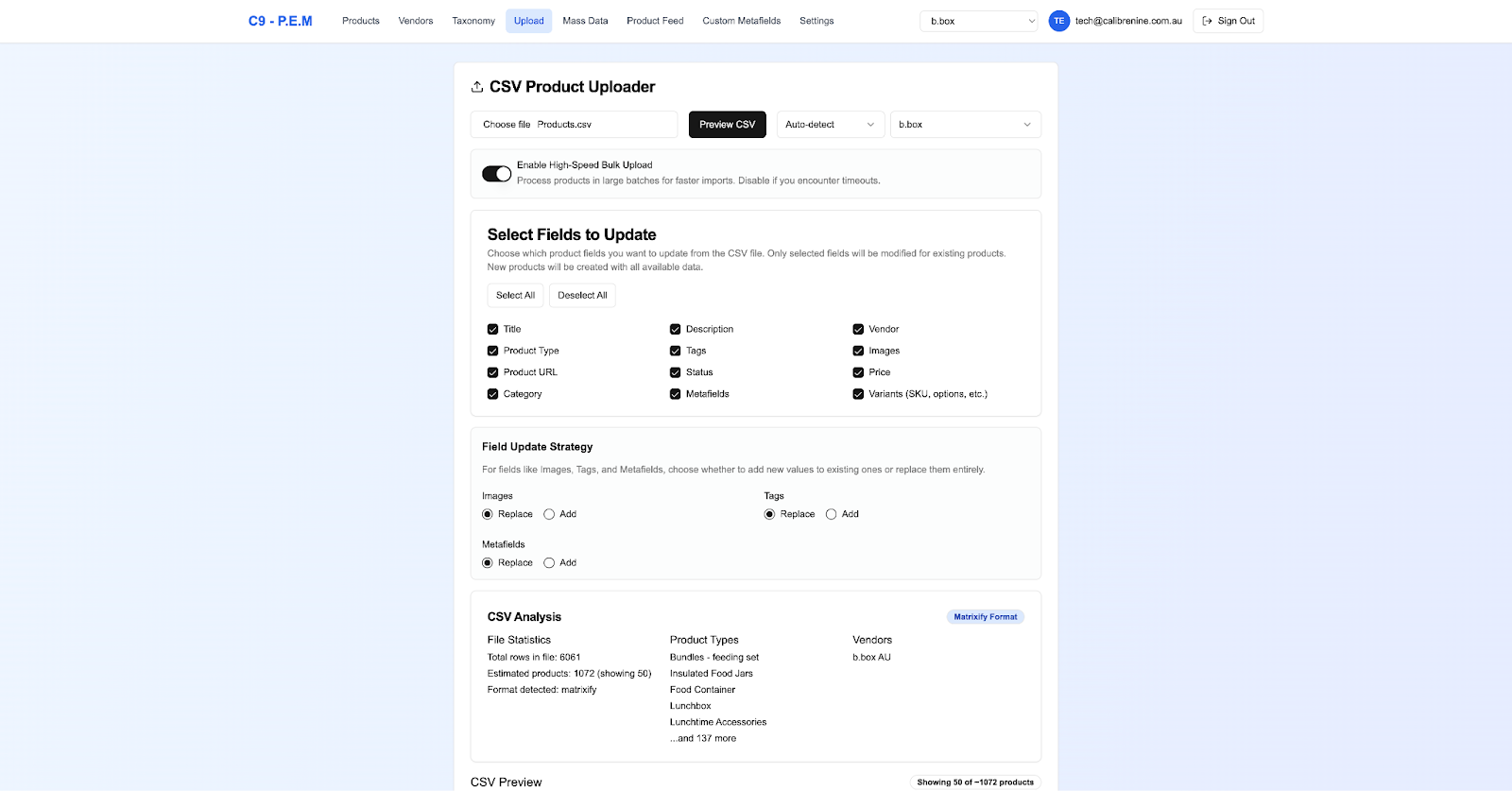
3. Upload the Products CSV to the CSV Product Uploader. Preview it to double check. Select either Auto-detect or Matrixify, and then select the Client. Ensure the following settings have been set. Include a tite for the Version name and a short description.
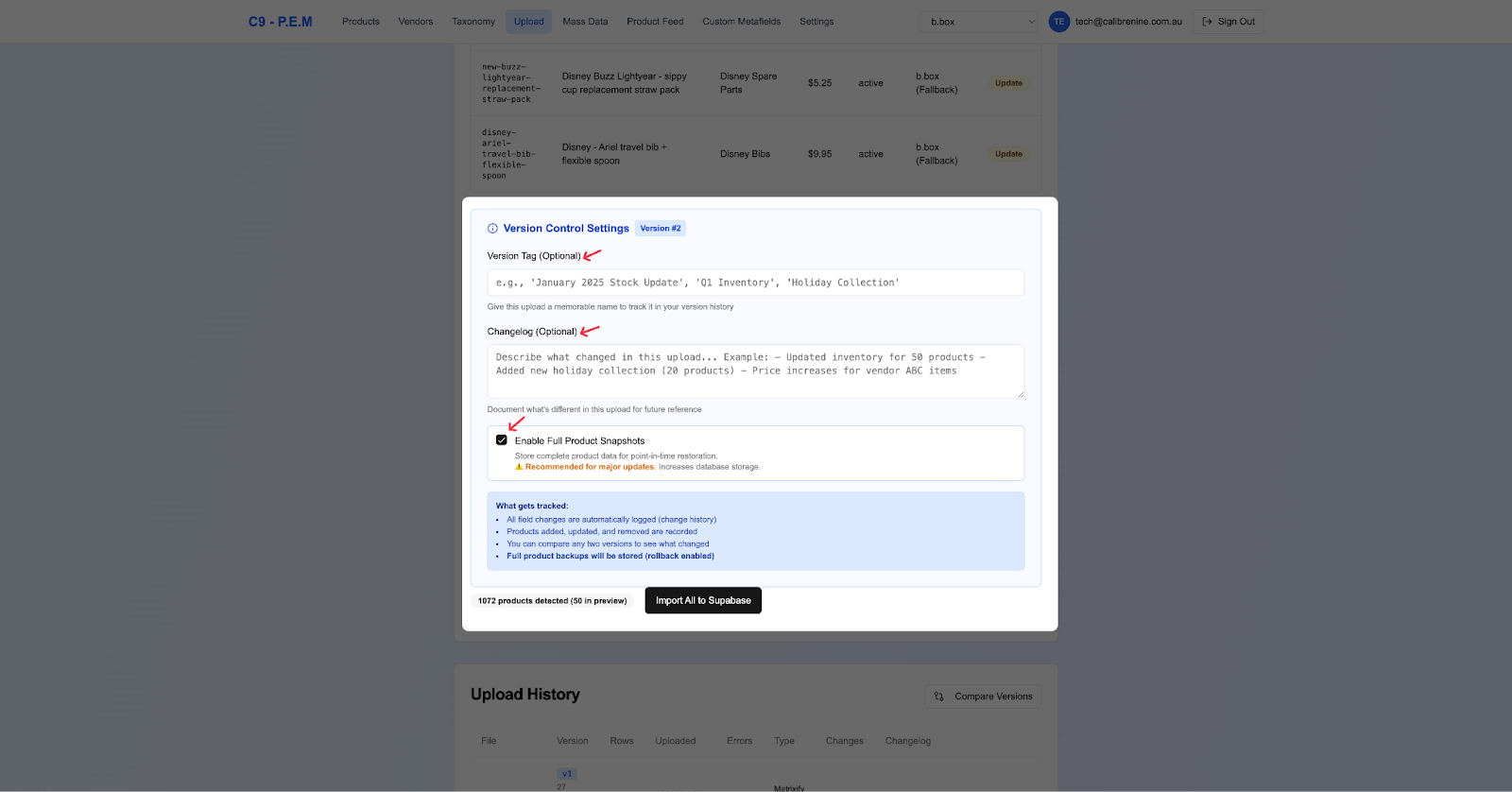
4. Navigate back to the client's Matrixify on Shopify and create an export of all of the Metaobjects.
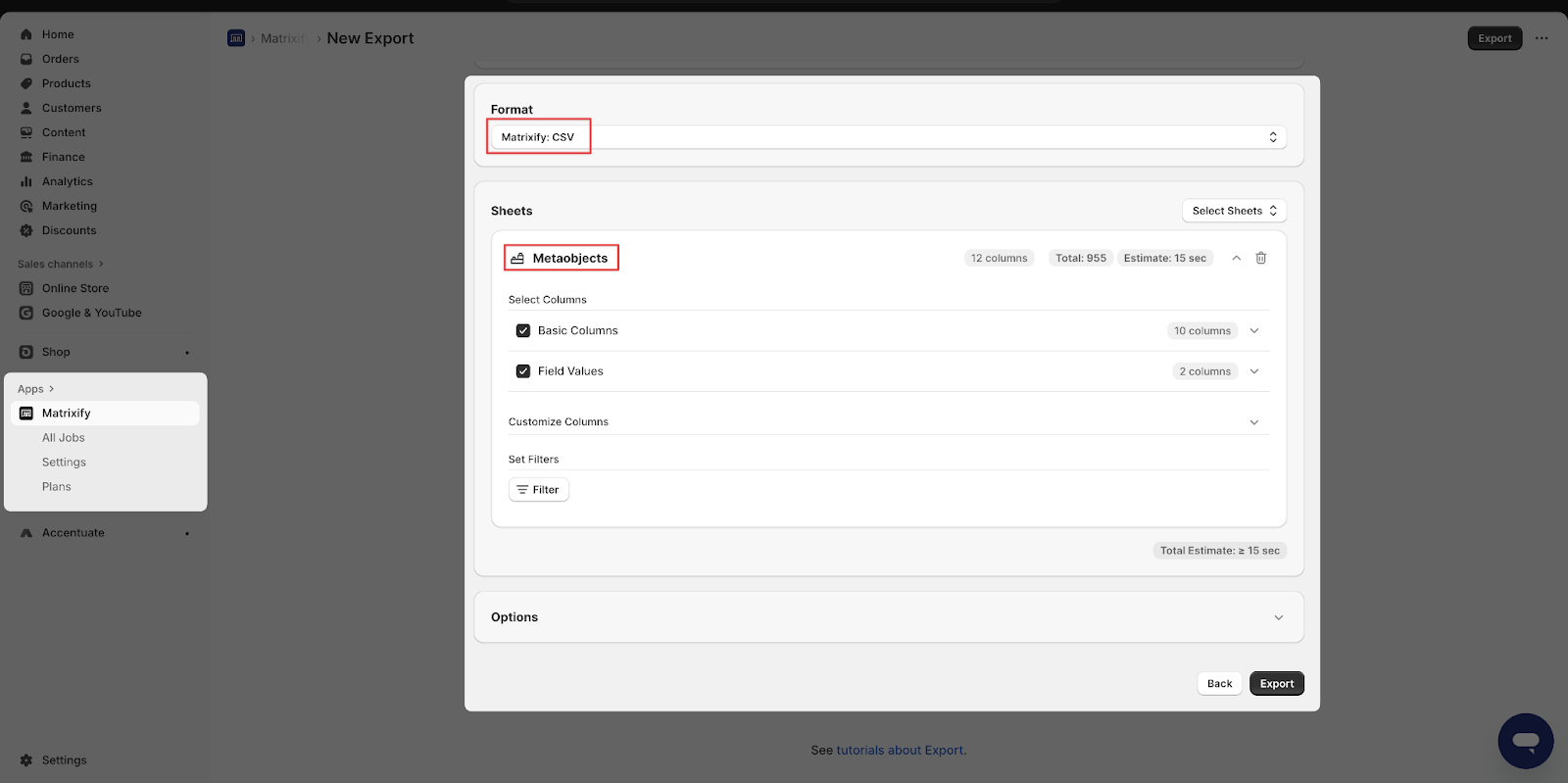
5. Upload the Products CSV to the CSV Product Uploader. Preview it to double check. Select either Auto-detect or Matrixify, and then select the Client.
6. Navigate to the client's Google Merchant Center account > Settings > Data Sources. Select the primary feed then click on Data source setup. Copy the File URL.
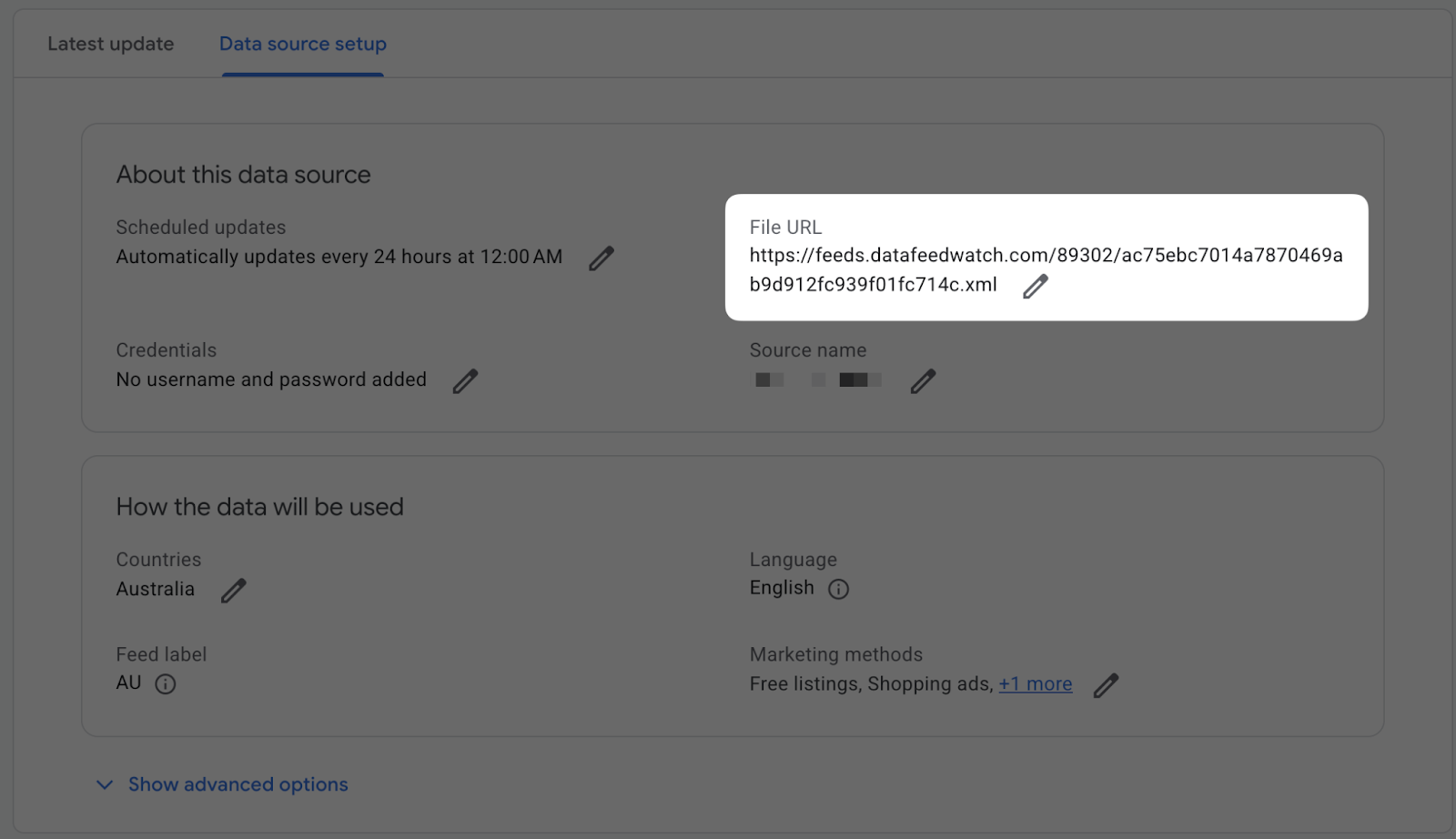
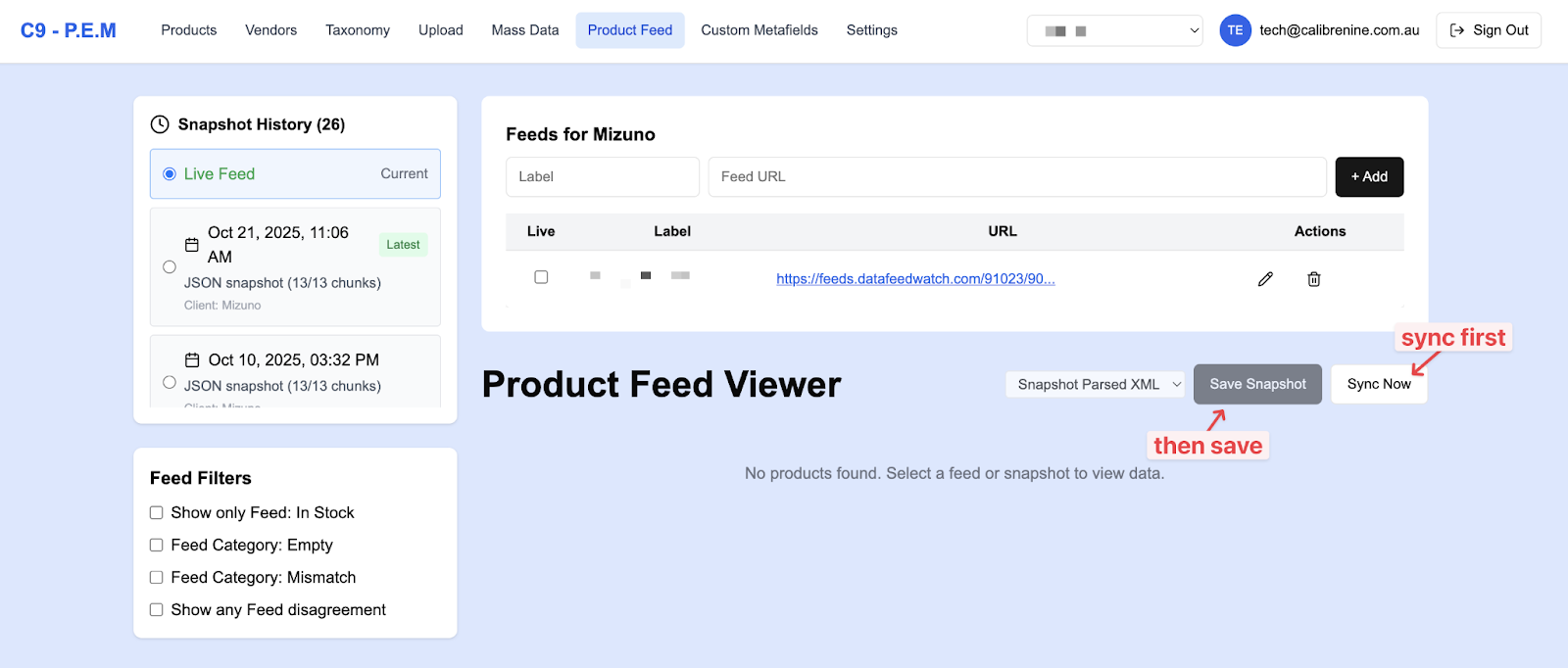
7. Go back to the P.E.M. Tool Dashboard and select the Product Feed tab.
8. Type in the Name of the primary feed as the label, and paste the feed URL you've just copied. Hit Sync Now to allow the tool to sync all the products from the feed and then click Save Snapshot.