Article
Source
Doc
| Category | GMC |
|---|---|
| Type | Doc |
| Last Modified | 18 November 2025 |
| Location | Guides, SOPs & Policies (GMC) > Internal Guides |
Activating a Promotion (Internal Guide) | NOV 2025
From FAQ-Off, the Calibre9 knowledge base
This task involves activating the Promotions feature in Google Merchant Center. It ensures that promotions are properly structured, comply with Google’s eligibility requirements, and are accurately applied to relevant products.
This is relevant for when your client has a PROMO CODE users can apply to get a discount on their products.
Steps
1 | Navigate to your client’s Google Merchant Center account. On the left-hand navigation, select Promotions. | 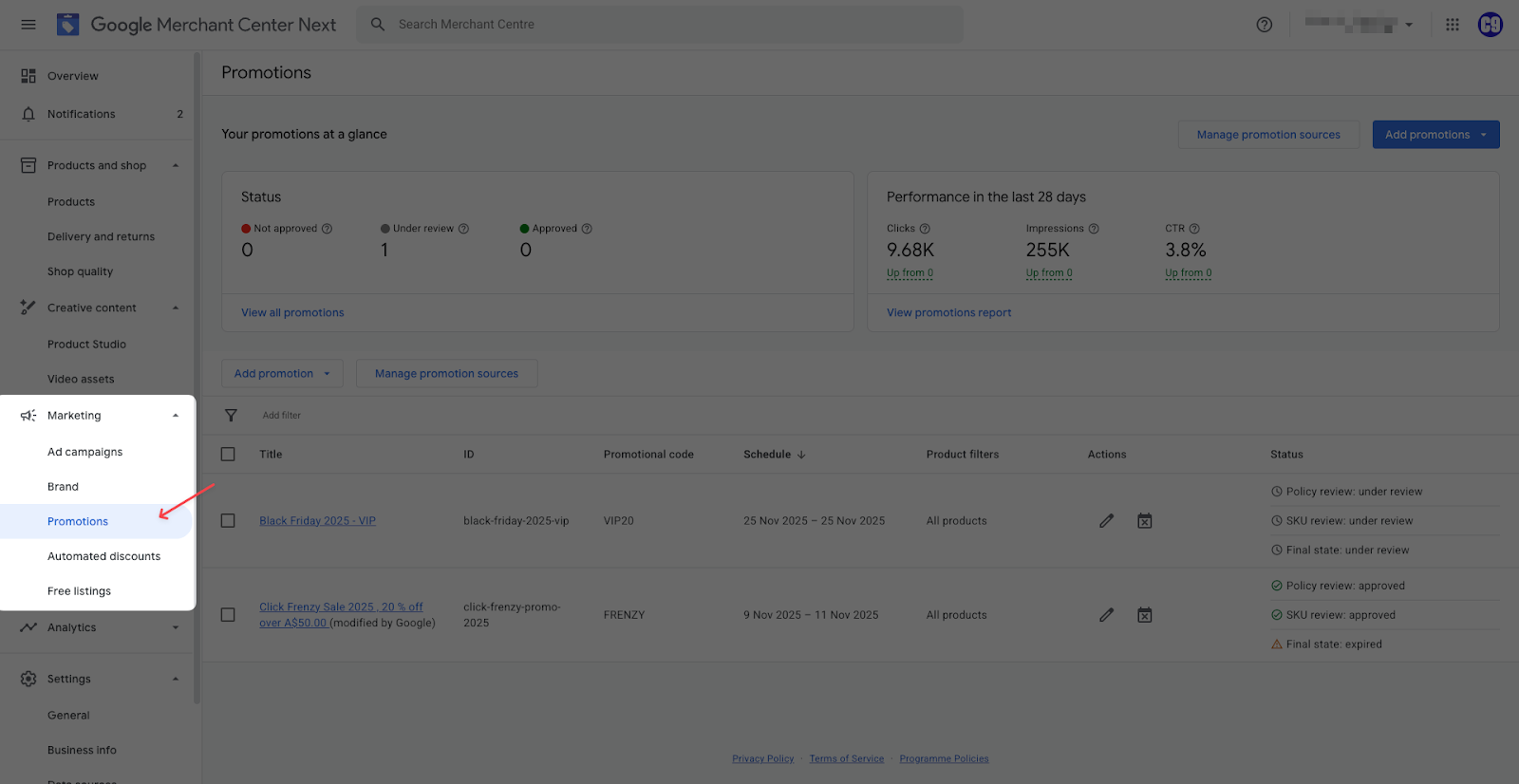 |
|---|---|---|
2 | On the top right corner, click Add promotions then select Create promotion. | 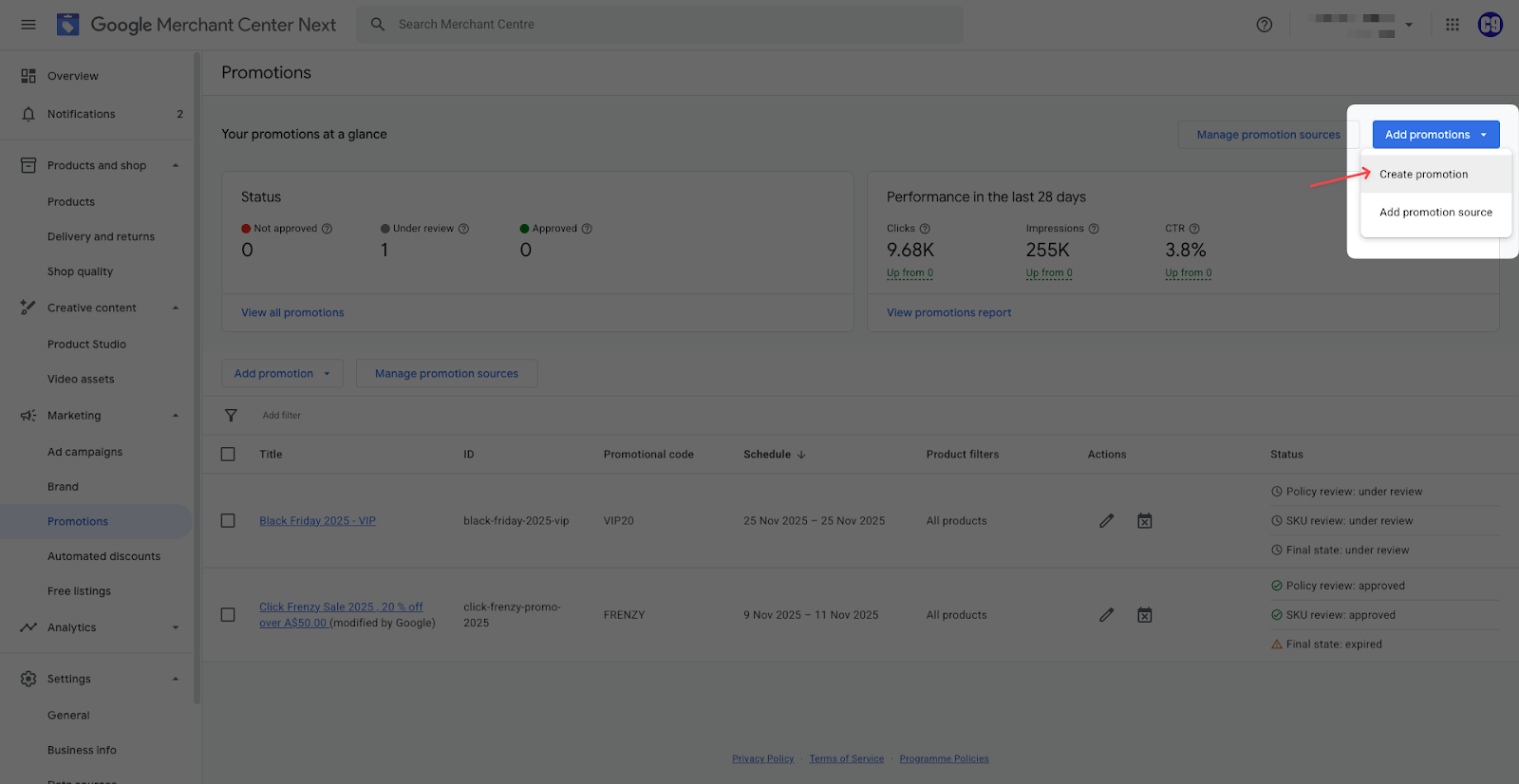 |
3 | Select the Country and Language where the promotion applies to. Add the Start and End Dates, including the Start and End Times. Select where this promotion applies to – if only for the Online Shop or for Physical Shops as well |  |
4 | Add the Shopper incentive, and optional Promotion conditions if applicable. Hit Next to save. | 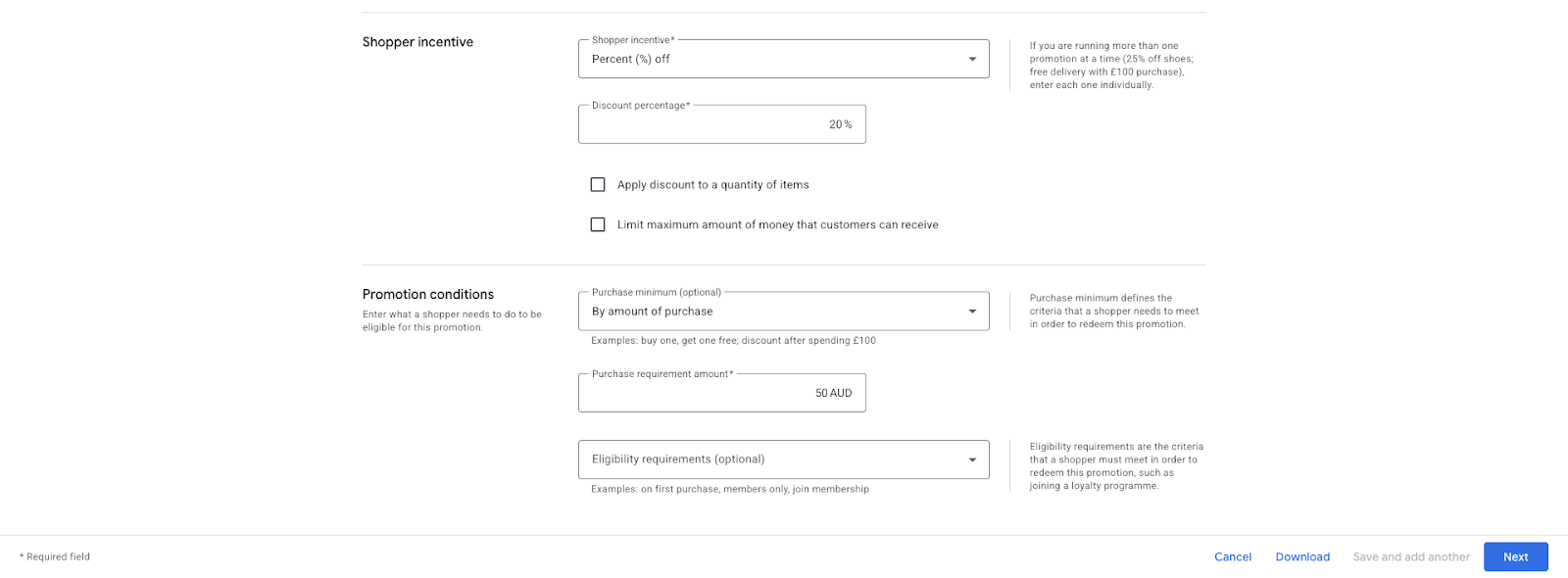 |
5 | Select which products the client will be running the promotion for. In most cases, you would select Promote all products. Add in a Title for your promotion with a name that is easily distinguishable, as well as an associated Promotion ID (this won’t be shown to customers, only for our internal tracking purposes) Then finally, add the Promo code customers need to use to redeem the promotion. Hit Save to finish. |  |
6 | It will take about 15 mins for the newly created Promotion to show up. When it does, the status should show that it is Under review. Check back in again for when it’s been approved. |  |
Categories:
GMC
Guides, SOPs & Policies (GMC)