Article
Source
Keyword Tool Guide
From FAQ-Off, the Calibre9 knowledge base
| Introduction | |
Intro | This is a guide for my keyword tool. The tool is intended as a stopgap solution while our software team focuses on more urgent work. I expect it to be replaced by a functionally similar but breathtakingly beautiful tool at some point. This tool excels at:
This guide and tool are maintained by Lachlan Cowie. Please shoot me a message or come have a chat if you have any issues or suggestions. |
| Tool Setup | |
Set-up | Installing this tool is a bit annoying because it’s so cool that Steve Jobs’ ghost doesn’t want you to have it. Follow the instructions carefully. First, download the tool from our drive:
→ Go to your Downloads folder → Double click on the file to uncompress it. → Click on the file to open it. → It will say “Not Opened”. This is normal for some reason. Click Done. 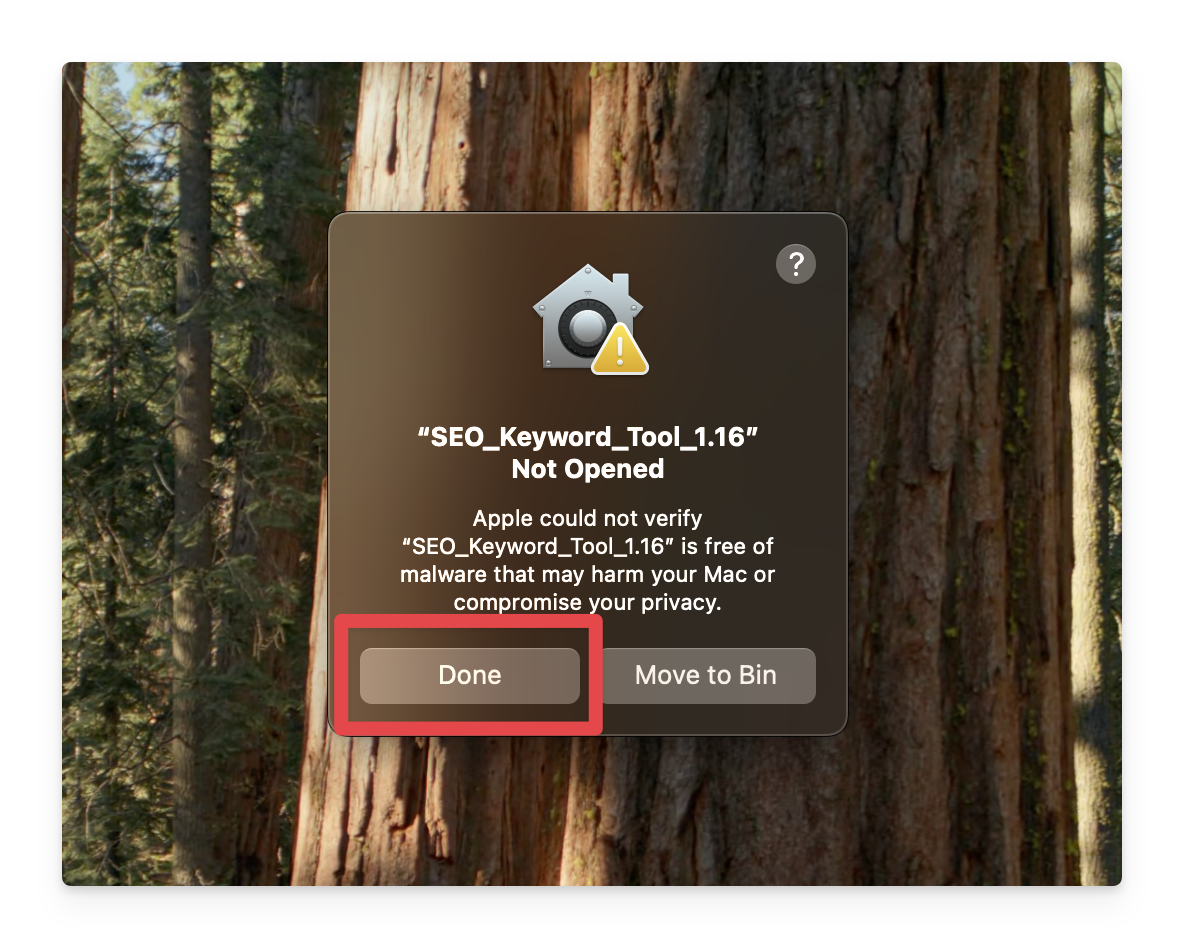 → Open the settings for your computer. Go to the Apple menu (top left) →Click on System Settings...
→ Scroll down in the sidebar and select Privacy and Security
→ Scroll down in the main window, and you should see a notice “SEO_Keyword_Tool” was blocked to protect your Mac.
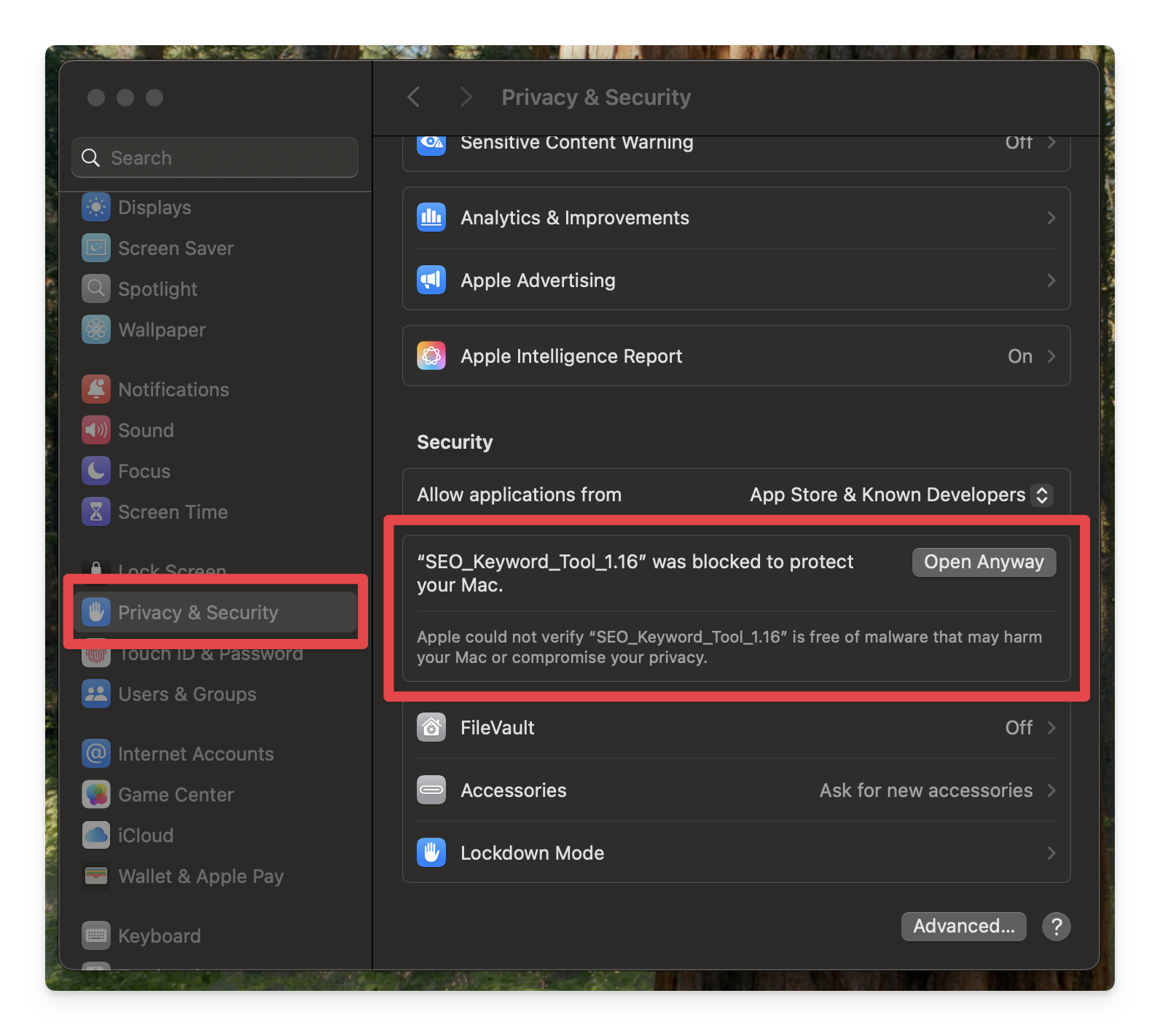
→ Click Open Anyway
→ In the popup, click Open Anyway again → Enter your password in the new popup → The app will launch now. It may take 30 seconds.
You will only need to go through this process once. Every other time you should just be able to click on the application. |
| Data Inputs | |
Intro | The tool takes two data inputs, cannibalisation data from Looker Studio and competitor data from Ahrefs. |
Cannibalisation Export | → Select the website you want to analyze using the dropdown at the top. → Hover over the table and click the menu (three dots) 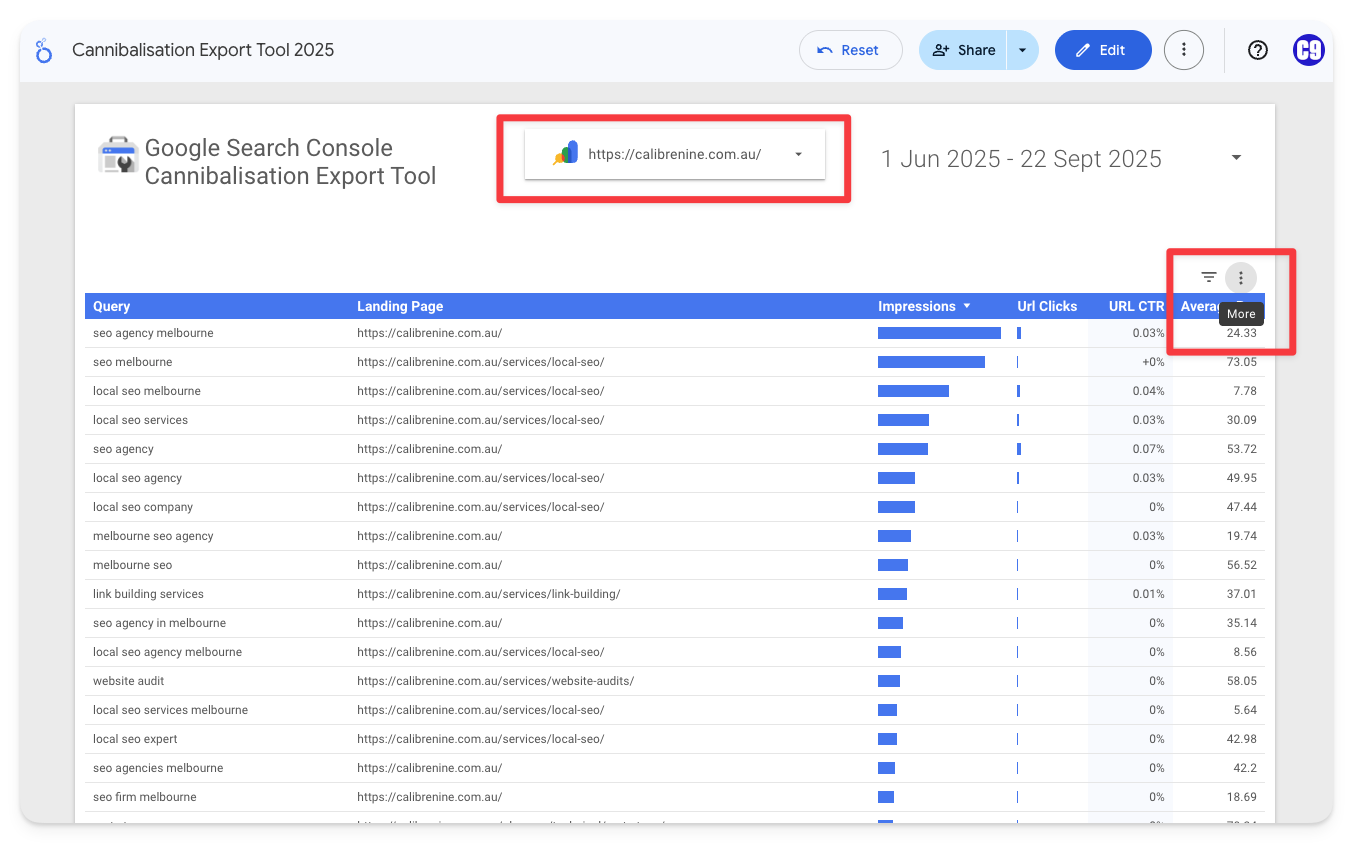 → Click Export
|
Ahrefs Competitor Data | → Log in to Ahrefs → Click on Competitive Analysis in the navigation bar → Enter your domain in the top box → Click on the inputs for the competitors, and add the suggested competitors with the highest keyword crossover. 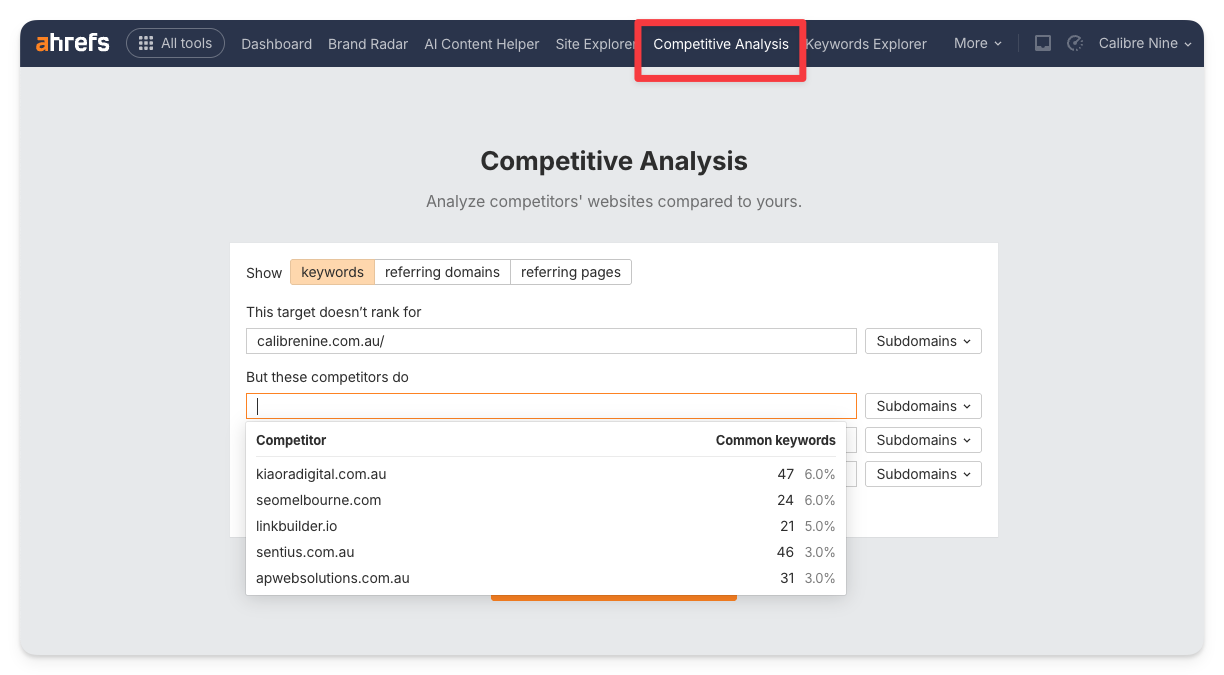 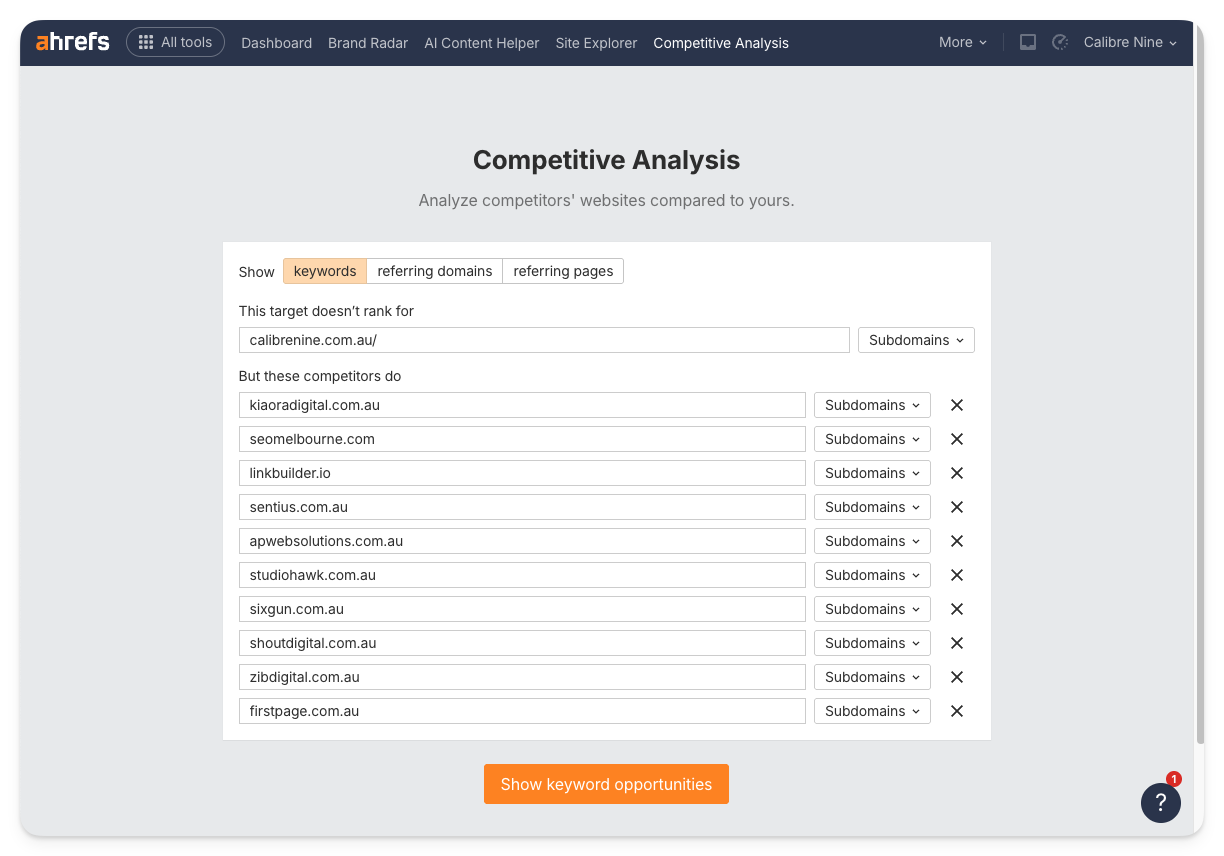 → Once you’re happy with the pool, click Show keyword opportunities
→ Remove the no rank filter from the results →Click Export
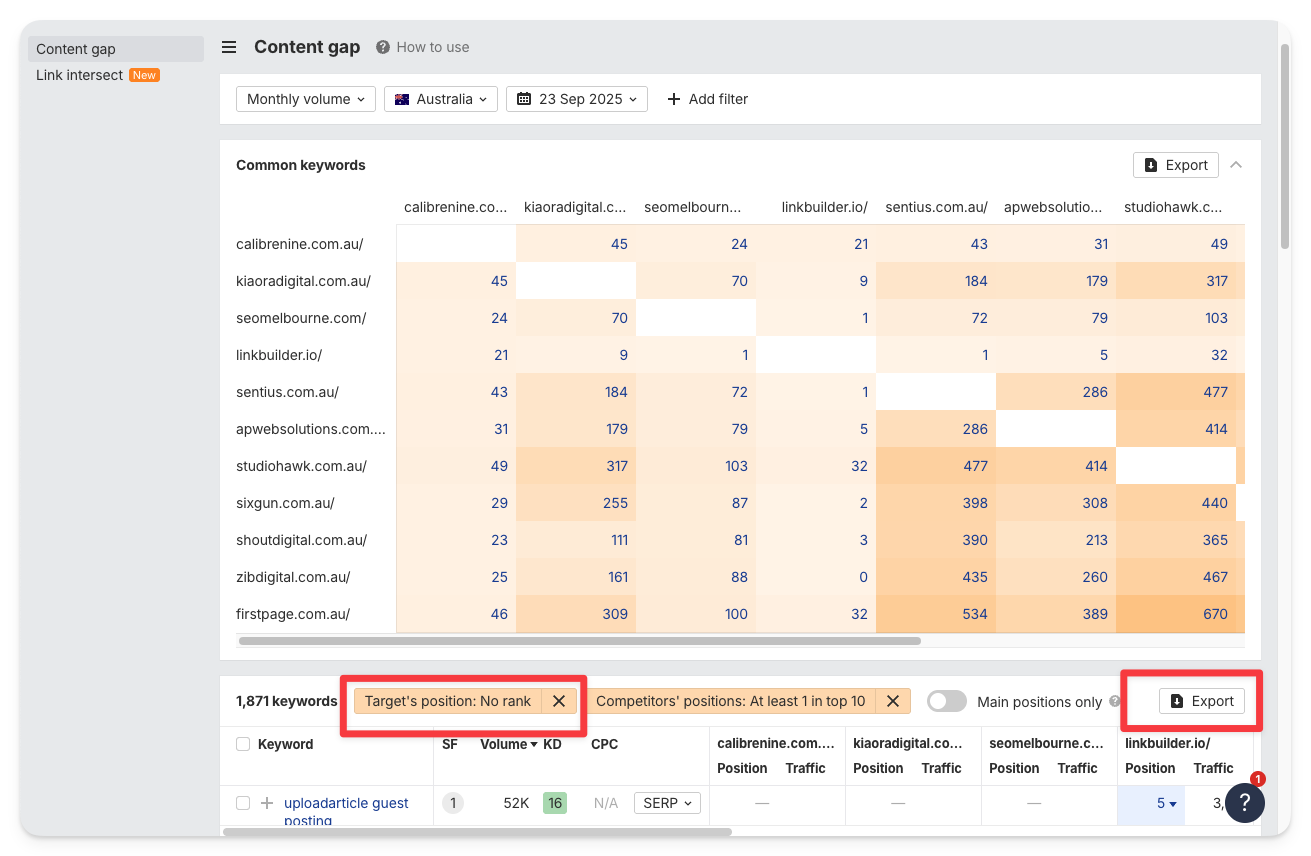 |
| Using the Tool | |
Uploading the Data | → Open the Tool → Add the Looker Studio data to the Cannibalisation Export CSV input. You should see the tables become populated. → Add the Ahrefs data to the Ahrefs Competitor Data CSV input. |
Keywords | Current Keywords
This table lists all of the current keywords for your site. It’s particularly useful for finding non-branded keywords with a high level of cannibalisation. High cannibalisation may indicate that two or more of your pages are too similar in terms of topic, copy or intent. This can leave Google unsure which page to serve to users for that intent, and cause it to serve different pages at different times. As a result, the pages will split user data and neither page will rank as well as a single page could have. Metrics:
Keyword Details
This table lets you use a dropdown to examine a particular keyword. It’s useful for working out which pages are responsible for cannibalisation. It’s also useful for looking at the Clicks, Impressions, CTR and Average position of your pages for a keyword. CTR and Average position are not useful metrics unless they are for a specific page + keyword combination (like in this tool). Controls:
Metrics:
|
Pages | Current Pages
This table shows all of the currently ranking pages on your site. It is useful for working out how many queries each page is ranking for, and which pages are driving the most clicks and traffic. Metrics:
Page Details
This table shows the keywords for the selected page. It is useful for working out which queries are currently driving traffic to that page, but also for “Striking Distance Keywords” - working out which keywords are close to driving more traffic with the page was slightly more optimised. Controls:
Metrics:
|
Competitor Keywords | Competitor Keywords
This table shows the keywords your competitors are currently ranking for. It’s useful for discovering new topics and intents that you are currently missing a page for. Metrics:
Competitor Keyword Details
This table shows which competitor pages are ranking for the selected keyword. It’s good for analyzing the intent of that keyword, and working out what kind of content would be required for ranking. Controls:
Metrics:
|
Competitor Pages | Competitor Pages
This table shows the currently ranking competitor pages and their estimated performance. It’s useful for finding your competitor’s top performing pages to discover successful and popular kinds of content that you may be missing. Metrics:
Competitor Page Details
This table shows which keywords the currently selected competitor page is ranking for. It’s useful for discovering which specific keywords are driving the engagement of popular pages, so that you can specifically target those keywords when you make your own content. Controls
Metrics:
|
Keyword Groups | Keyword Groups
This page groups the keywords into topics/intents based on the pages that they share. It is useful for working out how information should be grouped on your site and pages. It has become increasingly important over the past few years to optimise for a topic and intent over just a specific keyword. This is often done by addressing related concepts and FaQs on the same page (over the traditional keyword-spamming Grandma used to use). Metrics:
Keyword Group Details
Controls:
Metrics:
How does this work?
This tab attempts to form keywords into groups by identifying common landing pages between the keywords. It is a rudimentary method for attempting to reverse-engineer the connections in Google’s Knowledge Graph (their map of all entities). Because it relies on crossover pages, it will become more accurate if you give it a larger number of competitors. But how does this really work?
The program is building a matrix of all of the keywords in its data set against every other keyword. It’s then considering a crossover page as a vertex between the keywords. Once it has the table, it uses it in a Louvain community detection algorithm. The method groups the nodes (keywords) into communities, and a node is only added to a community if it improves the density of the community (how interconnected the nodes are). Feel free to try it for yourself using this fun and simple formula: Q = 1/(2m) * Σᵢⱼ ([ Aᵢⱼ — kᵢkⱼ / (2m)] * δ(cᵢ, cⱼ)) |
Categories:
Documentation
Tools